Where is the reply to my ticket?
Zaras replies inside the ticket, under Help & feedback, and emails the reply to the person who sent it. To send a ticket, see Get help from Zaras.
Read and answer the reply
- Open Help & feedback in the sidebar, or under More in the app.
- Press the Answered tab, or tap it in the app.
- Open the ticket.
- Type your answer in the box below the messages.
- Press Send reply, or tap it in the app.
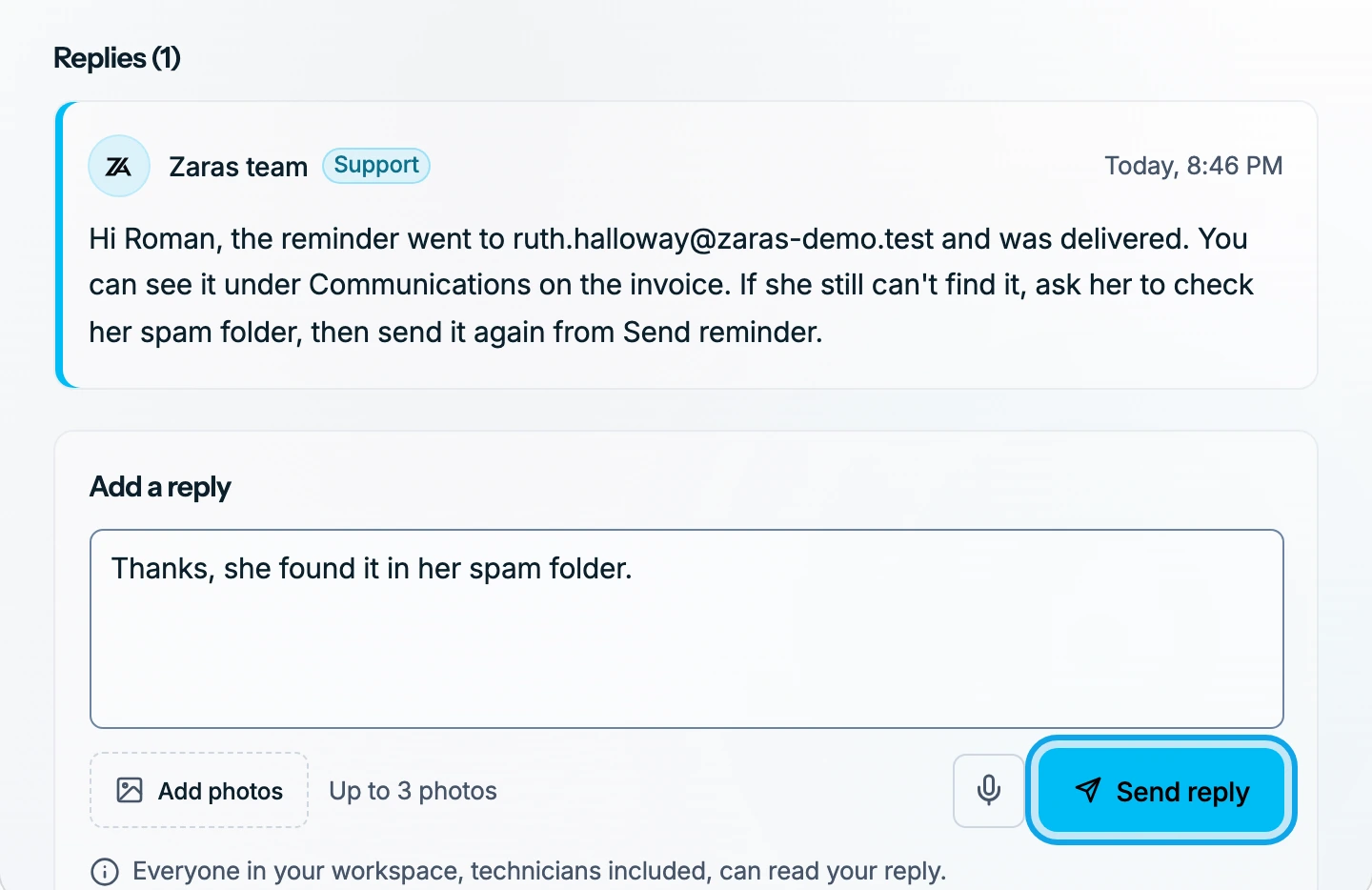
What you see
Reply sent confirms your answer, and the ticket moves back to Open with Waiting for a reply from Zaras. A new reply from Zaras shows four ways:
- On the web, a count on Help & feedback marks new replies.
- In the Zaras app, a dot on Help & feedback under More marks them.
- The person who sent the ticket gets the reply by email.
- In the Zaras app, a push notification reads Reply from Zaras.
The ticket is closed
A closed ticket says This ticket is closed. Press Reply and reopen, or tap it in the app. Then send with Send & reopen.
A photo won't attach
Up to 3 photos per message means the message already holds three. Send the reply, then add the rest in another.
Who can do this
Every member can read tickets and reply to them. No permission is needed.