Start and complete a visit
On the web, choose Start visit on the job's visit, then Complete visit when the work is done. Completing logs the hours, and a completed visit can't be reopened.
Technicians do this in the Zaras app: clock in, then get a signature and complete the visit.
Start and complete a visit on the web
- Open the job and scroll to its Visits card.
- Press the three-dot button on the visit's row.
- Choose Start visit.
- When the work is done, choose Complete visit from the same menu.
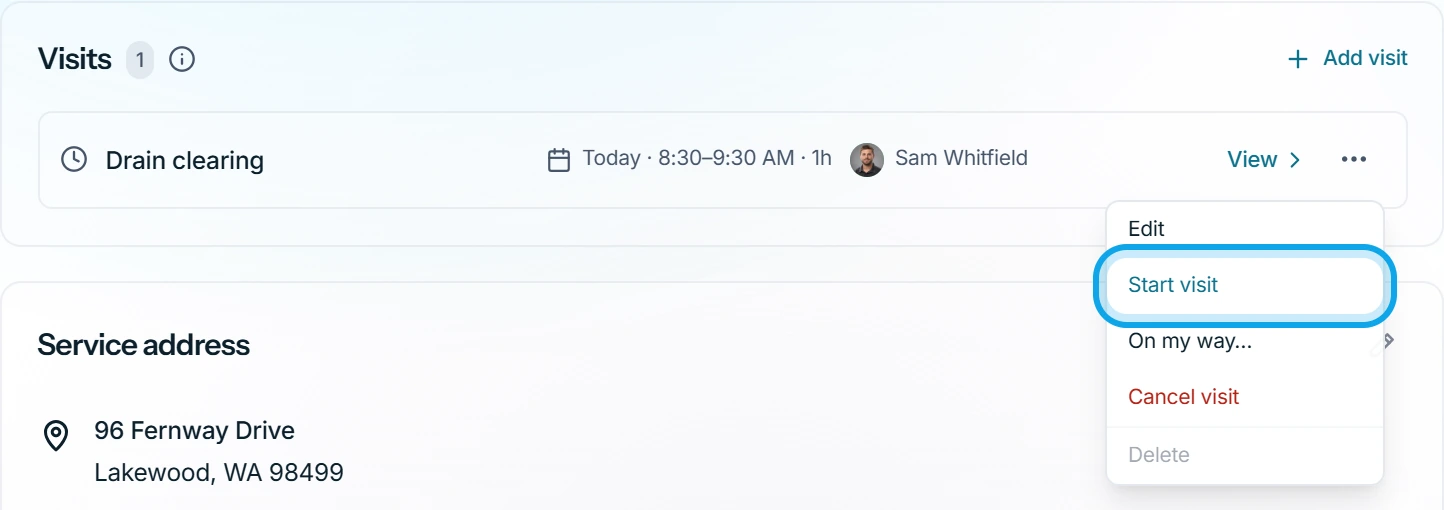
Start visit and Complete visit also sit at the top of the job while that visit is next.
What you see
Visit started confirms the start, and the visit reads In progress. Visit completed confirms the end. The assigned technicians get draft timesheet entries.
When every visit is done, the job shows All visits complete: complete the job.
Started by mistake?
Press Mark not started at the top of the job. The job returns to active, and its planned visits stay scheduled.
Cancel a visit instead
Choose Cancel visit from the same menu for a visit that won't happen. The job's other visits stay.
Who can do this
Visits need Manage schedule. Owners, admins, office and technicians hold it by default. Others ask an owner or admin under Settings → Team & roles → Roles.