Turn a customer email on or off
Each automatic customer email has its own switch under Customer notifications. Off stops it for every customer, and the email list names them all.
Turn an email on or off
On the web:
- Open Settings → Communications → Customer notifications.
- Press the switch on the email's row.
In the Zaras app:
- Open More → Settings → Customer notifications.
- Tap the switch on the email's row.
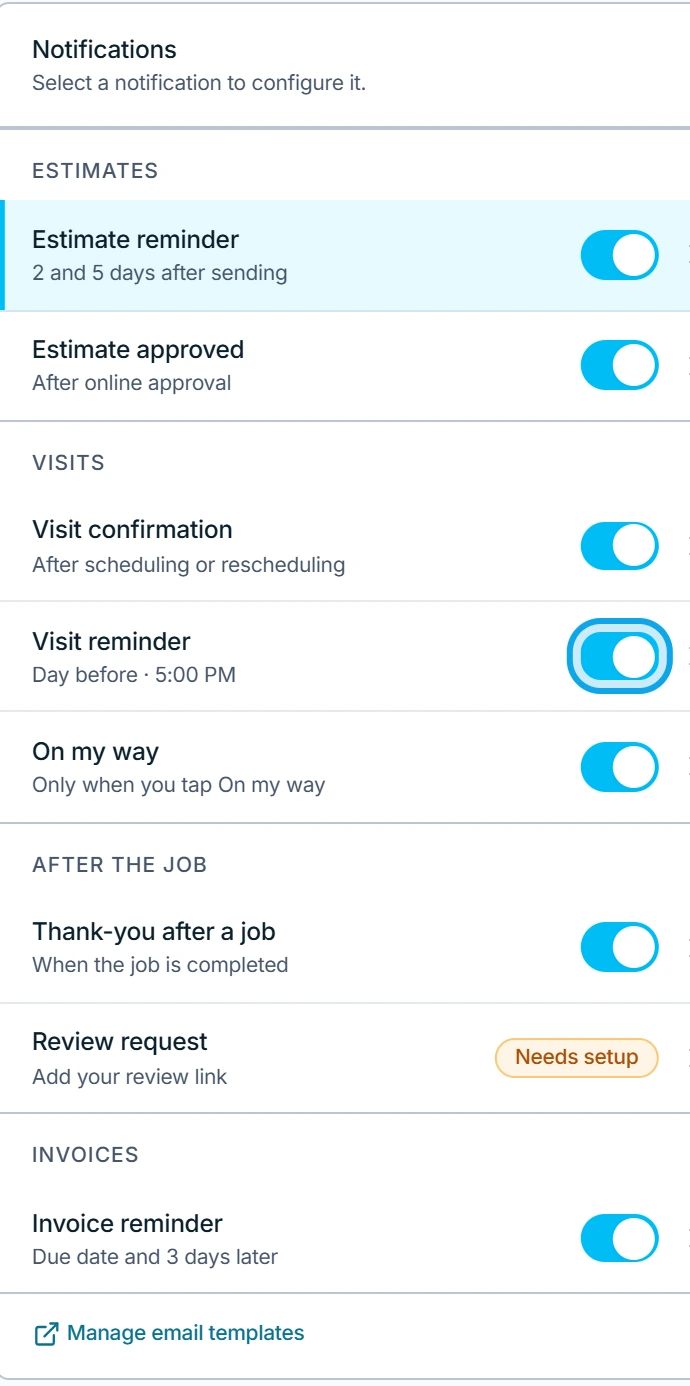
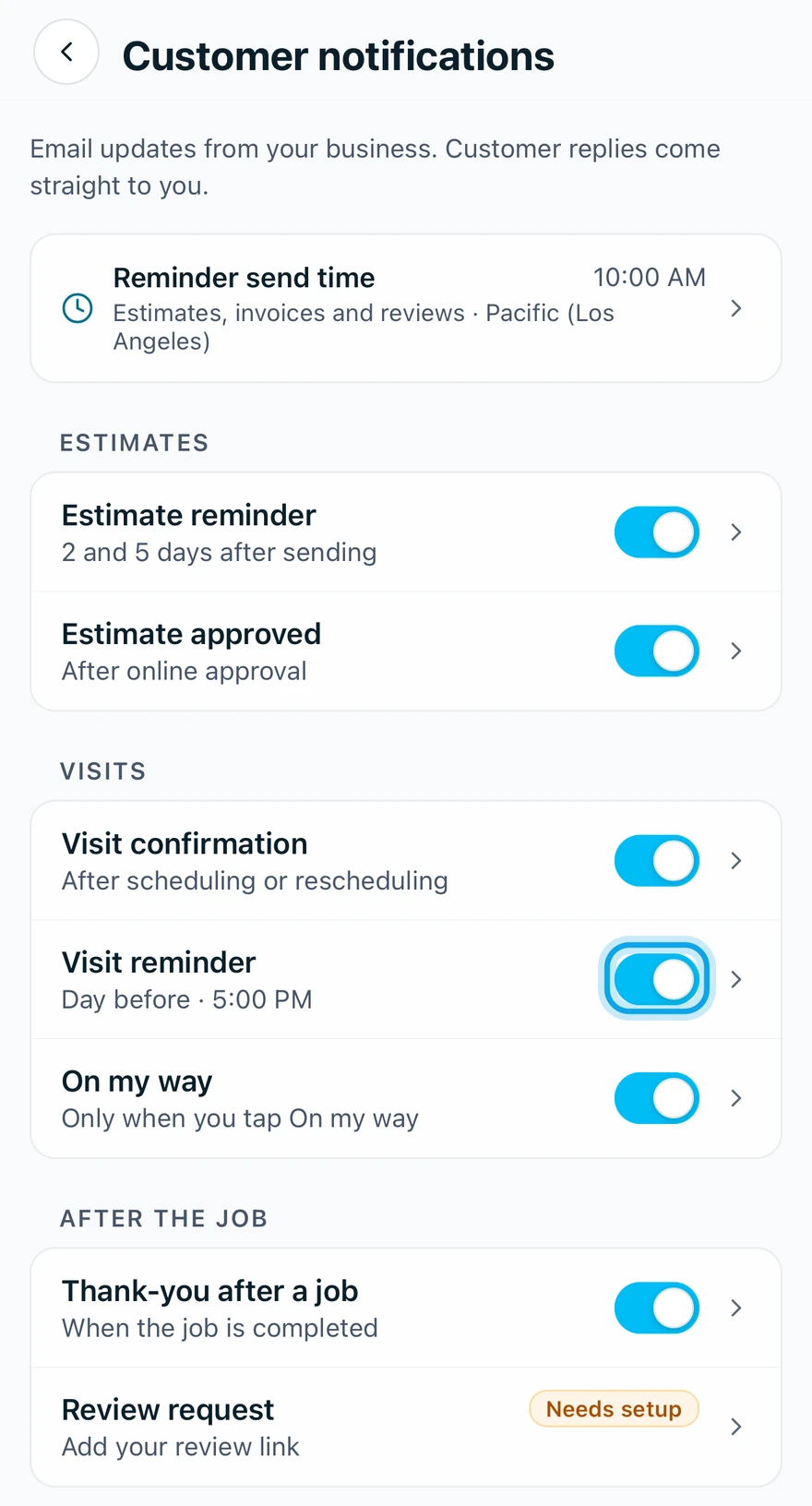
What you see
A message such as "Visit reminder turned off. Customers won't get this email." confirms it. On the web, the email's page reads Off. Customers don't get this email.
Reminders already planned stop too. Turn the switch back on to start again.
Change when reminders go out
Reminder send time at the top sets the hour for estimate and invoice reminders and review requests, in your workspace time zone. Visit reminders keep their own times.
- Press Reminder send time, or tap it in the app.
- Choose the hour.
- In the app, tap Apply time.
To change how many days an email waits, use the schedule on its page, or When to send in the app.
Review request says Needs setup
The row says Needs setup, and its page says Not sending yet. Open Review request, paste your review link and press Save and enable.
Who can do this
Changing customer emails needs Manage business settings. Owners and admins hold it by default. Others ask an owner or admin under Settings → Team & roles → Roles.