Create a calendar feed link
Create a feed in Zaras settings, then paste its link into your calendar app. The feed carries customer names and addresses, so treat its link like a password.
Create the feed
- Open Settings → Scheduling → Calendar feed on the web, or More → Settings → Scheduling → Calendar Feed in the Zaras app.
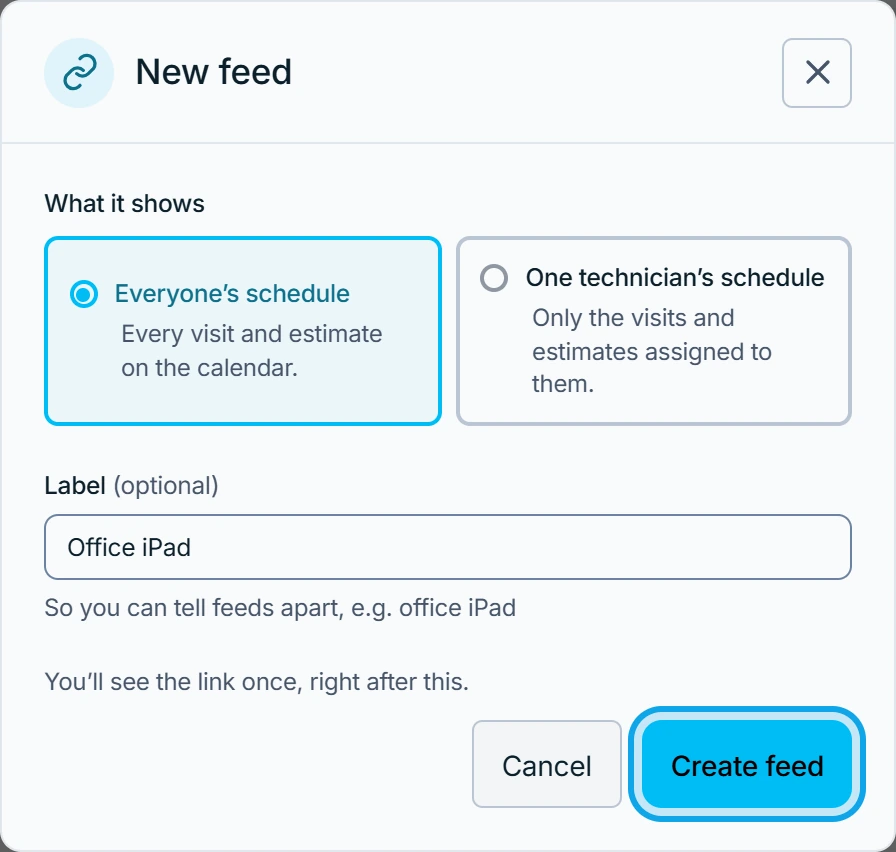
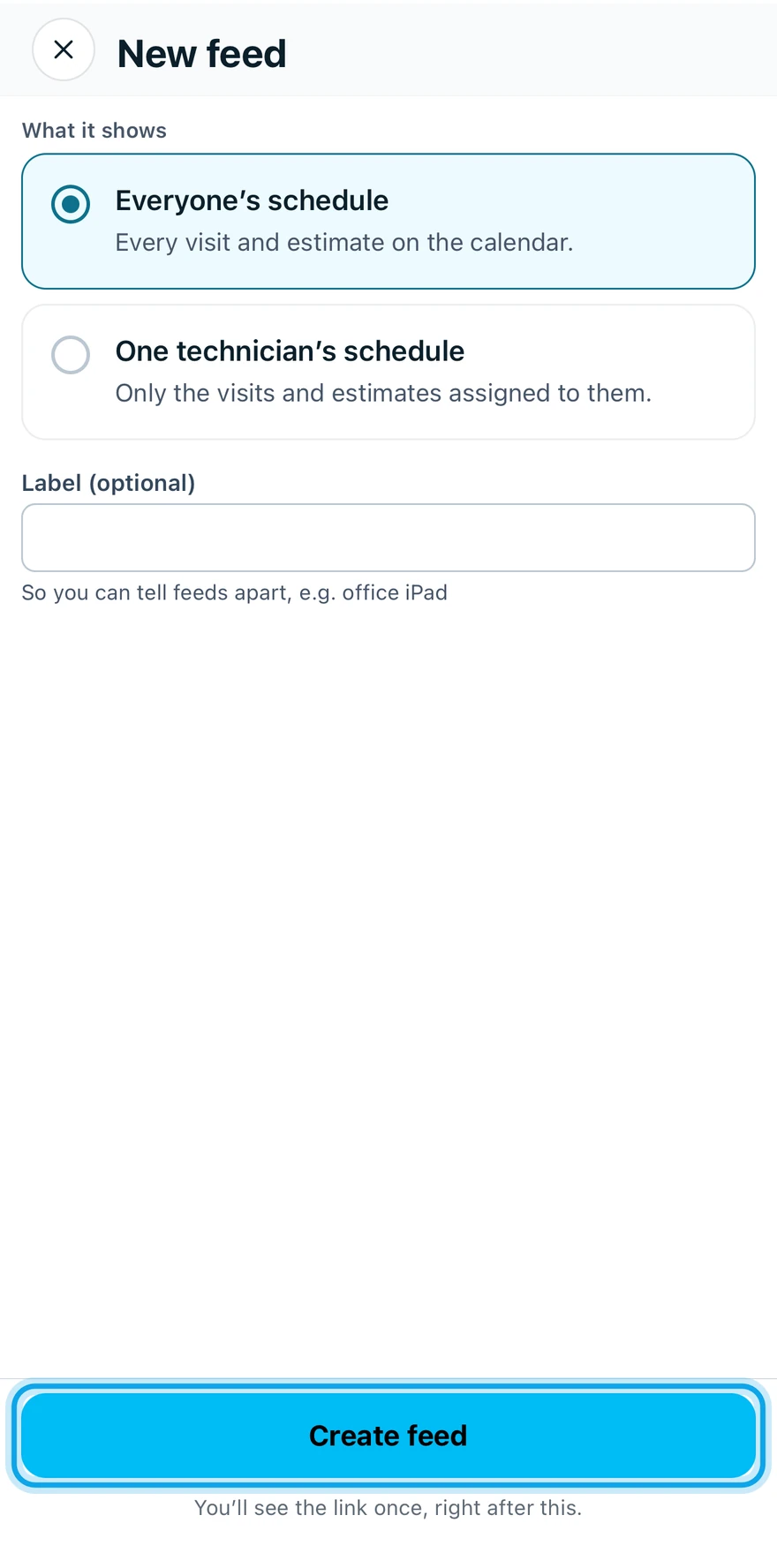
- Press New feed.
- Under What it shows, pick Everyone's schedule or One technician's schedule.
- Add an optional Label, such as "office iPad".
- Press Create feed.
What you see
The link appears once, under Your feed link. Zaras can't show this link again. If you lose it, rotate the feed for a new one.
- Press Copy link, or tap Copy link or Share in the app.
- Paste it in your calendar app:
- Google Calendar: Other calendars → + → From URL.
- Apple Calendar: File → New Calendar Subscription.
- Outlook: Add calendar → Subscribe from web.
Everyone's schedule holds every visit, estimate and event. A technician's feed holds only what is assigned to them. Changes made in the calendar app don't come back.
Who can do this
Only members who can manage general settings can see or change feeds. That is Manage business settings, held by owners and admins by default. Others ask an owner or admin.