Change the report date range
Every report view reads one date range, chosen at the top of Reports. It starts on This month.
Change the range
- Open the date range button at the top of Reports.
- Pick Today, This week, Last week, This month, Last month, This quarter, Last quarter or YTD.
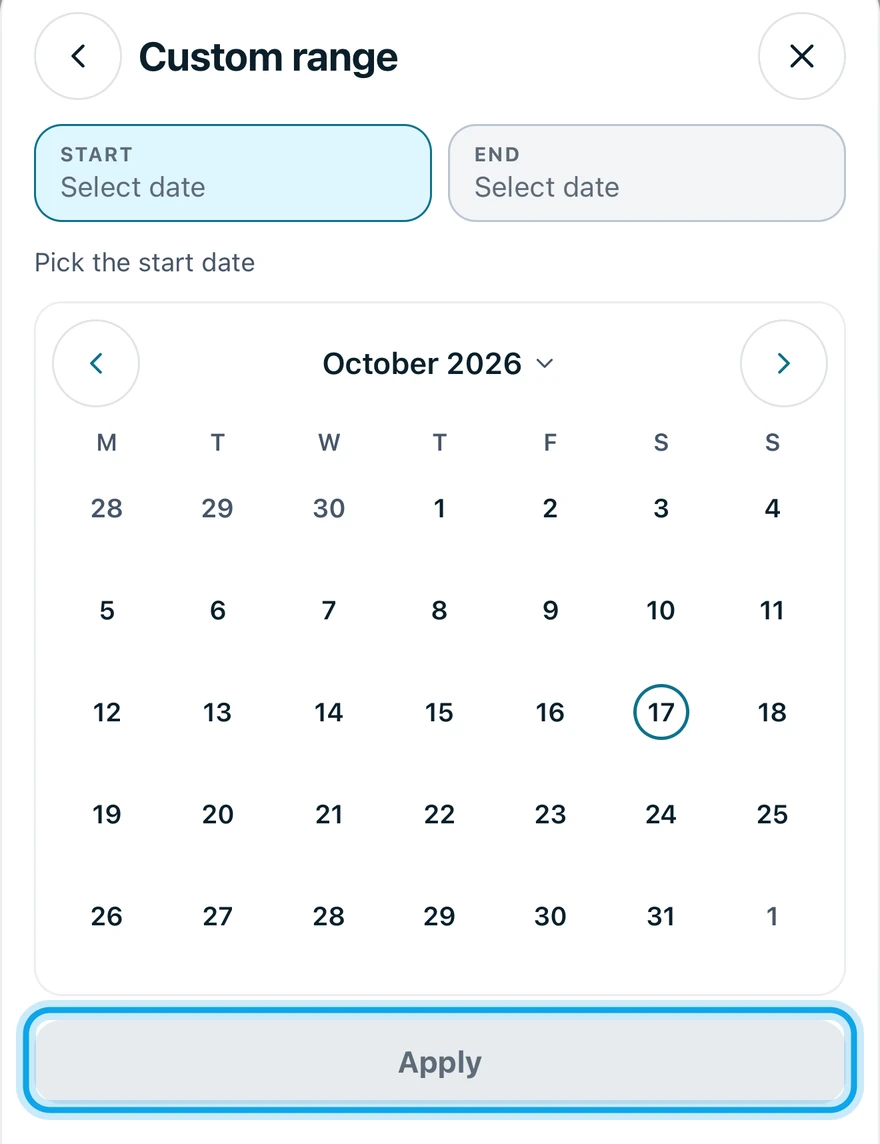
- Or, under Custom range, choose a start and an end date.
- Press Apply date on the web, or tap Apply in the Zaras app.
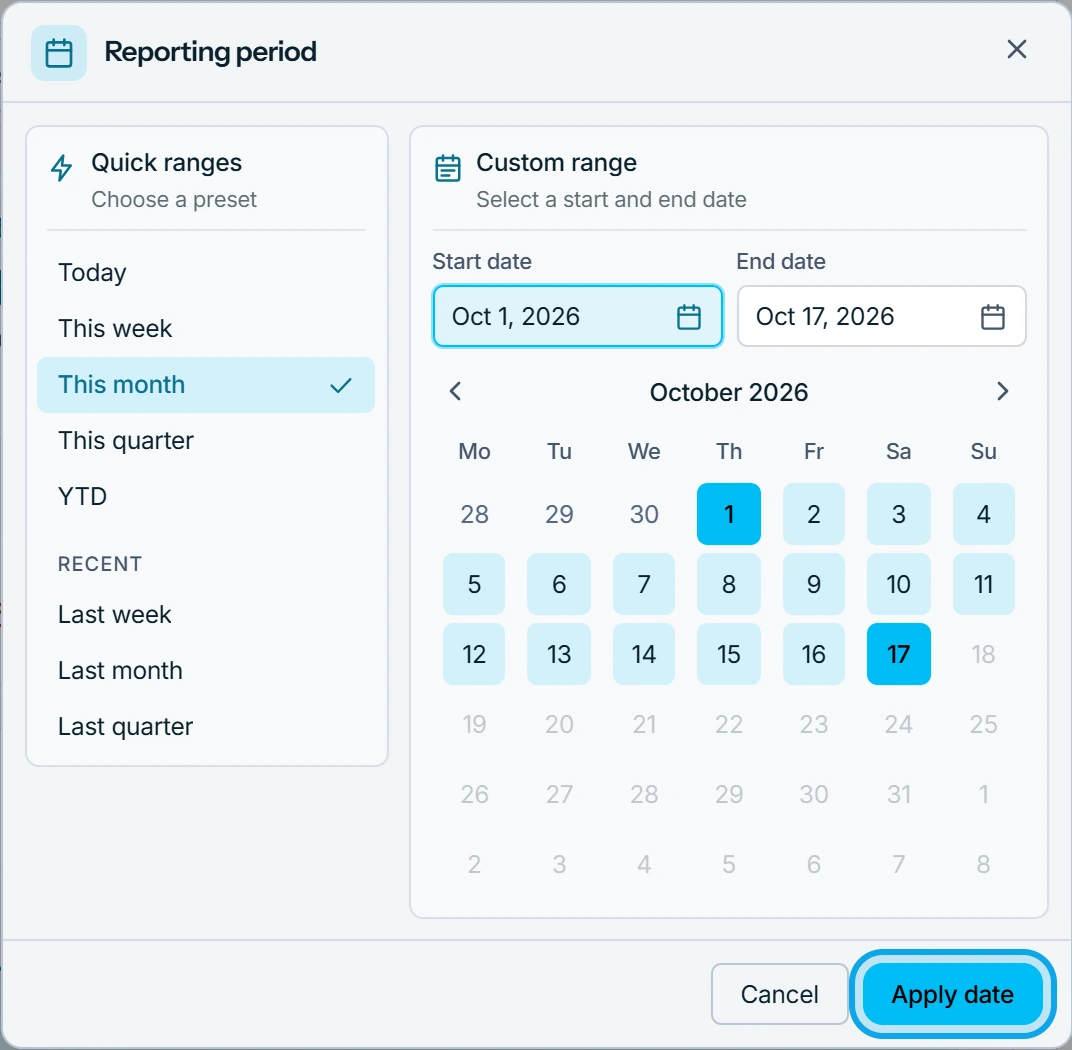
On the web, the arrows on either side step back or forward one period.
What you see
Every view redraws for the new range, and each figure is compared with the previous period. Outstanding and overdue invoices, active jobs and the open pipeline ignore the range and say All dates.
Who can do this
Anyone who can open Reports can change the range. That needs View reports: owners, admins and office by default.