Where do I see a customer's balance and history?
Open the customer from the Contacts list: their page shows the balance, open work and history in one place. Balance due is what they owe across open invoices.
Open a customer's page
- Open Contacts in the sidebar on the web, or the Contacts tab in the Zaras app.
- Search for the customer and open their row.
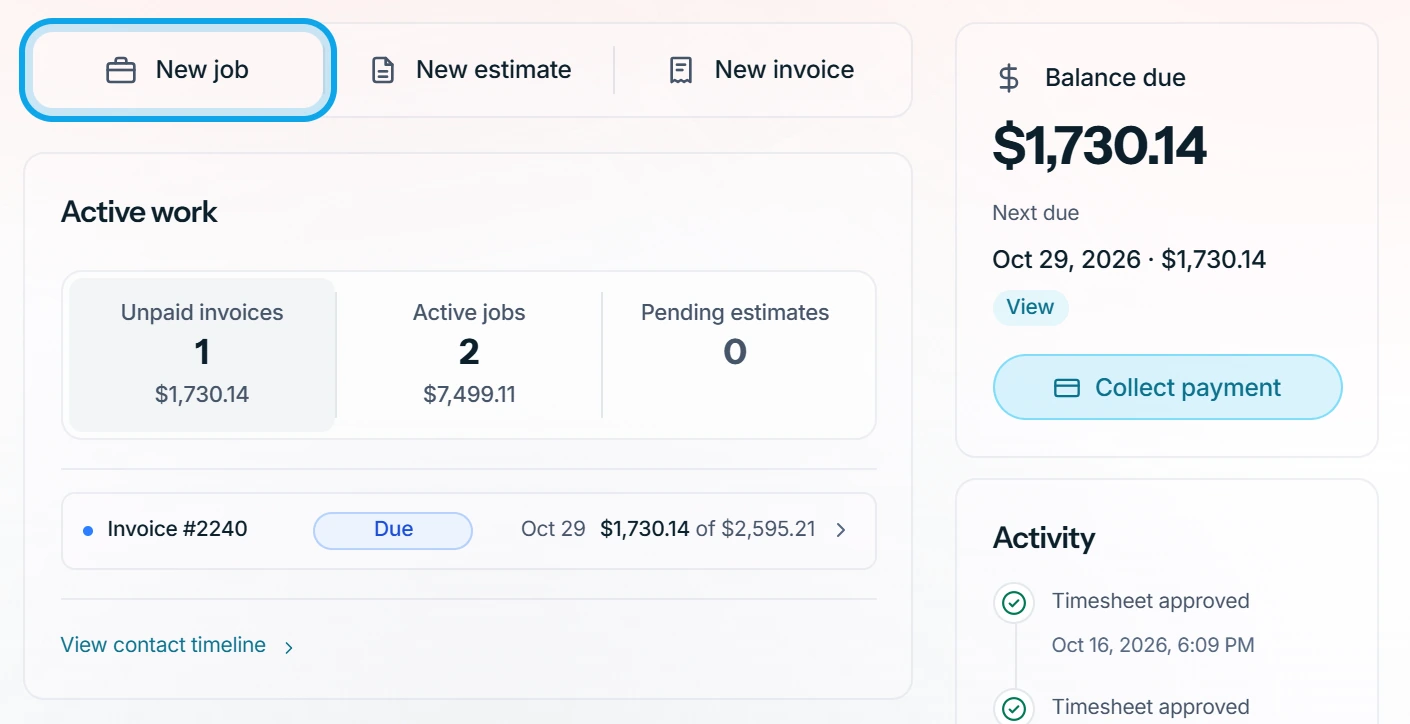
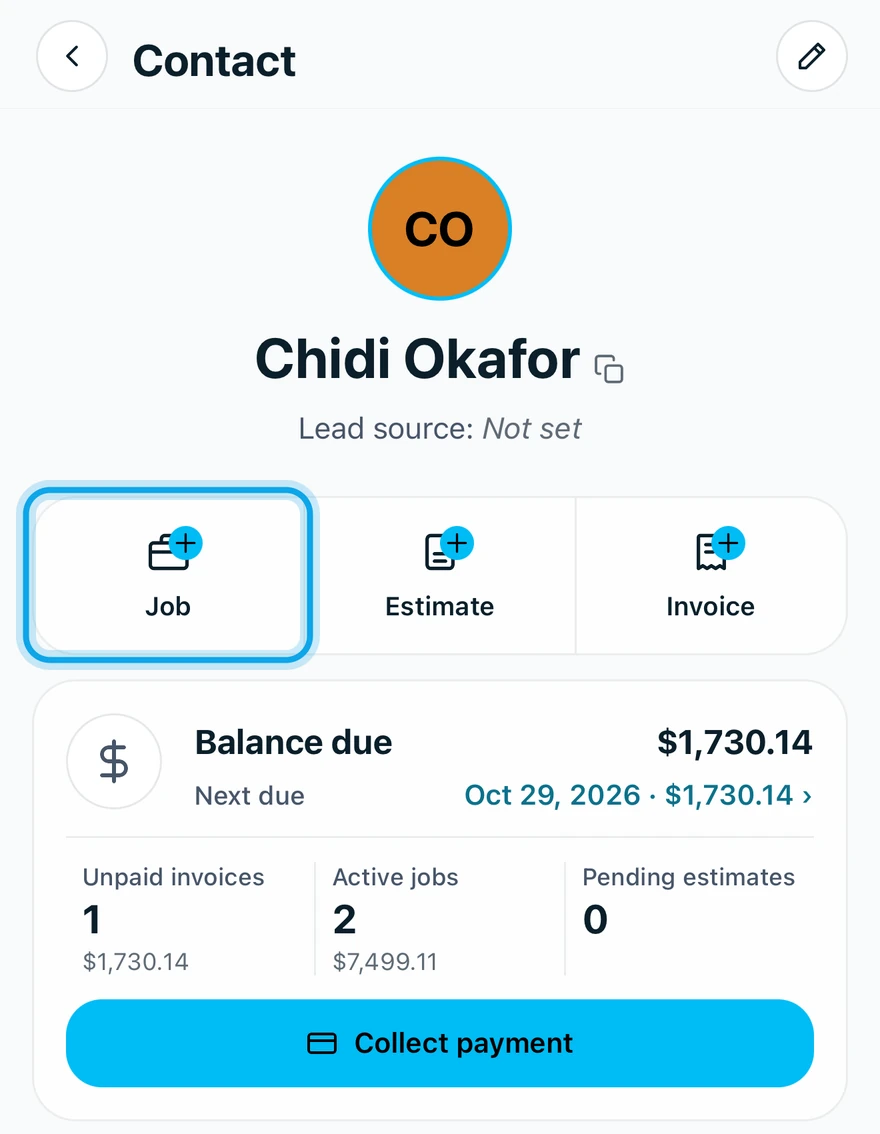
What you see
- Balance due: Next due, Past due and Collect payment, or No balance due.
- Active work (Open work in the app): Active jobs, Pending estimates and Unpaid invoices.
- Activity timeline: every event on the contact and its work. View full timeline › opens the Contact timeline.
- Contact details, Properties with Open in Maps, and Attachments.
- Contact persons: extra people at the customer. Contact persons belong only to this contact and will not appear in the global Contacts list.
- Notes: internal, never shown to the customer.
To start work for the customer, press New job, New estimate or New invoice on the web. In the app, tap Job, Estimate or Invoice.
Who can do this
Everyone who can open Contacts sees these pages. Changing them needs Manage contacts, which every role holds by default.