Tag your contacts
Add tags on a contact's edit form, then filter your contacts by them. Deleting a tag removes it from every contact.
Tag a contact
On the web:
- On Contacts, press the pencil button on the contact's row.
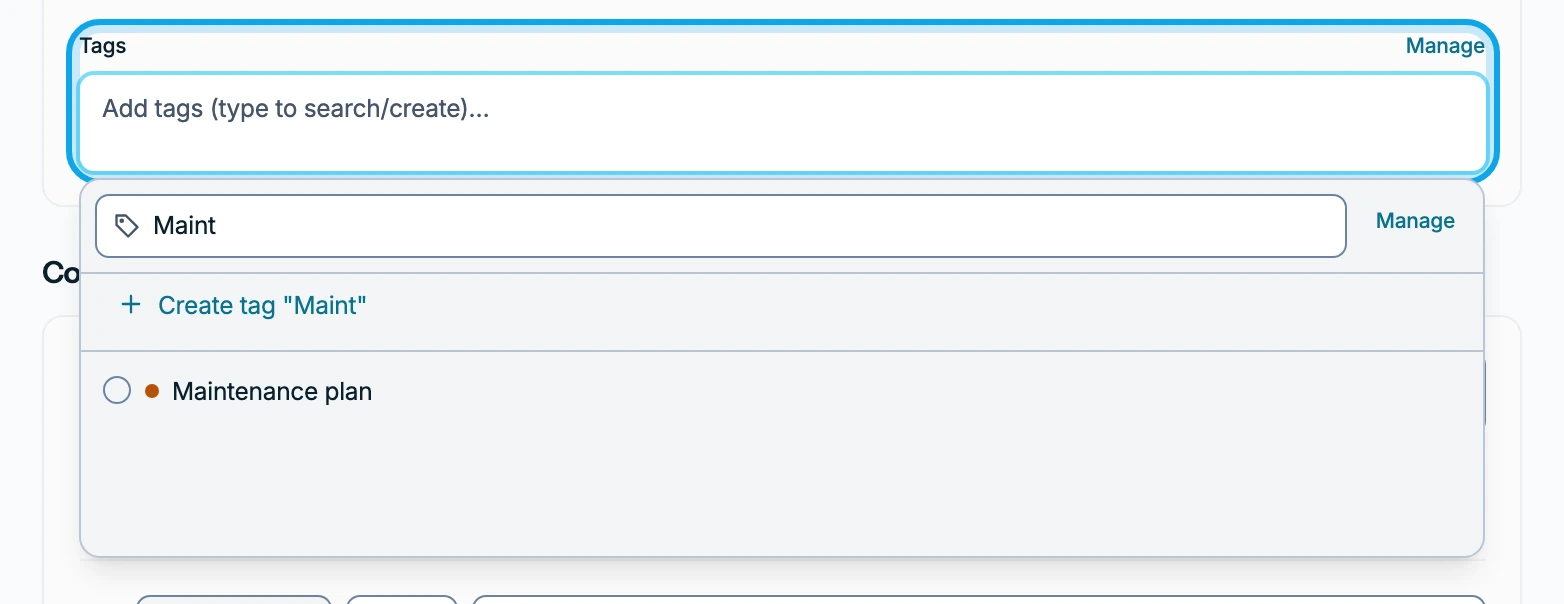
- Under Tags, type a name.
- Choose it, or the "Create tag" line.
- Press Save contact at the bottom of the dialog.
In the Zaras app:
- Open the contact and tap the pencil button in its header.
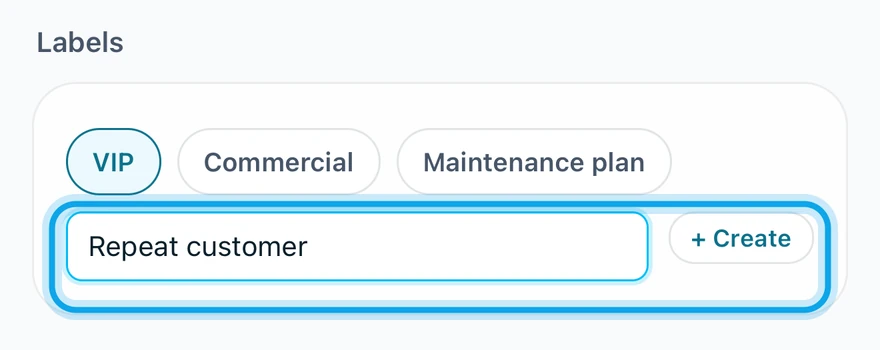
- Under Labels, tap each one to add.
- Type a new one in New label.
- Tap the create button beside it.
- Tap the check mark at the top right.
The app calls tags labels.
What you see
Contact updated confirms it on the web, and Contact saved in the app.
Filter by a tag
- On Contacts, press Filters, or tap the funnel button in the app.
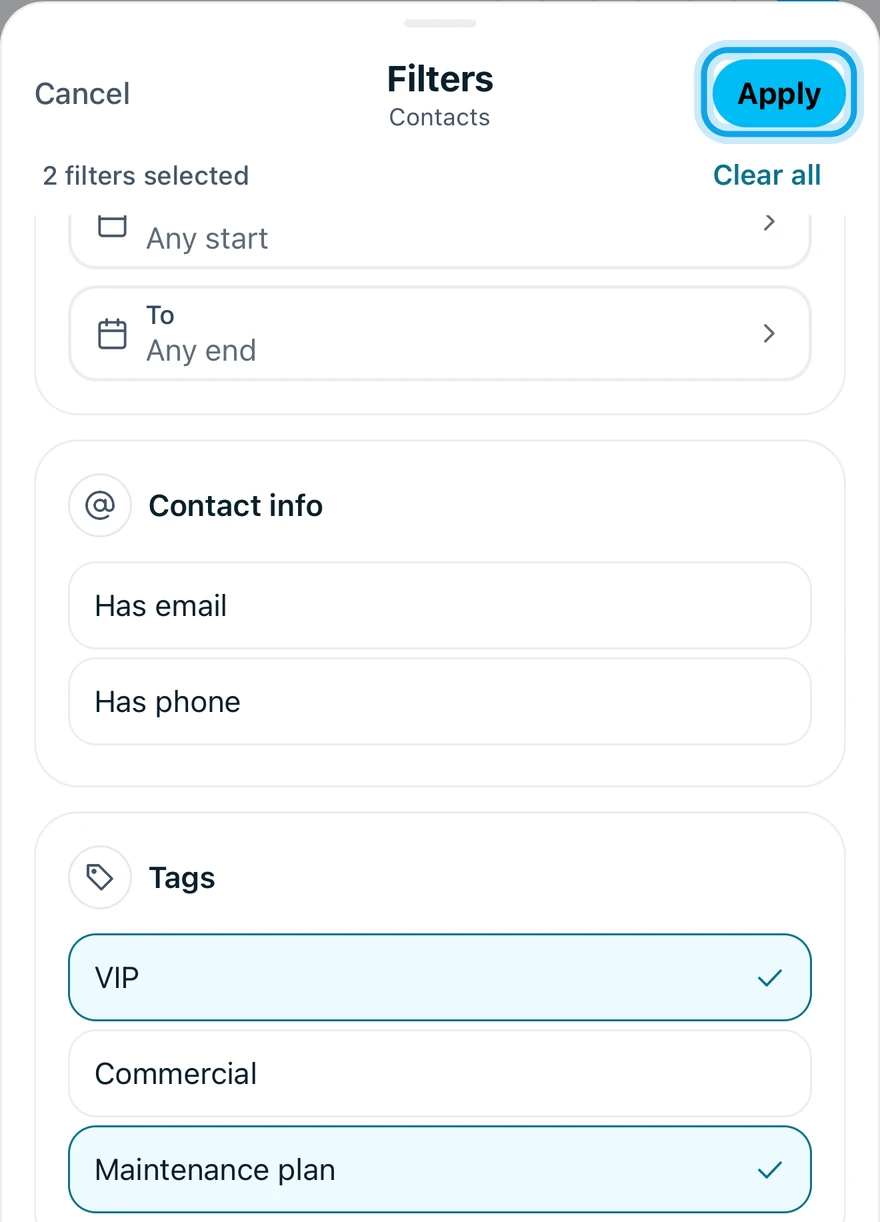
- Under Tags, pick one or more.
- Press Apply filters on the web, or tap Apply in the app.
Two tags show contacts with either.
Rename or delete a tag
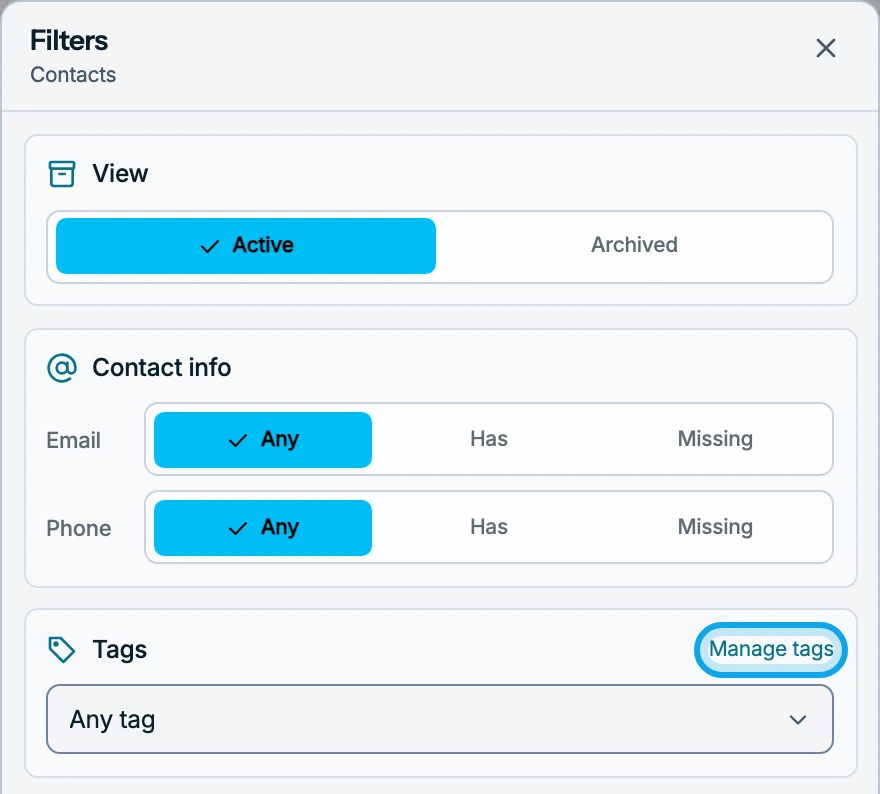
On the web, open Filters and press Manage tags. Press a tag's pencil or trash-can button. Confirm with Delete in Delete tag. There is no undo.
The app can't rename or delete tags. Tap a label on a contact's page, then Remove, to take it off.
Who can do this
Tagging needs Manage contacts. Owners, admins, office and technicians hold it by default. Others ask an owner or admin under Settings → Team & roles → Roles.