Set a team member's hourly rate
A member's hourly rate is what their timesheet entries are costed at. Set it on their row in Team & roles. Time already worked keeps its old rate.
Set a rate
- Open Settings → Team & roles and open the member.
- Under Hourly rate, press Set hourly rate.
- Enter the amount under Hourly rate.
- Press Set rate, then confirm with Set rate.
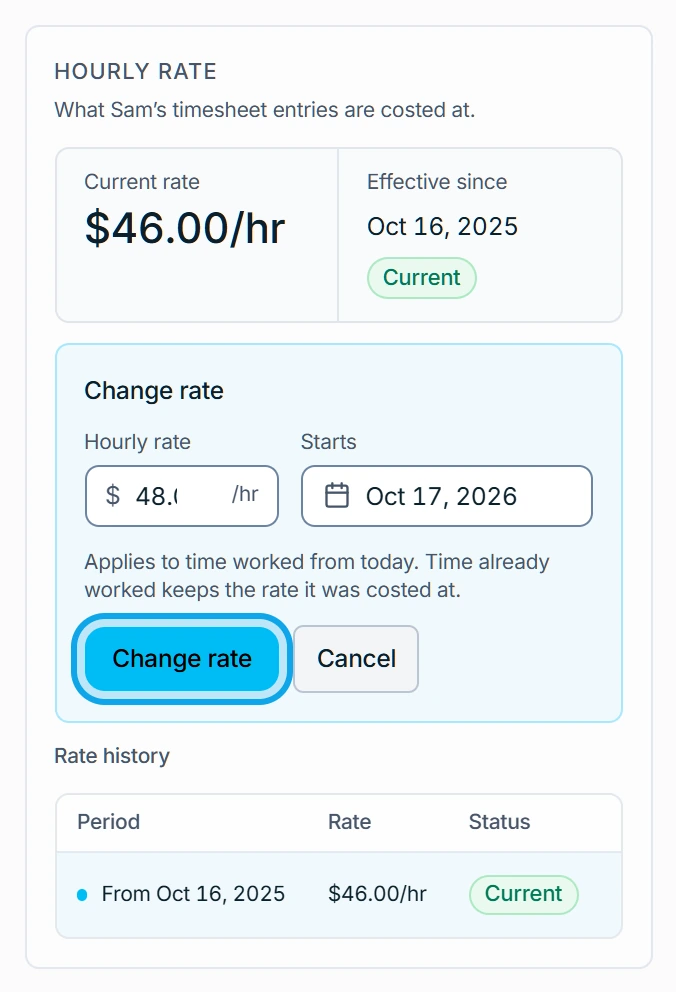
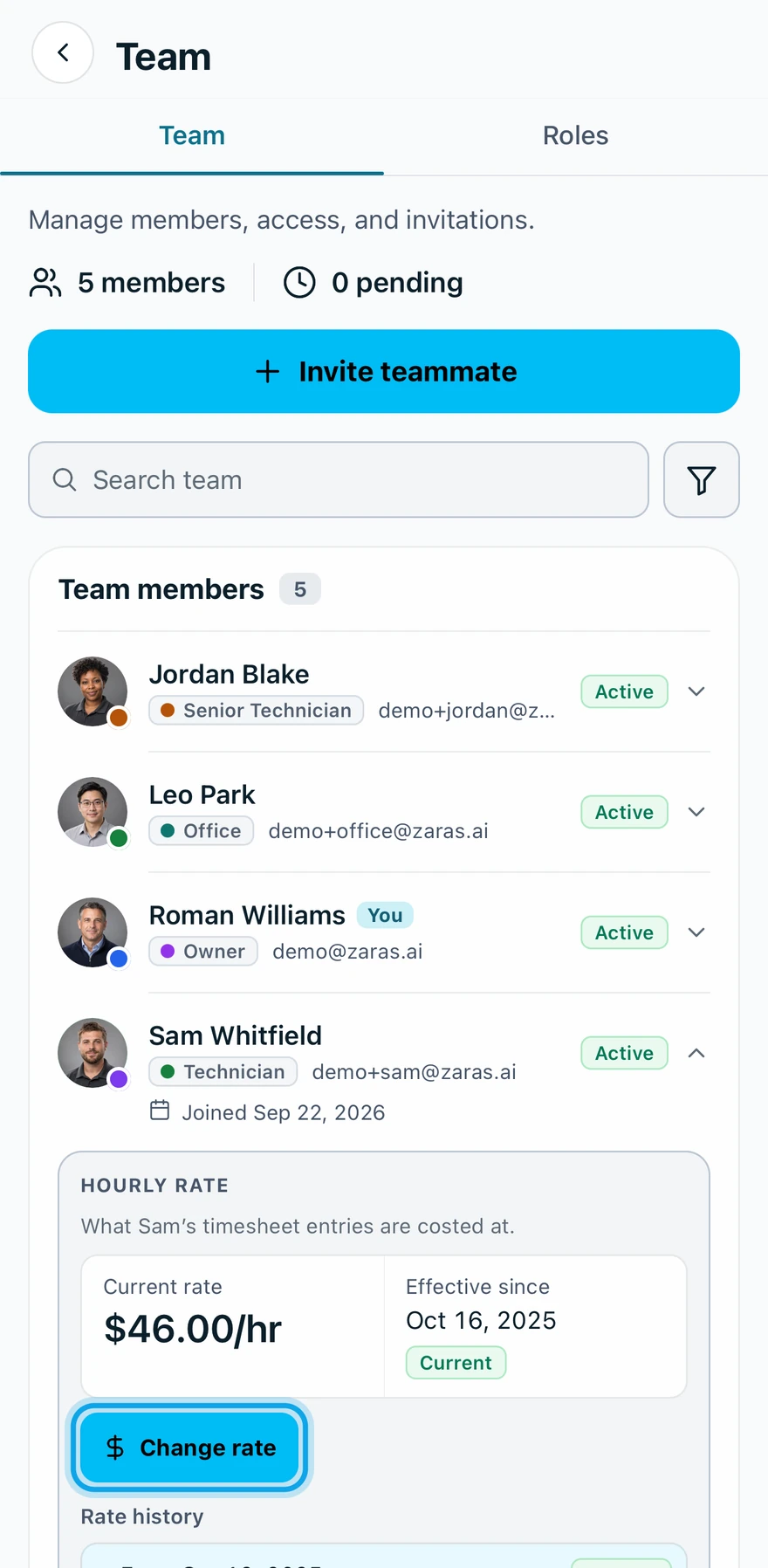
For a rate that starts later, pick the day under Starts. The button then reads Schedule rate. If the member already has a rate, Change rate replaces Set hourly rate and Set rate.
What you see
Rate saved confirms it on the web, and the row shows the Current rate. The new rate Applies to time worked from today. Time already worked keeps the rate it was costed at.
A rate can't be changed
Past rates are the record of what was paid — they can't be changed or removed. A start day before today is refused for the same reason.
Working on your own? Your rate lives on your profile instead, under Your hourly rate.
Who can do this
Seeing and changing rates needs Manage pay rates, held by owners and admins by default. Others ask an owner or admin under Settings → Team & roles → Roles.