Add a visit to a job
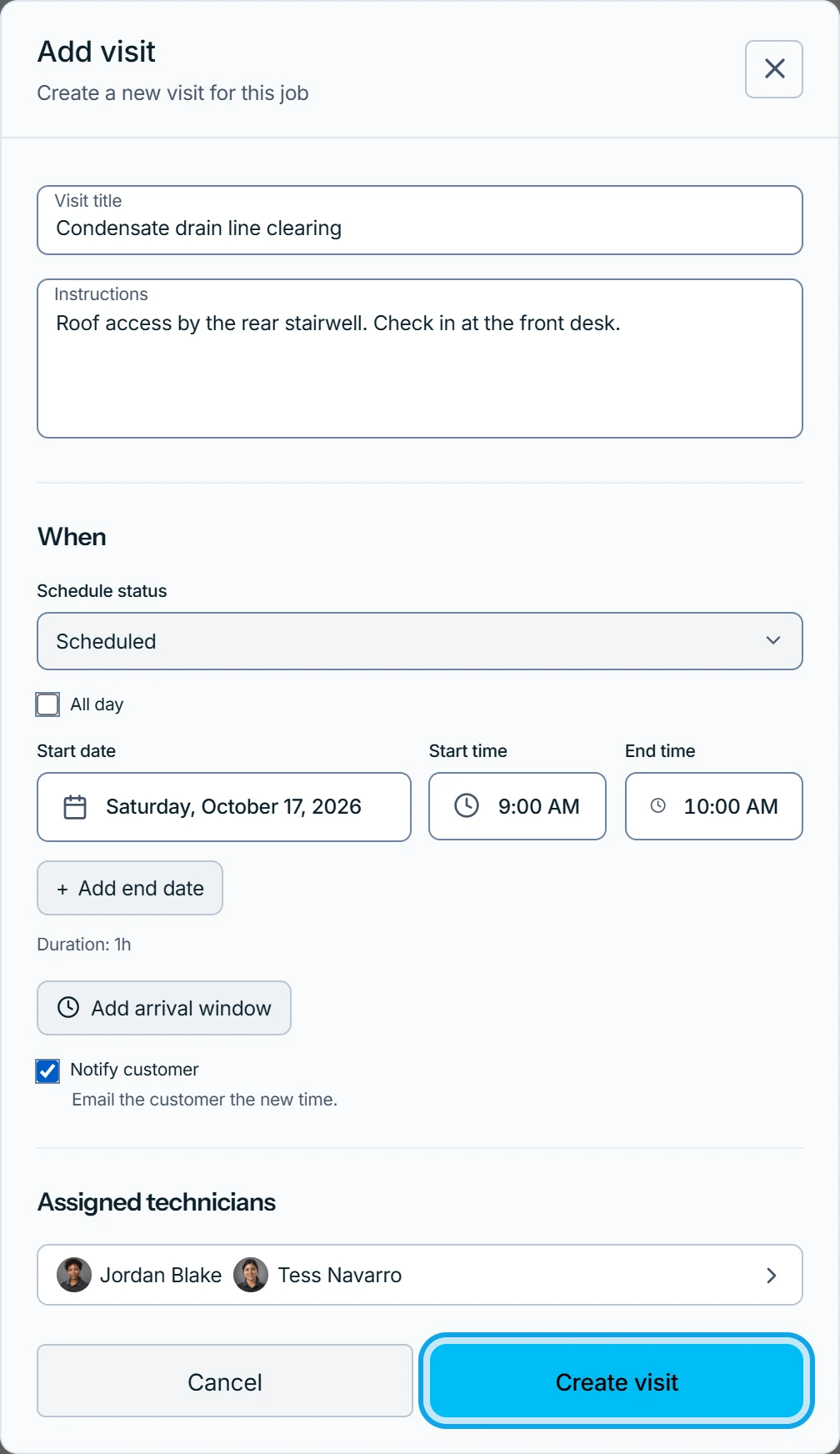
Press Add visit on the job to put the work on the calendar. With Notify customer ticked, the customer gets a confirmation email.
Add a visit
On the web:
- Open the job and press Add visit.
- Pick the Start date and the time.
- Add Instructions, such as a gate code.
- Under Assigned technicians, pick who is going.
- Press Create visit.
In the Zaras app:
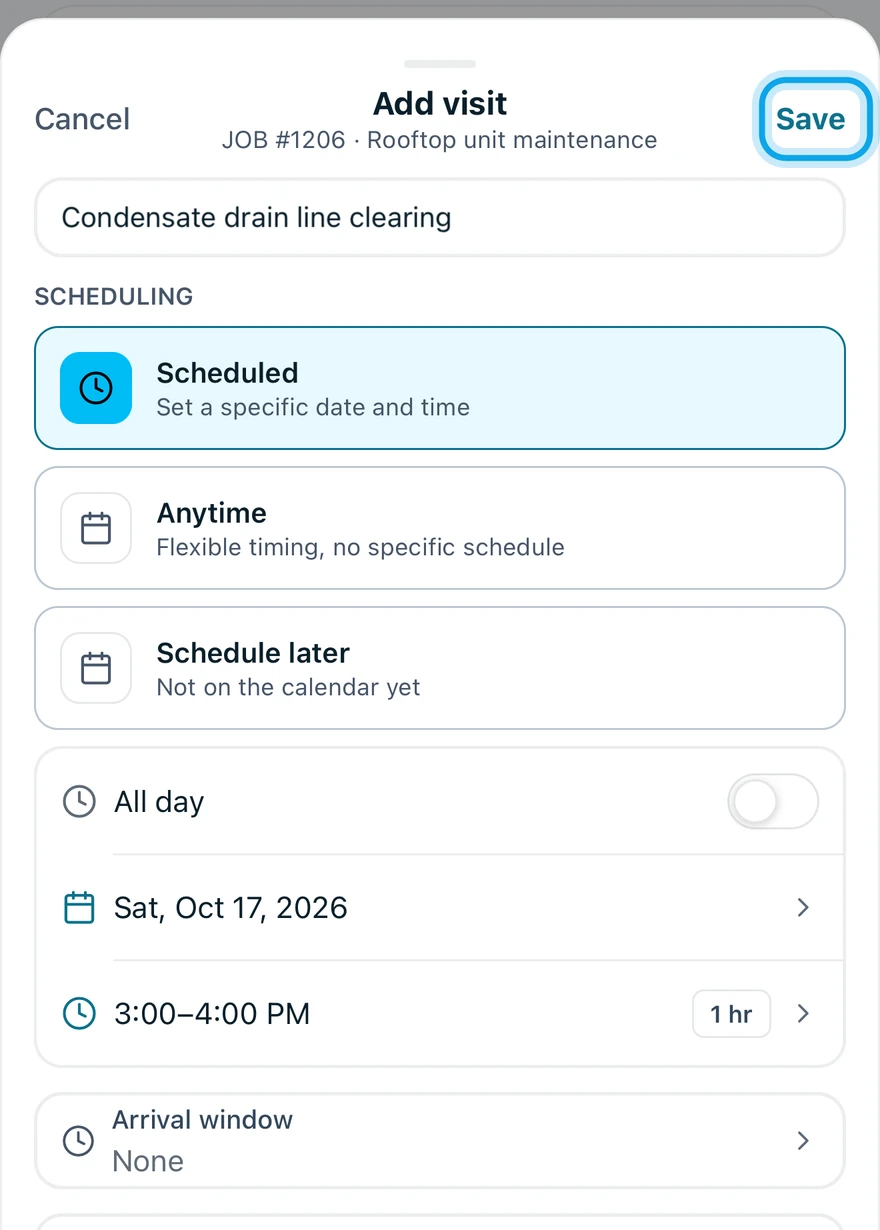
- Open the job from the Work tab and tap Add visit.
- Tap Scheduled, then pick the date and time.
- Tap Save at the top right.
What you see
The visit appears on the job's Visits card and on the calendar. A visit with no time reads All day.
The customer is emailed only while Notify customer is ticked. The time range they are told comes from your arrival window.
Who can do this
Adding a visit needs Manage jobs and Manage schedule. Owners, admins, office and technicians hold both by default. Others ask an owner or admin under Settings → Team & roles → Roles.