Change your email address
Change your sign-in email on Security in Settings. Zaras sends a link to your current address and another to the new one, and nothing changes until you click both.
Change your email
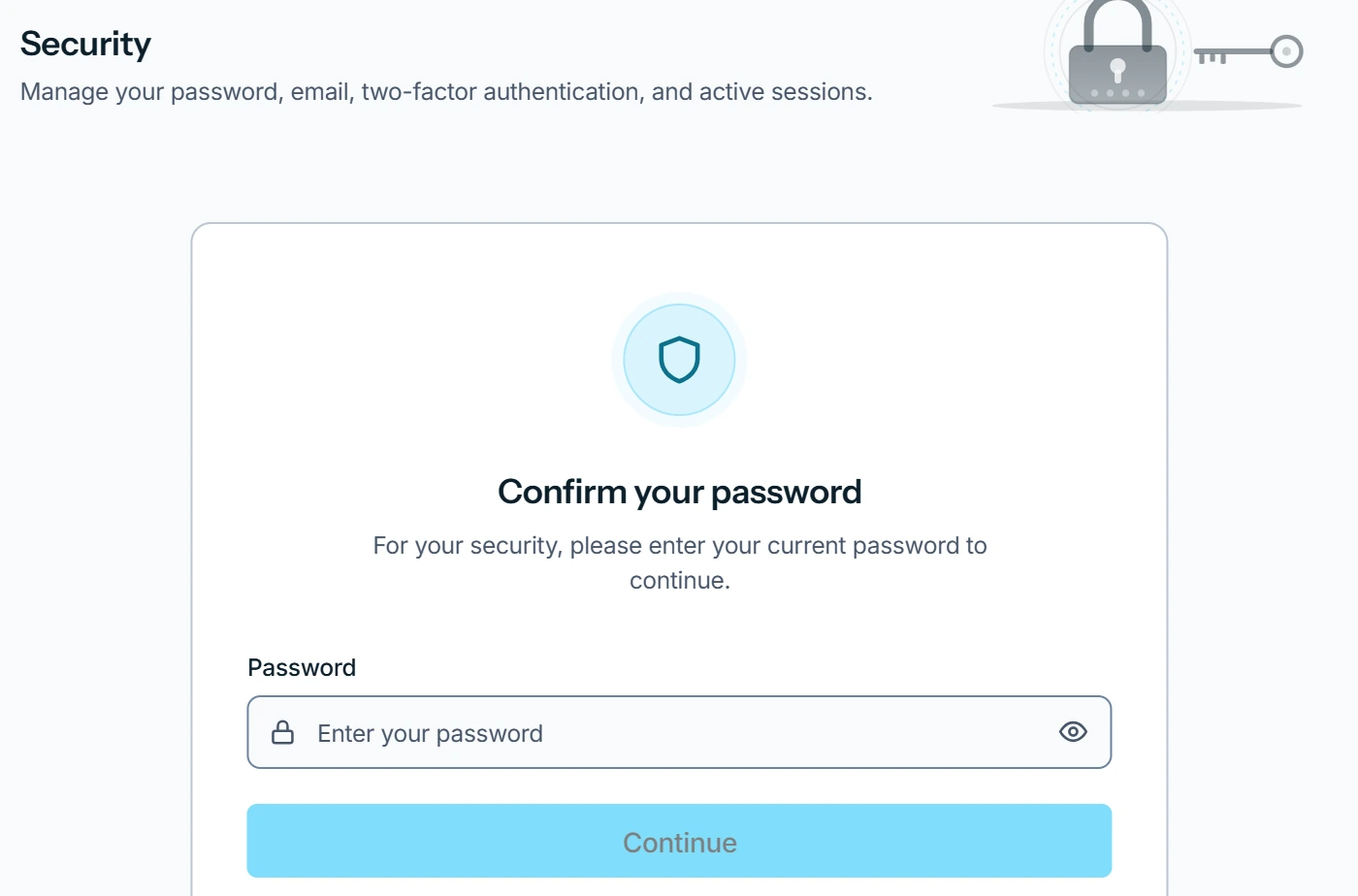
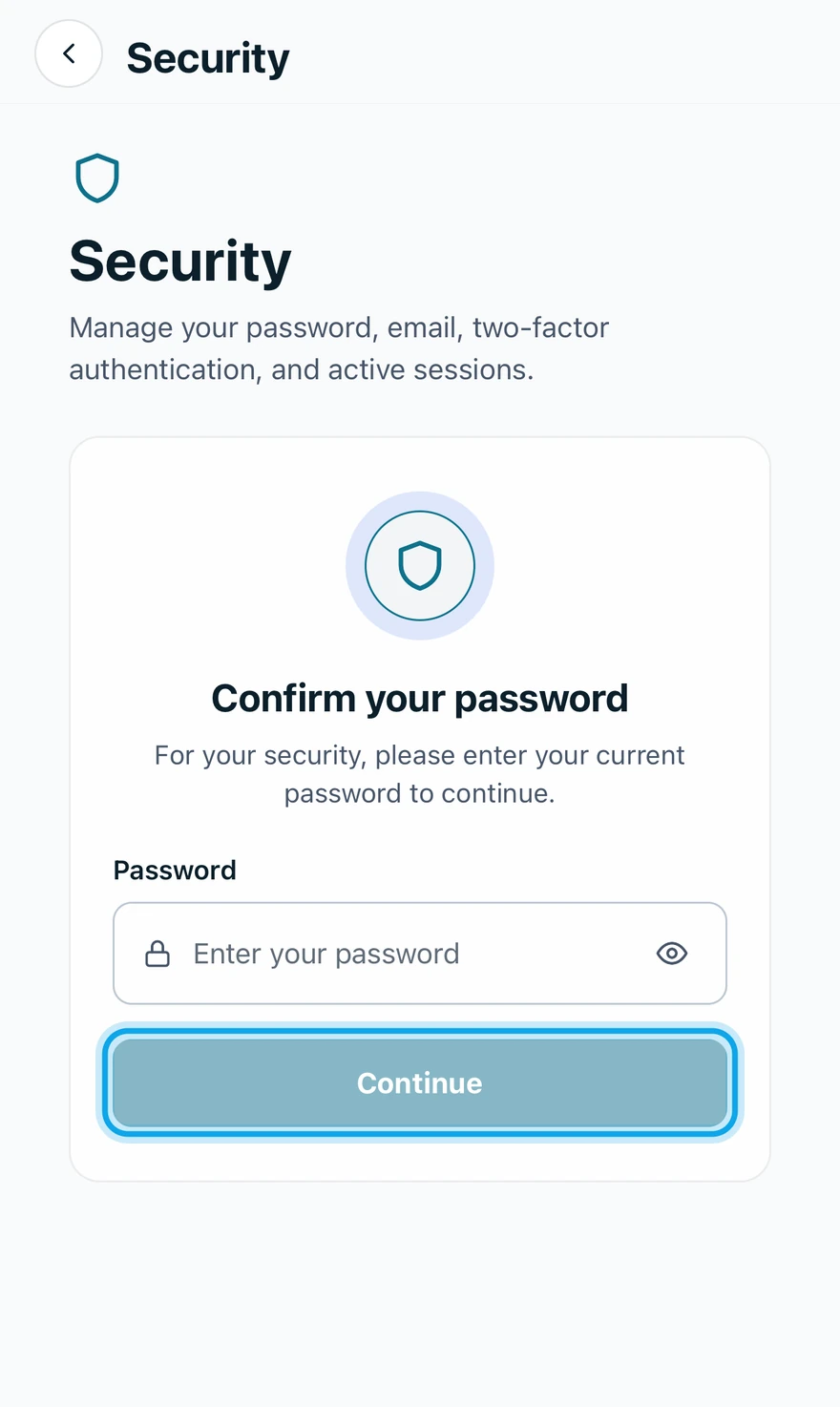
- Open Settings → Security and confirm your password.
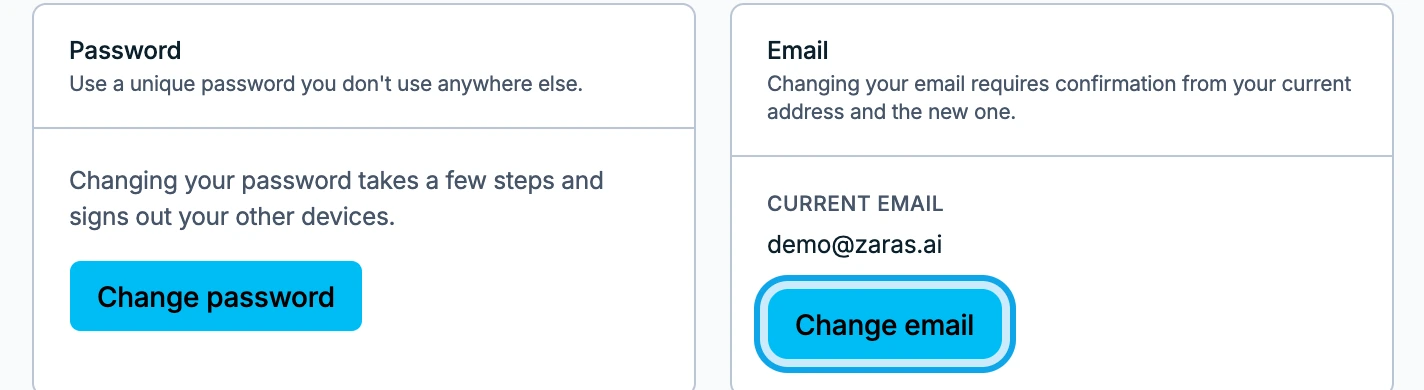
- Press Change email on the web, or tap Email in the app.
- On the web, enter your Current password and press Continue.
- Type the New email address, then again under Confirm new email address.
- Press Continue.
- Press Send confirmation on Ready to change your email.
- Open the link in the email sent to your current address and press Confirm email change. Do the same with the email sent to the new address, in either order.
What you see
The screen names the new address. Your email address changes as soon as you click both links. Until then nothing has changed.
After the first link, the page says One more step. Open the other email to finish.
To stop it, press Cancel email change on Security. Both links then stop working.
Your current inbox is gone
The change needs the link sent to your current address too. If you can no longer open that inbox, send a ticket from Help & feedback and say so.
Continue does nothing
The two addresses do not match. means the second box differs from the first. Type the same address twice.
Who can do this
Every member changes their own email. No permission is needed.