Add an event to the calendar
Press New event in the calendar's toolbar on the web, or tap the + button and Event in the Zaras app. An event never emails a customer, even when you add one to it.
Add an event
- Press New event in the toolbar, or tap + on Schedule, then Event.
- Give it a Title and a time.
- Add a Customer, Location, Technicians or Notes if they help.
- Pick a Color if you like.
- Press Create event, or tap it in the app.
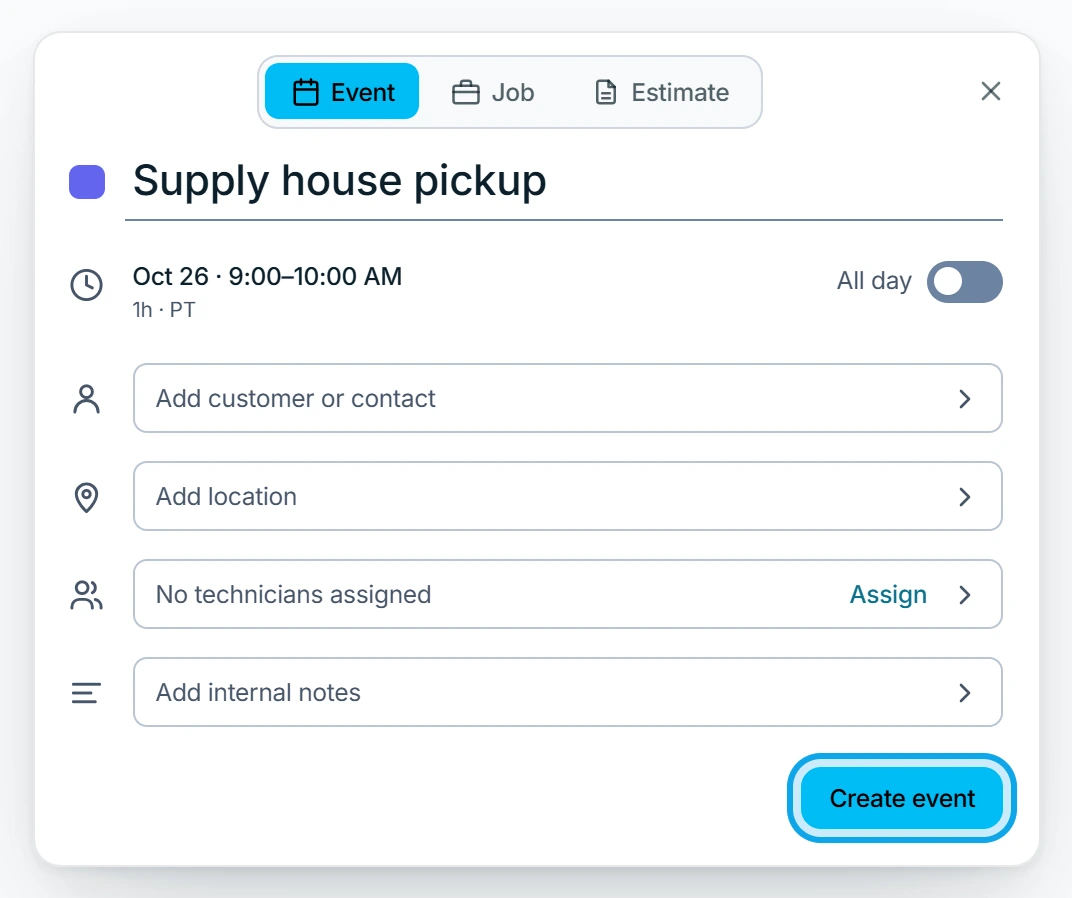
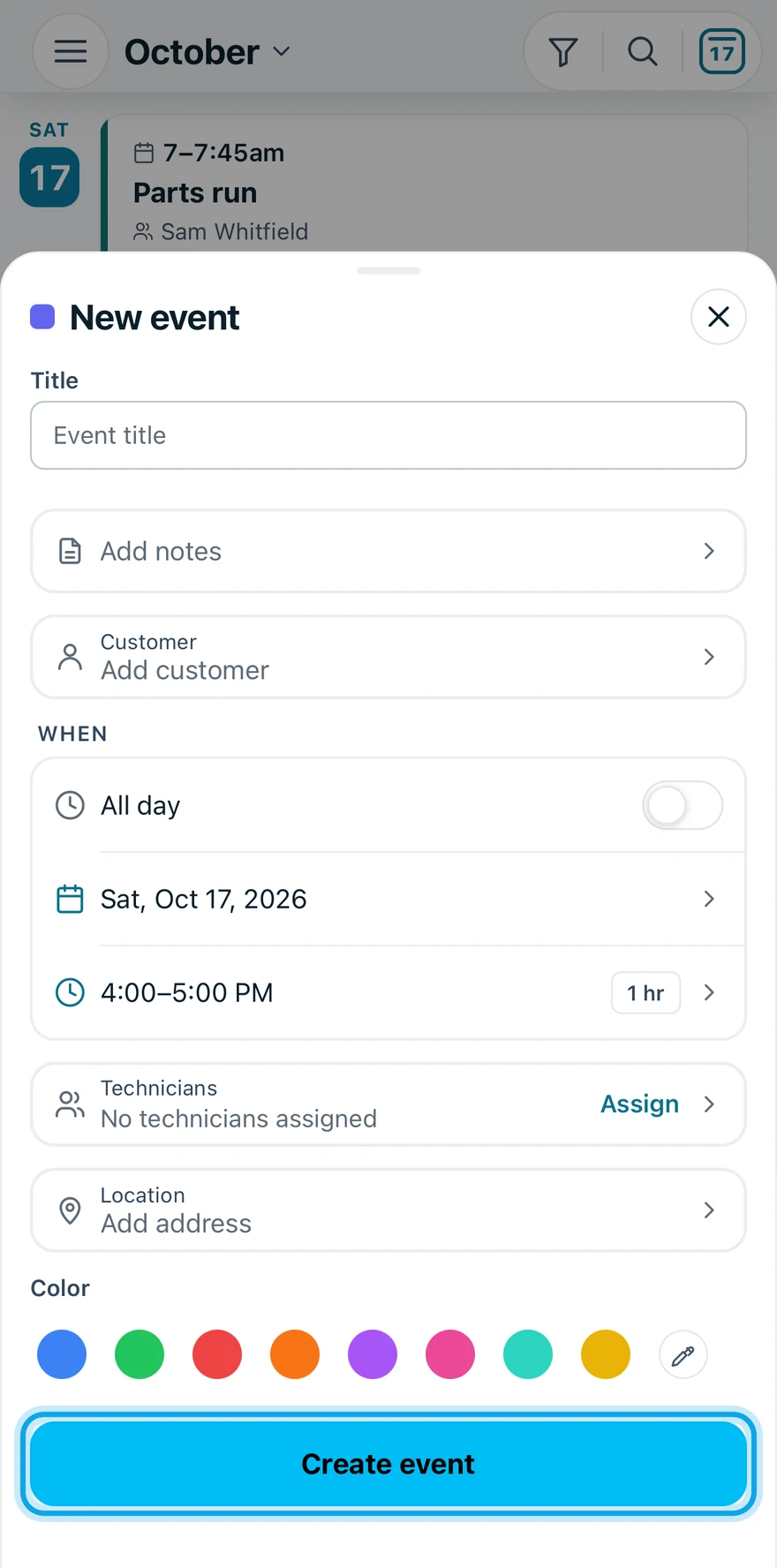
What you see
The event appears on the calendar, and on any calendar feed that covers it. It has no visits, invoice or line items.
To change it, open it and choose Edit event, then Save changes. Delete event asks Delete event? and This cannot be undone.
Who can do this
Events need Manage schedule. Owners, admins, office and technicians hold it by default. Others ask an owner or admin under Settings → Team & roles → Roles.