Create a contact
Create a contact from the contact list with at least one of a name, company, email or phone. Every other detail can be added or changed later.
Create a contact
On the web:
- Open Contacts in the sidebar.
- Press New Contact at the top of the list.
- Fill in at least one of a name, company, email or phone.
- Pick how they found you under Lead source.
- Press Save contact at the top right.
In the Zaras app:
- Open the Contacts tab.
- Tap the + button in the header.
- Fill in at least one of a name, company, email or phone.
- Pick how they found you under Lead source.
- Tap the check mark at the top right.
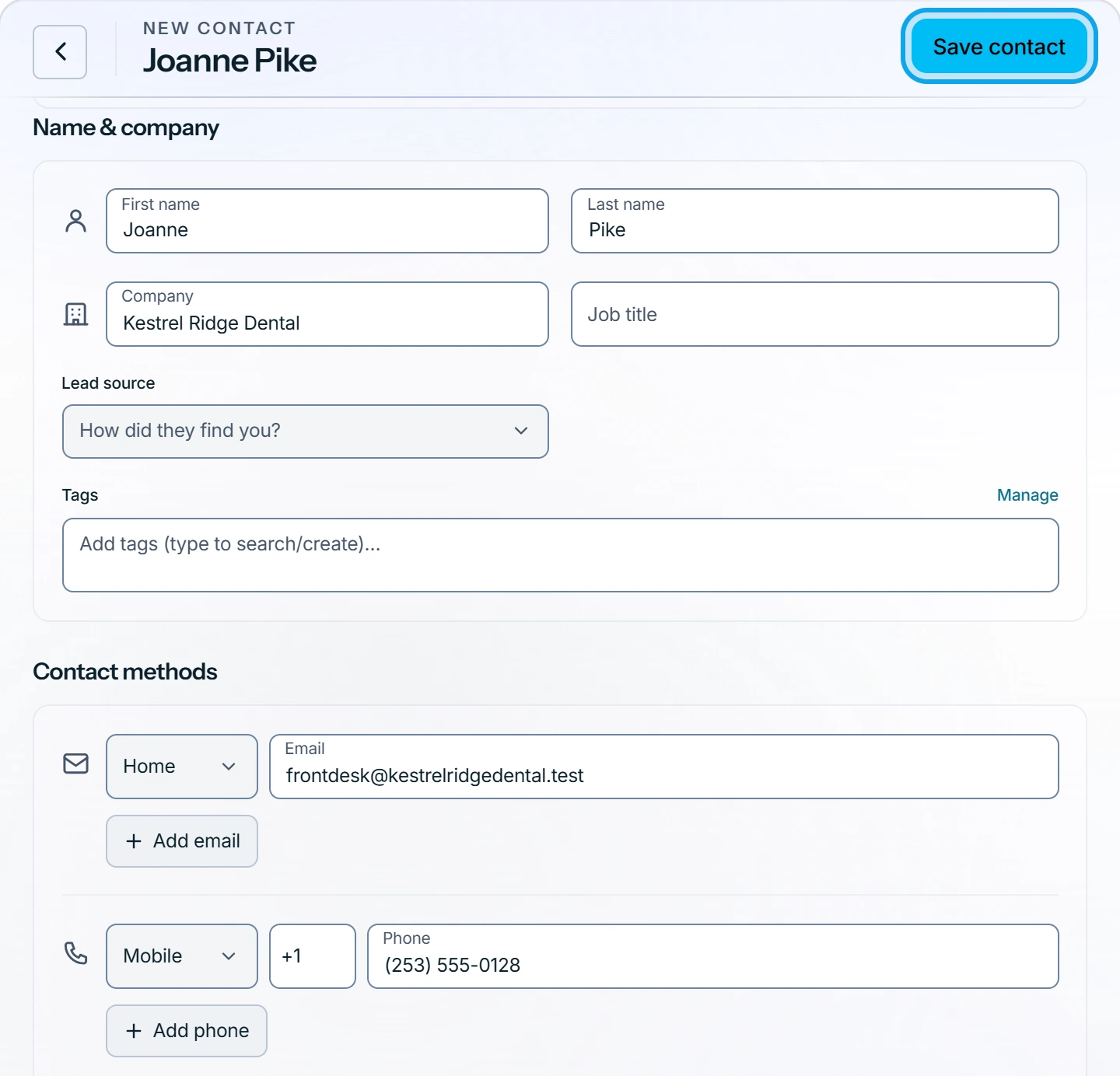
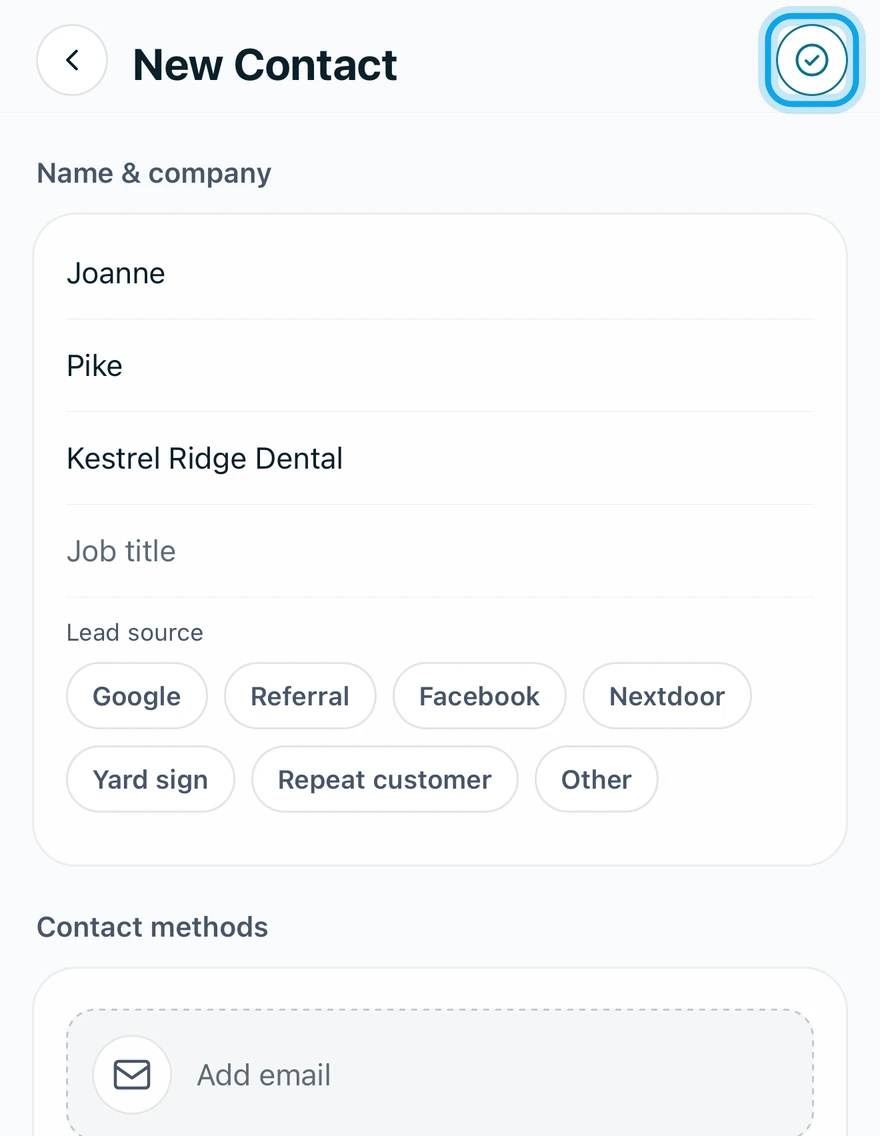
The sources are Google, Referral, Facebook, Nextdoor, Yard sign, Repeat customer and Other. With several emails or phones, choose Make primary email or Make primary phone. Mark an address Primary or Billing, and use Add address for another property.
What you see
The web shows Contact created. The app opens the new contact's page. A contact with no source reads Lead source: Not set. Reports adds the sources up in Jobs and revenue by lead source.
Who can do this
Creating contacts needs Manage contacts, which every role holds by default. Others ask an owner or admin under Settings → Team & roles → Roles.