Change an appointment's color
Change a job or estimate appointment's color from the calendar. The job and estimate pages have no color setting. The color belongs to the job or estimate, so everyone on the team sees it.
Change the color
On the web:
- Click the appointment on the calendar.
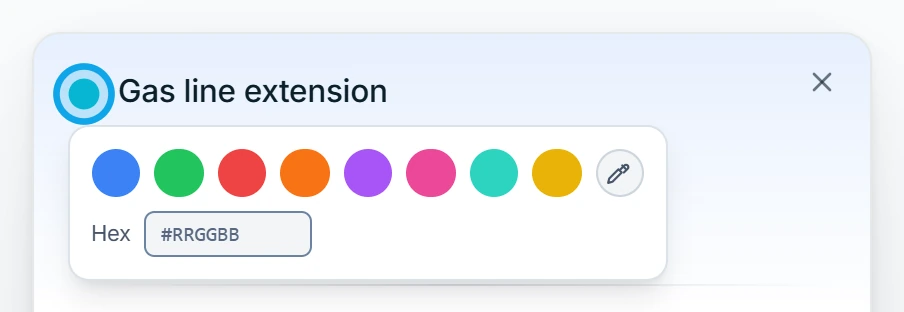
- Click the colored square beside its title.
- Pick a color, or press Reset for the default.
In the Zaras app:
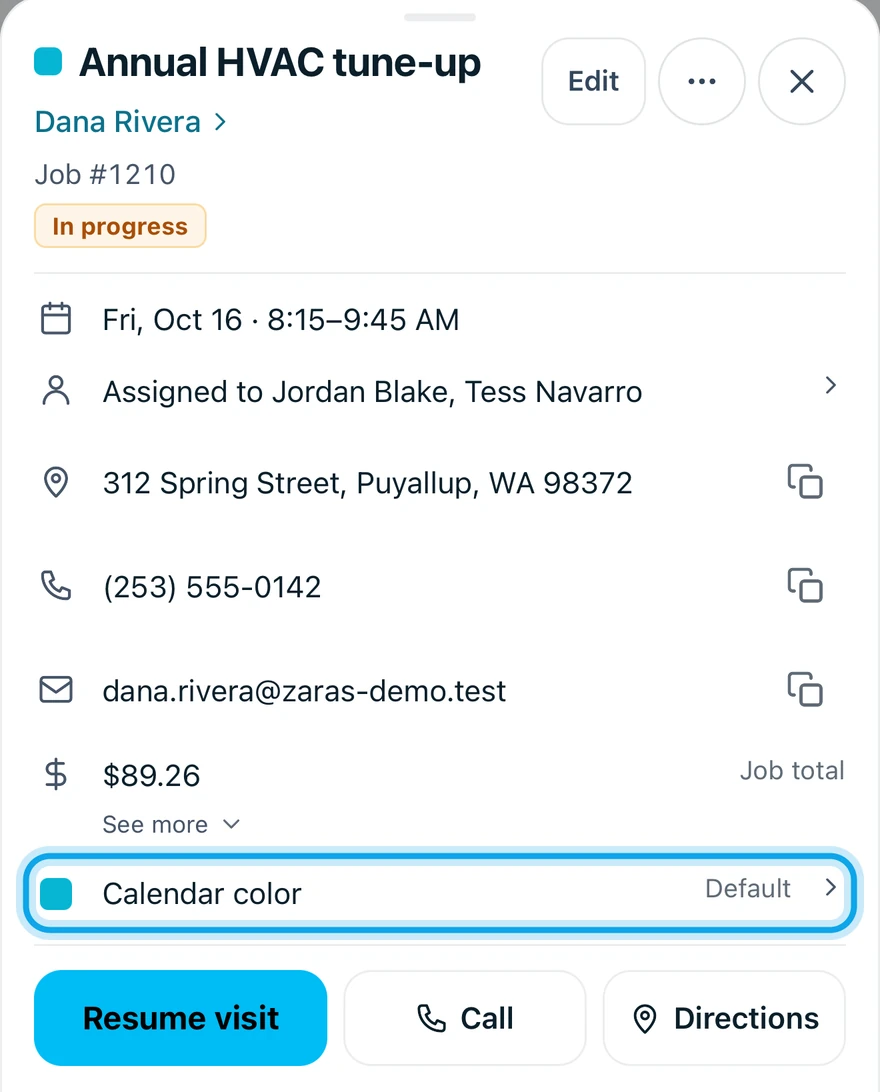
- Tap the appointment on Schedule.
- Tap Calendar color.
- Pick a color.
What you see
The appointment redraws in the new color at once. Every visit of the job takes the job's color.
An event gets its own Color when you create or edit it.
The color was not saved
The web says The job's color was not saved. or The estimate's color was not saved. Pick the color again.
Who can do this
Colors need Manage schedule. Owners, admins, office and technicians hold it by default. Others ask an owner or admin.