Put your logo and details on your PDFs
Add your logo and color on Branding, then choose what each PDF shows on Customize PDFs. Estimates and invoices already sent keep the PDF settings they went out with.
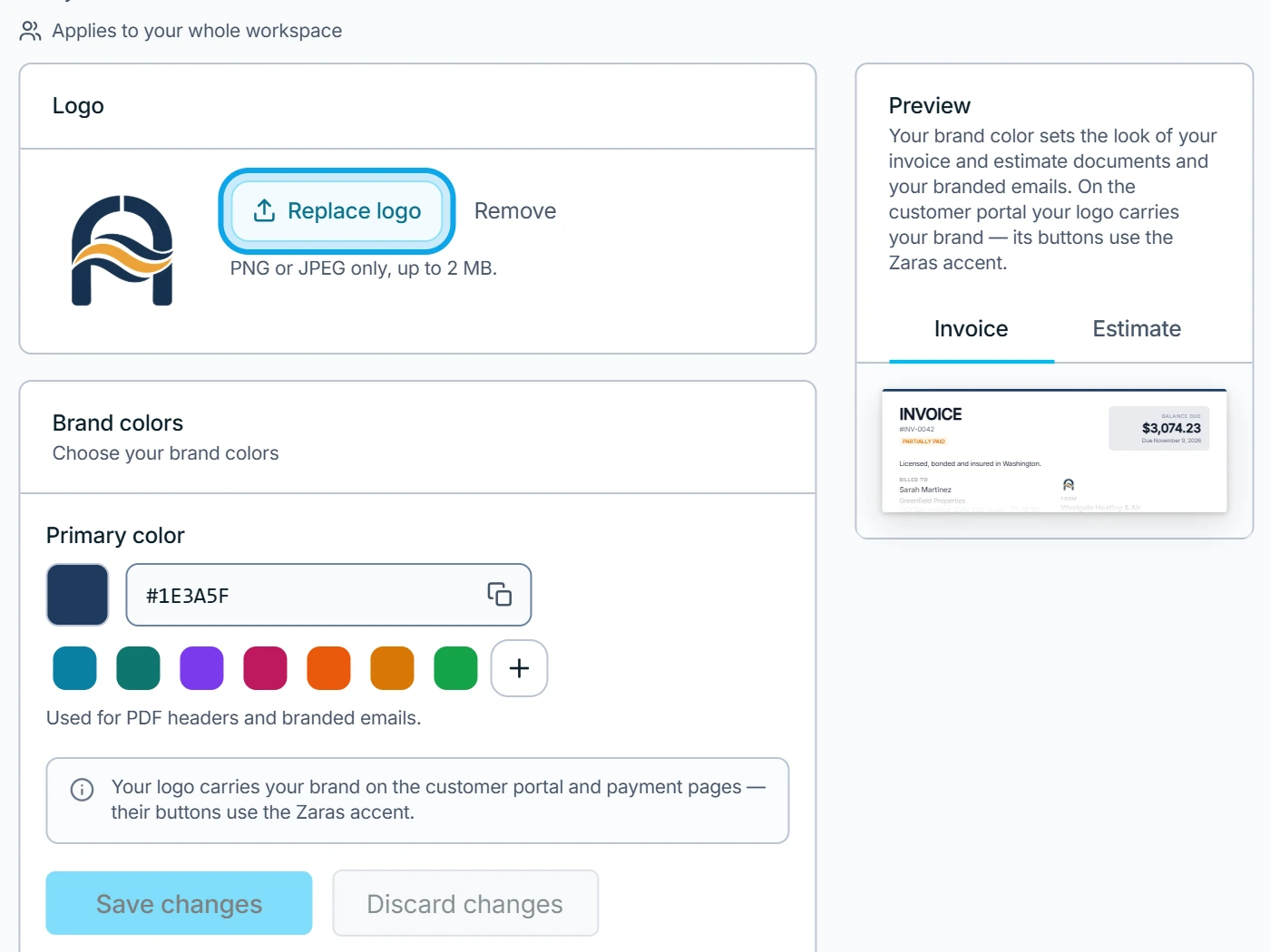
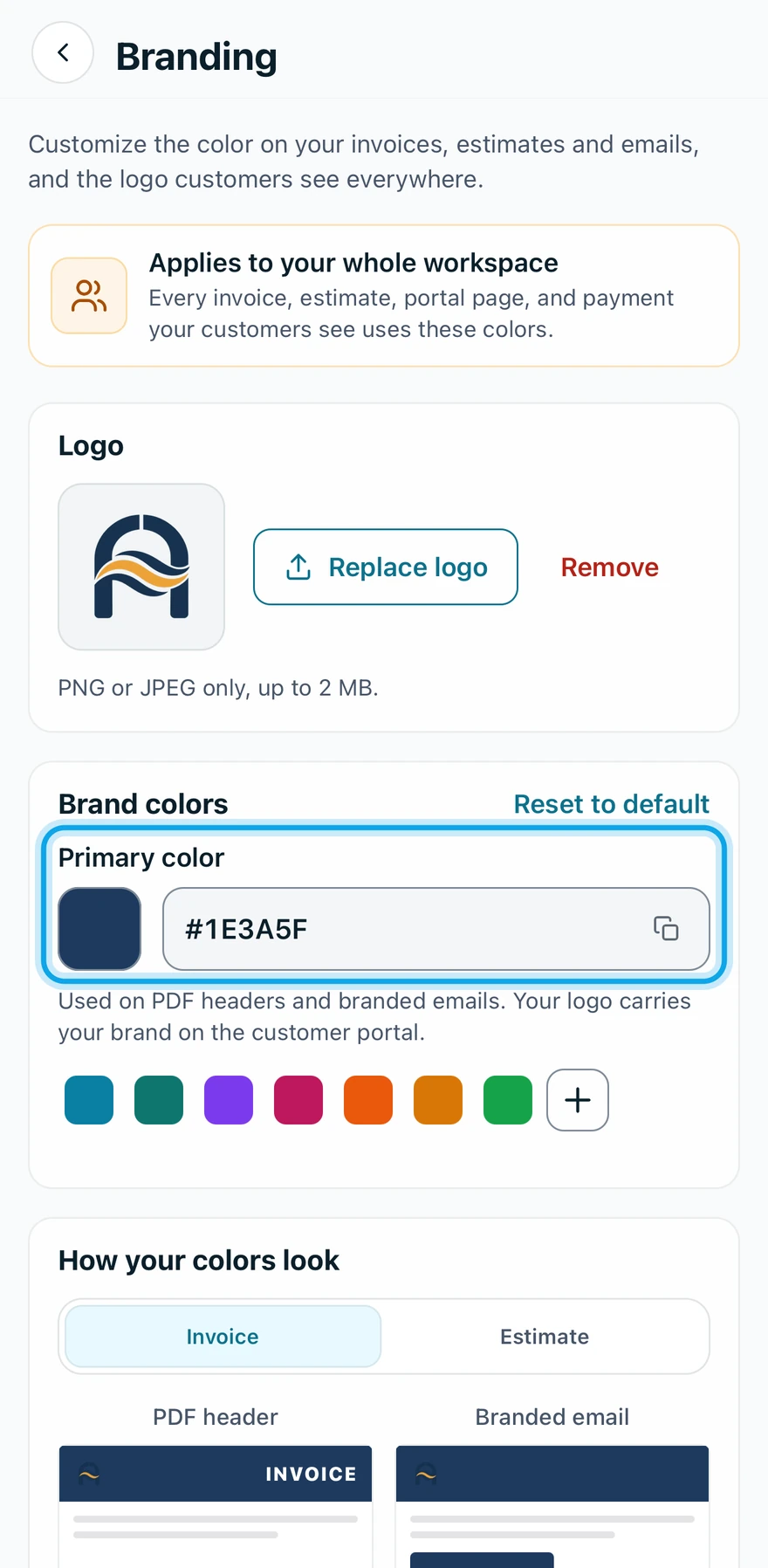
Add your logo and color
- Open Settings → Branding.
- Press Upload logo, or Replace logo if you have one.
- Pick a PNG or JPEG of up to 2 MB.
- Pick the Primary color, used for PDF headers and branded emails.
- Press Save changes. In the Zaras app the logo saves as soon as you pick it.
Choose what each PDF shows
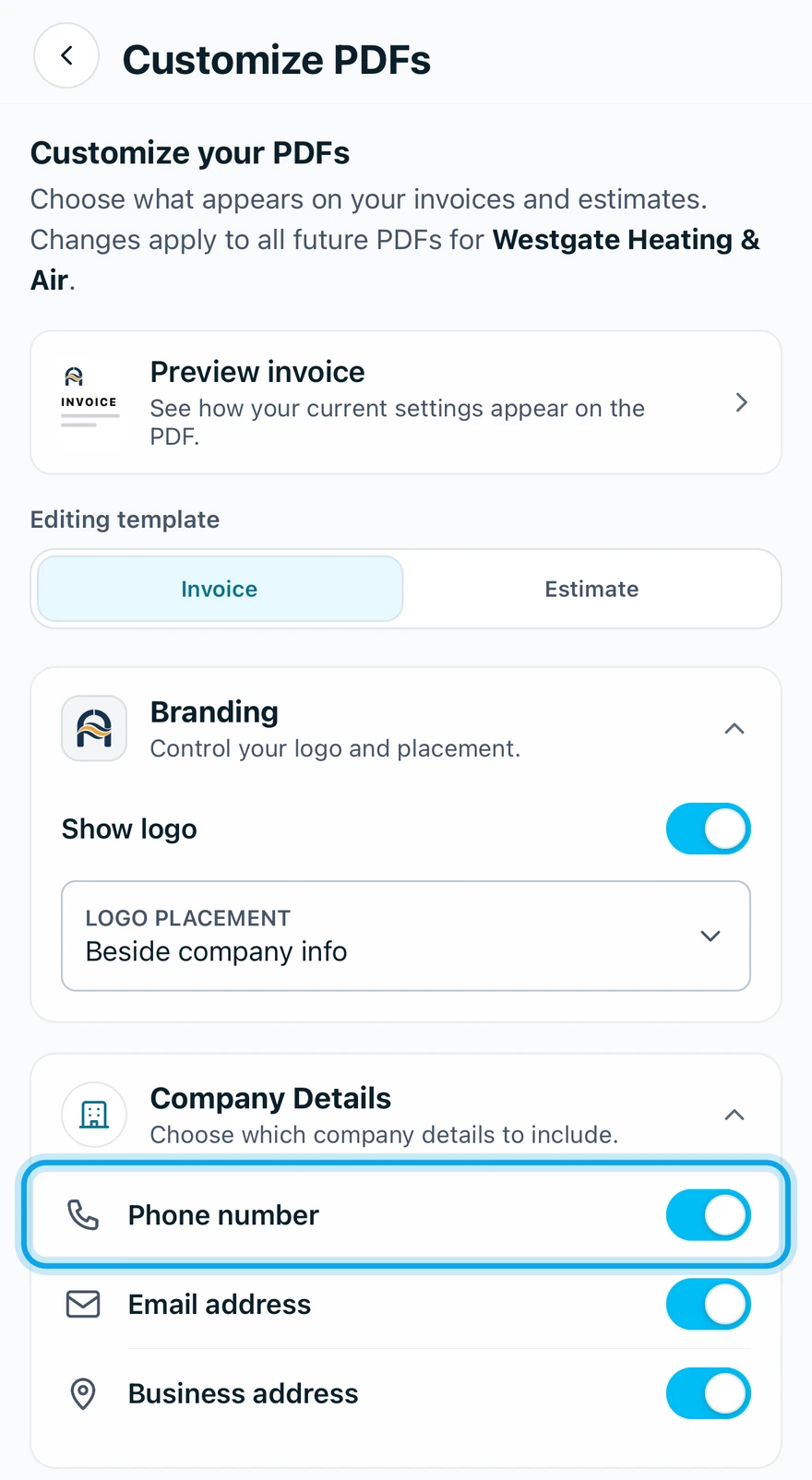
- Open Settings → Customize PDFs.
- Pick Invoice or Estimate.
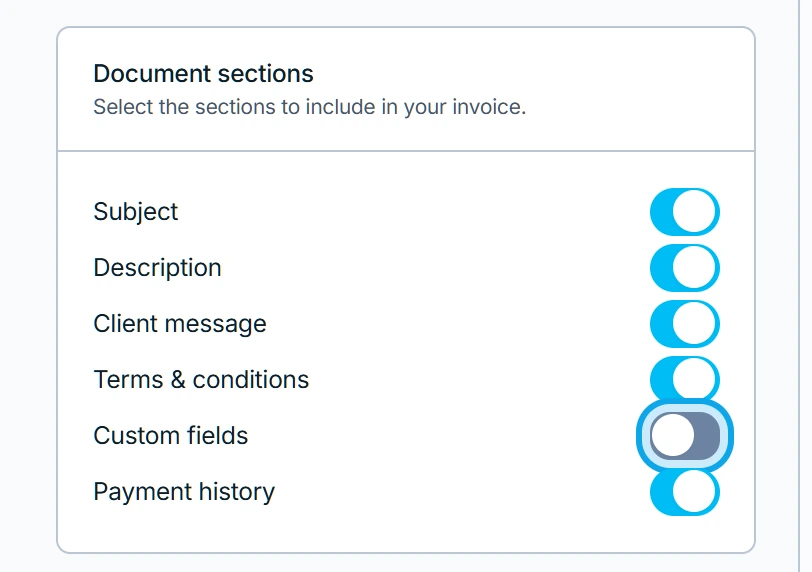
- Switch on details such as Show logo, Phone number and Business address.
- Add any Header text or Footer text.
- Press Save changes. In the app, Preview shows the PDF first.
What you see
Branding settings saved and PDF settings saved confirm each page. New estimates and invoices use the new look.
The customer's estimate and invoice pages have their own switches: see the client portal settings.
Branding says the logo can't be added
This logo can't be added to PDFs or emails. Upload a PNG or JPG. The file type can't print, so upload a PNG or JPEG under 2 MB.
Who can do this
Both pages need Manage business settings, held by owners and admins by default. Others ask an owner or admin under Settings → Team & roles → Roles.