Remove someone from your team
Remove a member from their row on Team & roles. They lose access straight away, and their name stays on the work they did, marked Former.
Remove a member
- Open Settings → Team & roles.
- Press Remove from workspace on the member's row. In the Zaras app, tap the member first.
- Confirm in Remove team member: press Remove member on the web, or tap Remove in the app.
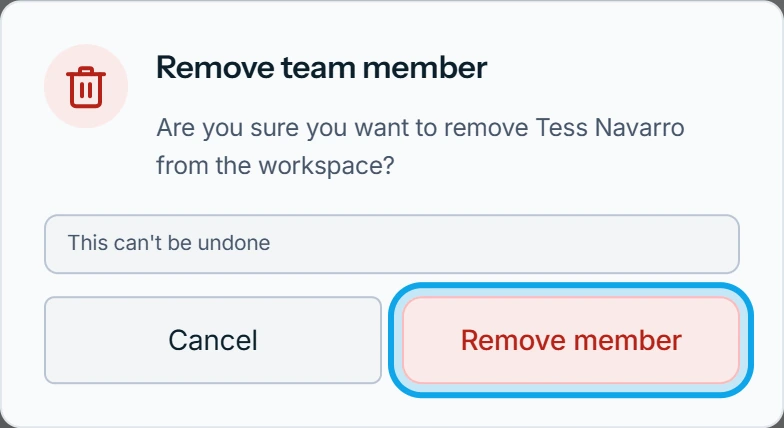
What you see
Member removed confirms it on the web. They move into the Former members list under the roster, with the day they left.
- Their visits, time entries and history stay, under their name marked Former.
- If this leaves them in no workspace, they are signed out everywhere.
- Their account stays theirs: see Signed in with no workspace.
Invoice and estimate links they sent keep working. To stop them, press Reset customer links on the same page on the web.
To undo it, press Restore on their row in the Former members list. It sends them a new invitation.
The removal is refused
Zaras refuses while they have timesheet entries waiting for approval. Approve or deny those first. It also refuses if they connected the workspace's Stripe account, so connect a new one first.
Who can do this
It needs Remove team members, held by owners and admins, and works only on roles below your own.