Where does a custom field show up?
An active field shows on its record's detail page and list, inside your workspace. Customers see it only when Visible to customers is on.
Show a field to customers
- Open the field on Settings → Custom fields.
- Turn on Visible to customers.
- Press Save changes on the web, or tap Save in the app.
- For PDFs, open Customize PDFs and switch on Custom fields under Document sections.
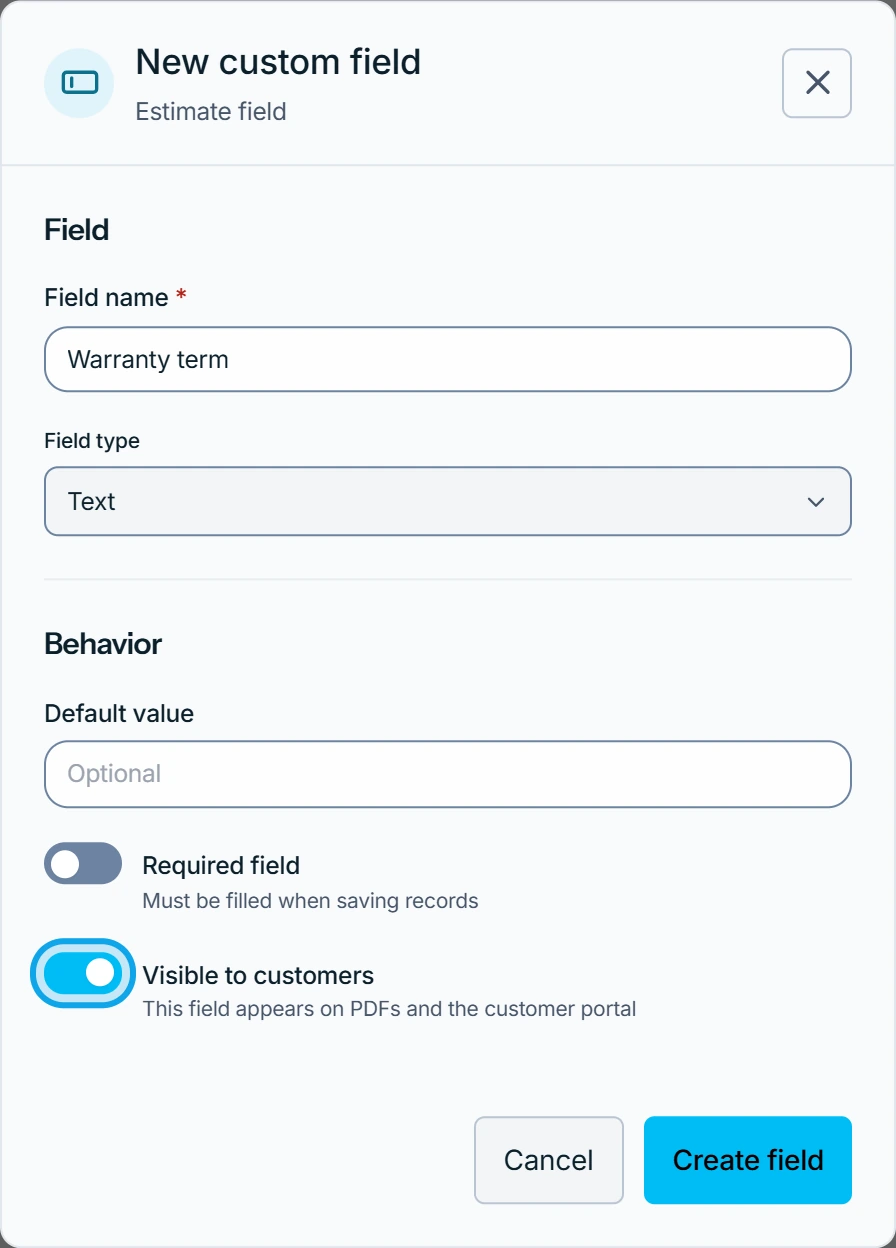
What you see
The switch says where it goes:
- Estimates and invoices: This field appears on PDFs and the client portal.
- Jobs: This field appears on job confirmation emails.
- Contacts have no such switch, so a contact field stays inside your workspace.
The row sums it up, for example Required · Shown to customers. A required field stops a save until it has a value.
It's on but the customer can't see it
On a PDF, check that Custom fields is on in Customize PDFs. On the customer's page, the client portal settings switch Additional information can hide it.
Who can do this
It needs Manage financial settings, held by owners and admins by default. Customize PDFs needs Manage business settings.