Email the customer a job confirmation
Press Send confirmation on the job to email the customer when you are coming. The job needs a scheduled visit first.
Send a confirmation
- Add a visit if the job has none.
- Press Send confirmation on the job, or tap it in the Zaras app.
- Check the email, then press Send email.
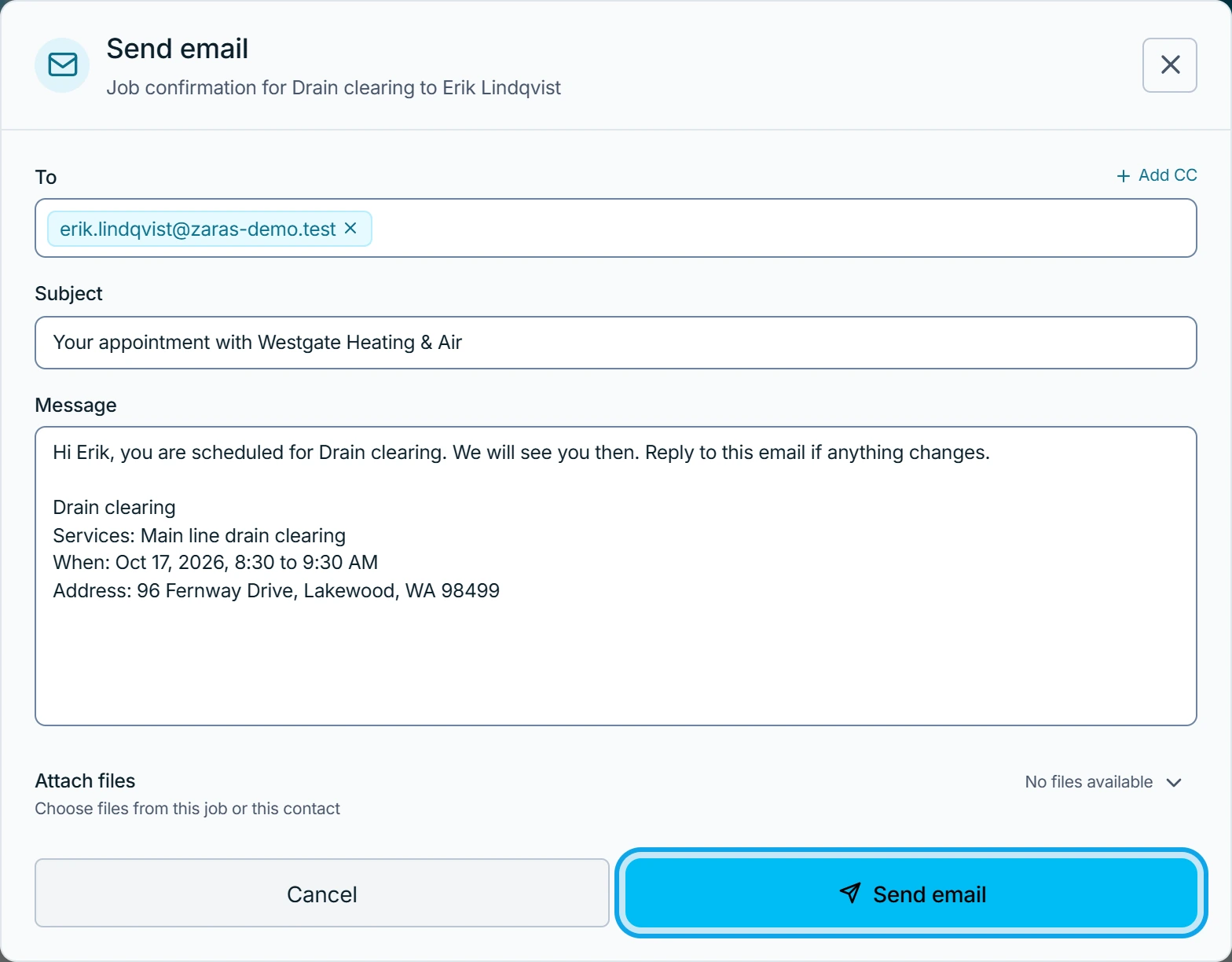
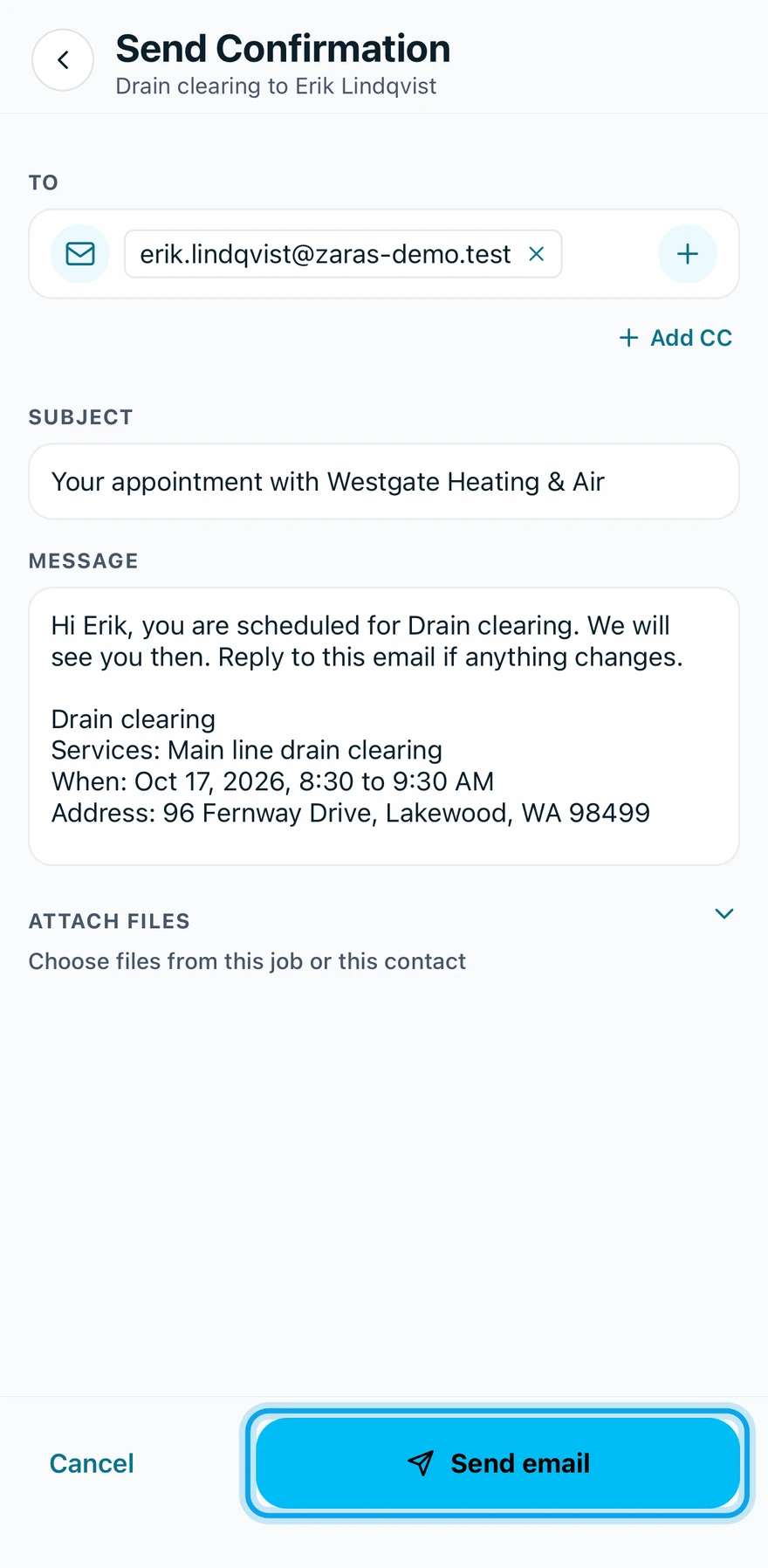
The job's Customer message appears in the confirmation.
What you see
Confirmation sent confirms it.
Confirm while you schedule
A new visit's Notify customer box sends Email the customer a confirmation. on its own. Untick it to skip the email for that visit only.
Moving a visit offers the same box: Email the customer the new time.
Send confirmation is greyed out
It says Schedule the job first to send a confirmation. Add a visit with a date, then try again.
Who can do this
Sending needs Manage jobs. Owners, admins, office and technicians hold it by default. Others ask an owner or admin under Settings → Team & roles → Roles.