Can I change an estimate after sending it?
Yes, but only its wording and dates. To change line items, pricing, tax, customer or address, create a revision and send it.
Create a revision
- Open the sent estimate.
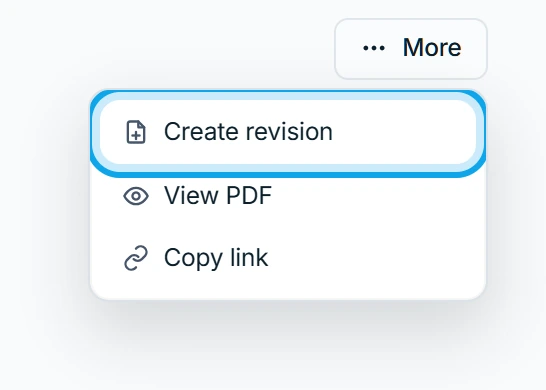
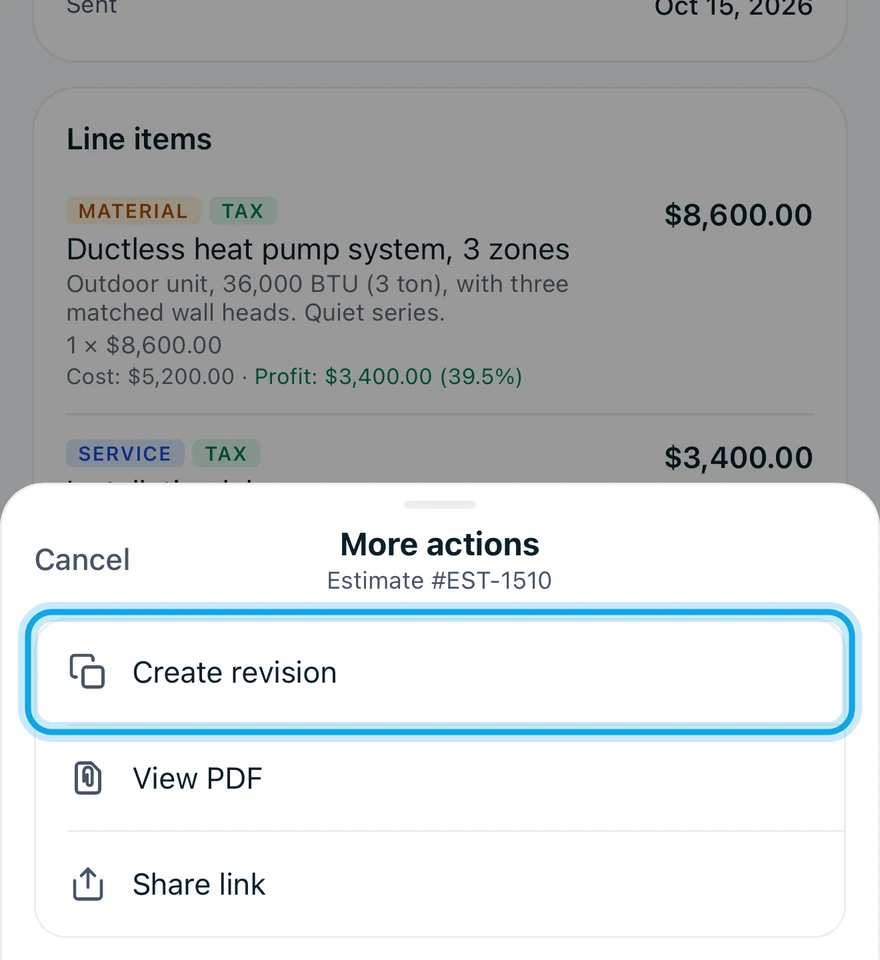
- Press the three-dot button in its header, or tap More in the Zaras app.
- Choose Create revision.
- Confirm in Create a revision?.
- Edit the new draft, then send it.
What you see
A new Draft opens, copied from the old one. The old estimate stays as it is until you send the revision, and is then marked Superseded.
After that, the customer's old link says "Please check your email for the updated version." The old estimate reads This estimate is no longer current., with View latest revision.
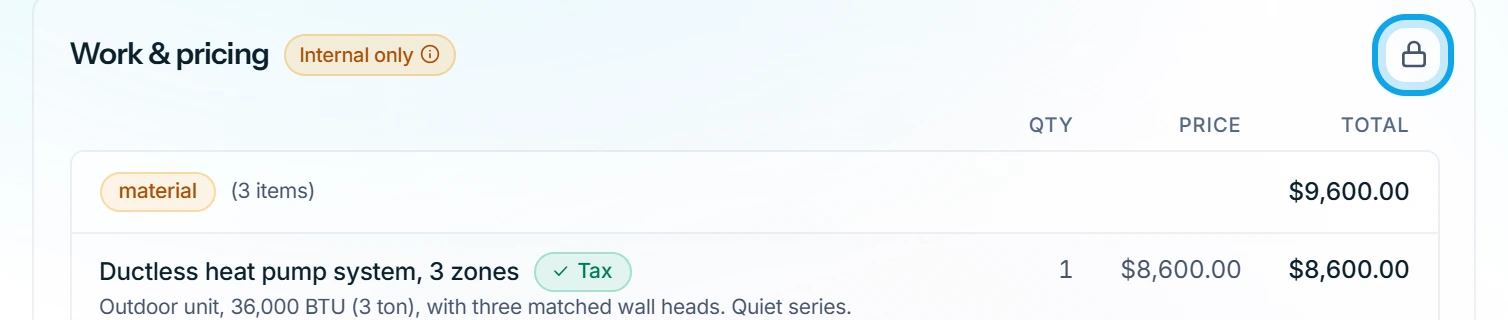
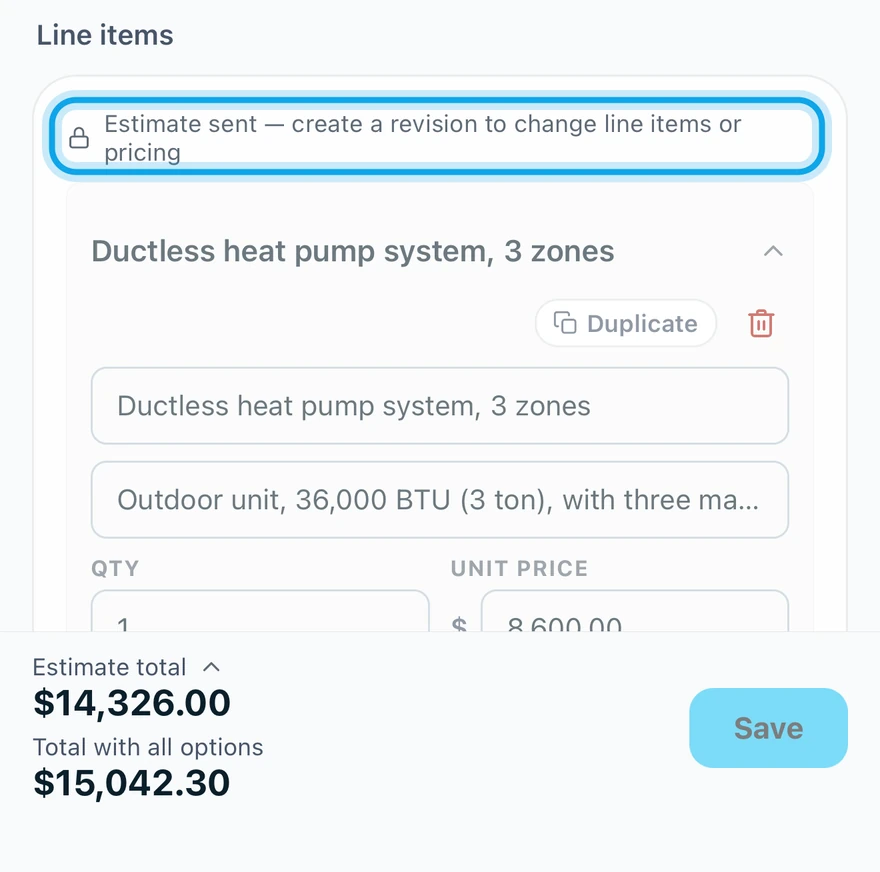
Line items are locked
On a Sent estimate the web says Estimate is sent; create a revision to change line items. The app says Estimate sent — create a revision to change line items or pricing.
Title, description, valid-until date, message to customer and internal notes stay editable.
Who can do this
Revisions need Manage estimates. Owners, admins, office and technicians hold it by default. Others ask an owner or admin under Settings → Team & roles → Roles.