Set up a recurring job
Choose Recurring under Job type when you create the job, then set how often it repeats. The start date anchors the series, so a recurring job can't be left unscheduled.
Set up a recurring job
- Start a new job and fill in the customer and line items.
- Under Job type, choose Recurring instead of One-off.
- Pick the Start date of the first visit.
- Set Repeats with an Every count on the web, or a Frequency in the app.
- Under Ends, choose On a specific date or After a number of visits. On a date or After N visits in the app.
- Press Save job on the web, or tap Create job in the app.
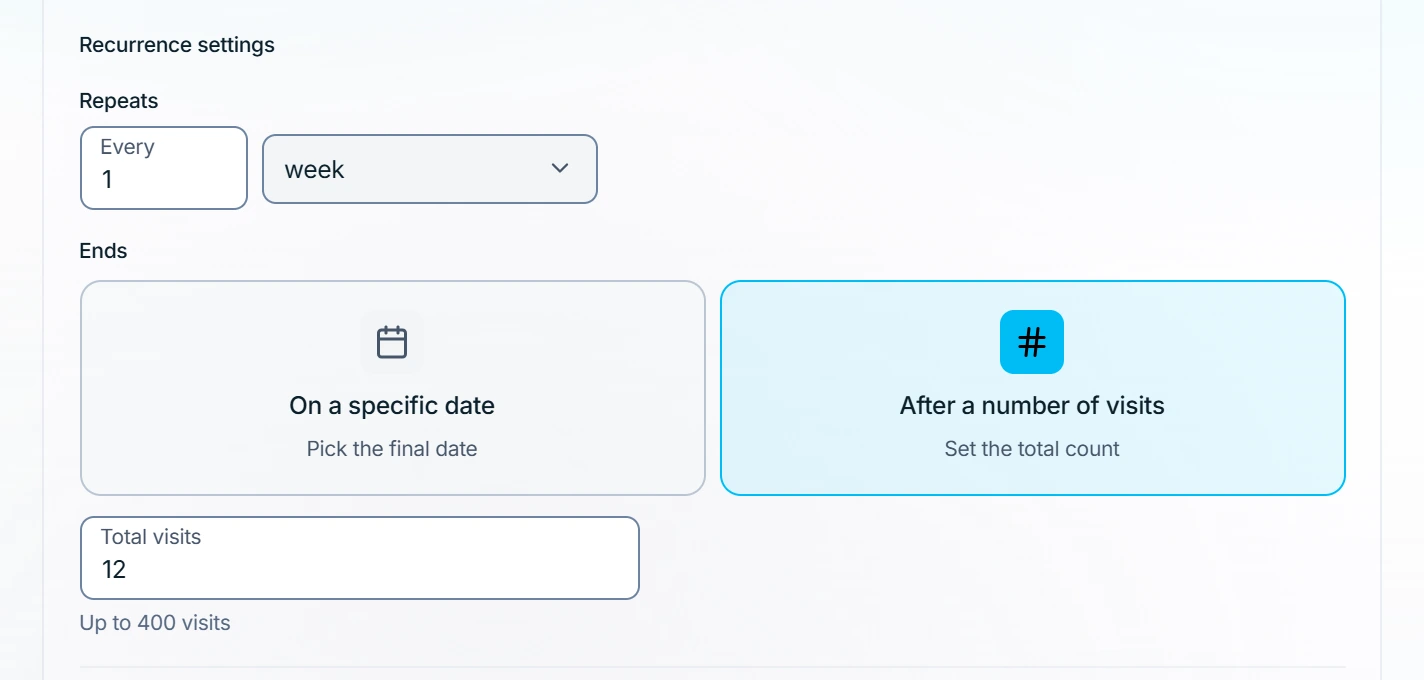
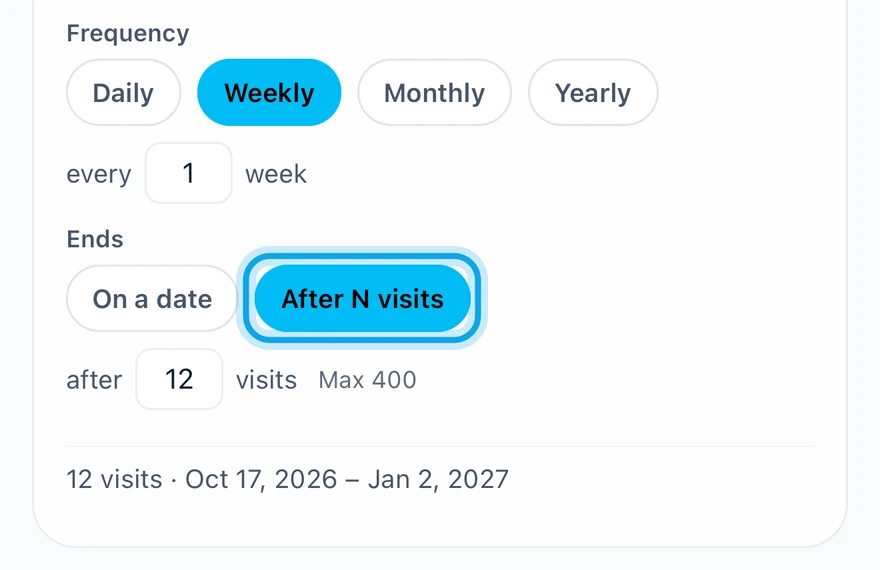
What you see
The job's Visits card lists the series as numbered visits, such as "Visit 2 of 6". Total visits goes up to 400.
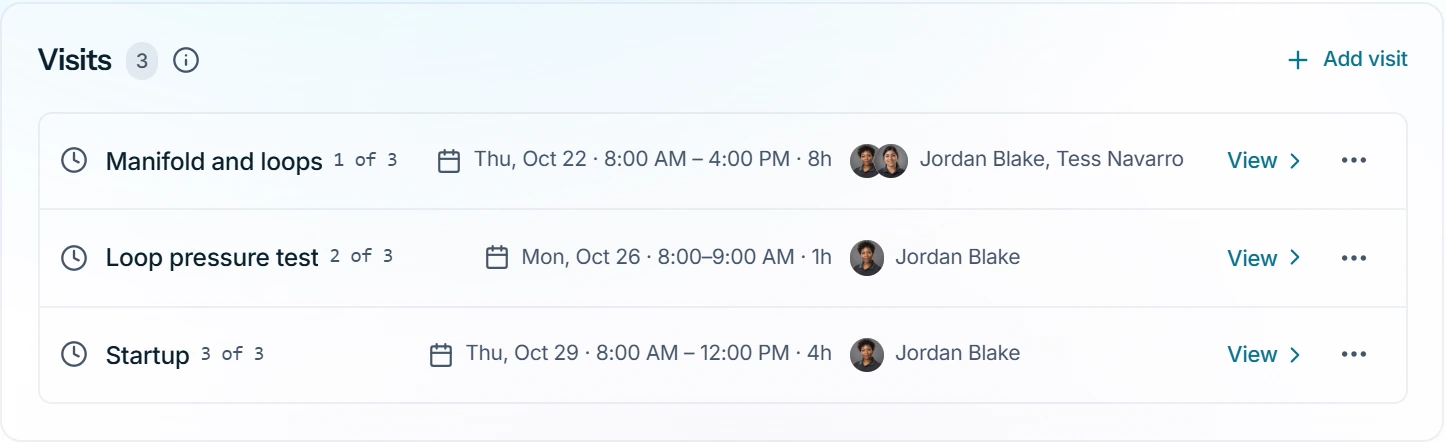
You can edit or cancel one visit without touching the rest. To stop the series early, cancel the visits you no longer need.
The series is one job, so it is invoiced from the job: Create invoice, then Create another invoice for later work.
Who can do this
Recurring jobs need Manage jobs. Owners, admins, office and technicians hold it by default. Others ask an owner or admin under Settings → Team & roles → Roles.