Check your team's hours for the week
Open Team Hours under Timesheets for a week grid with one row per technician. It shows only in a workspace with a team.
Check the week
- Open Timesheets in the sidebar on the web, or under More in the Zaras app.
- Open Team Hours.
- Select a technician's day to see its entries.
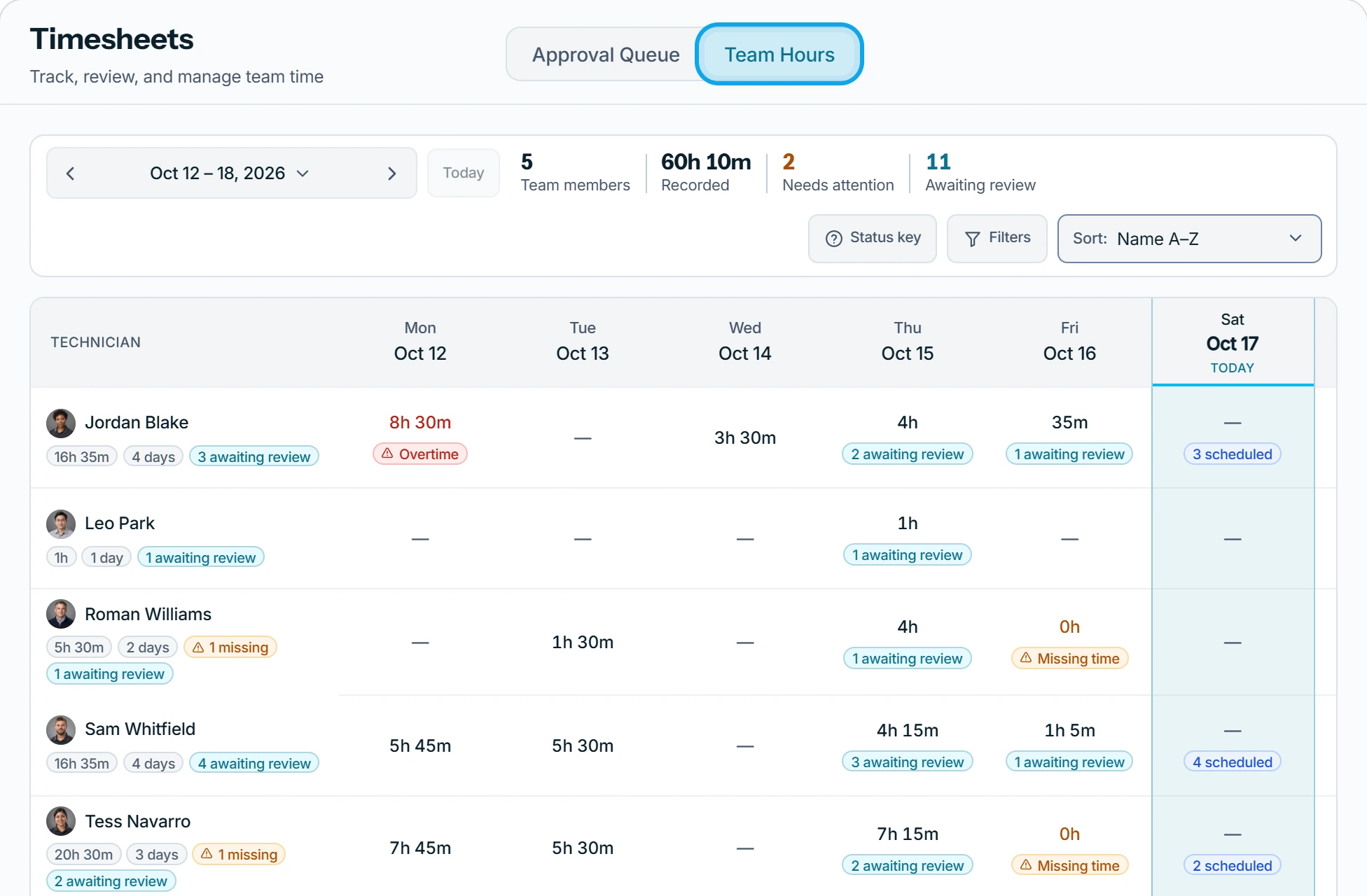
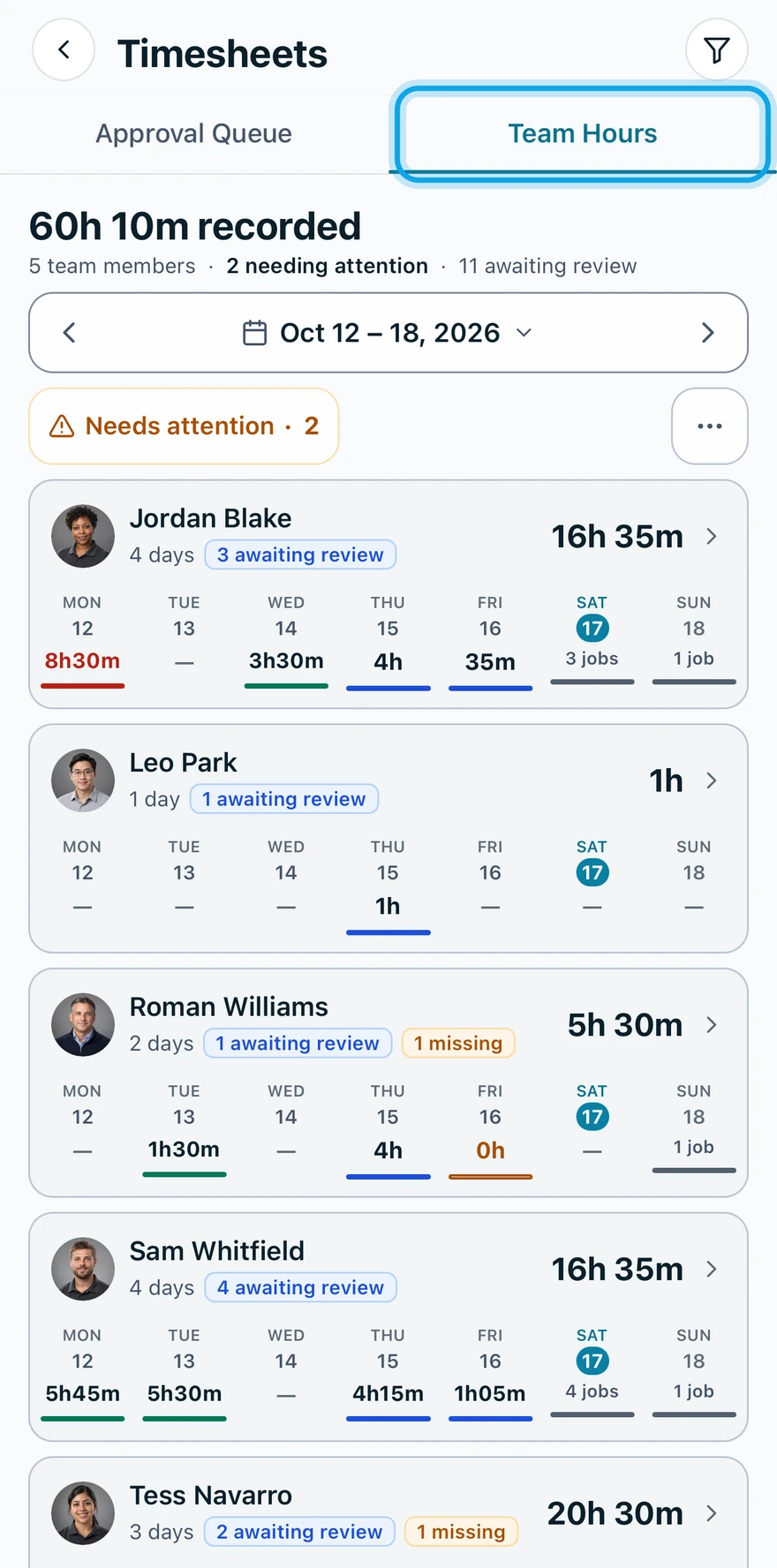
What you see
Each day carries one badge:
- Awaiting review: time recorded, still waiting on a decision.
- Missing time: a past day with assigned visits and nothing recorded.
- Flagged: an entry needs a second look. See Why is a timesheet entry flagged?
- Overtime: over your workspace's hours threshold for the day or the week. Zaras has no payroll overtime rule, so this is not a pay calculation.
- No time: nothing booked and nothing recorded.
Needs attention collects the flagged and missing days. Status key explains every badge.
Who can do this
It needs Approve timesheets, held by owners, admins and office by default. Rate and Cost show only with View cost & profit too.