Sign out of your other devices
Sign out other devices from Sessions on Security in Settings. Those devices need your password to sign back in. This one stays signed in.
Sign out one device
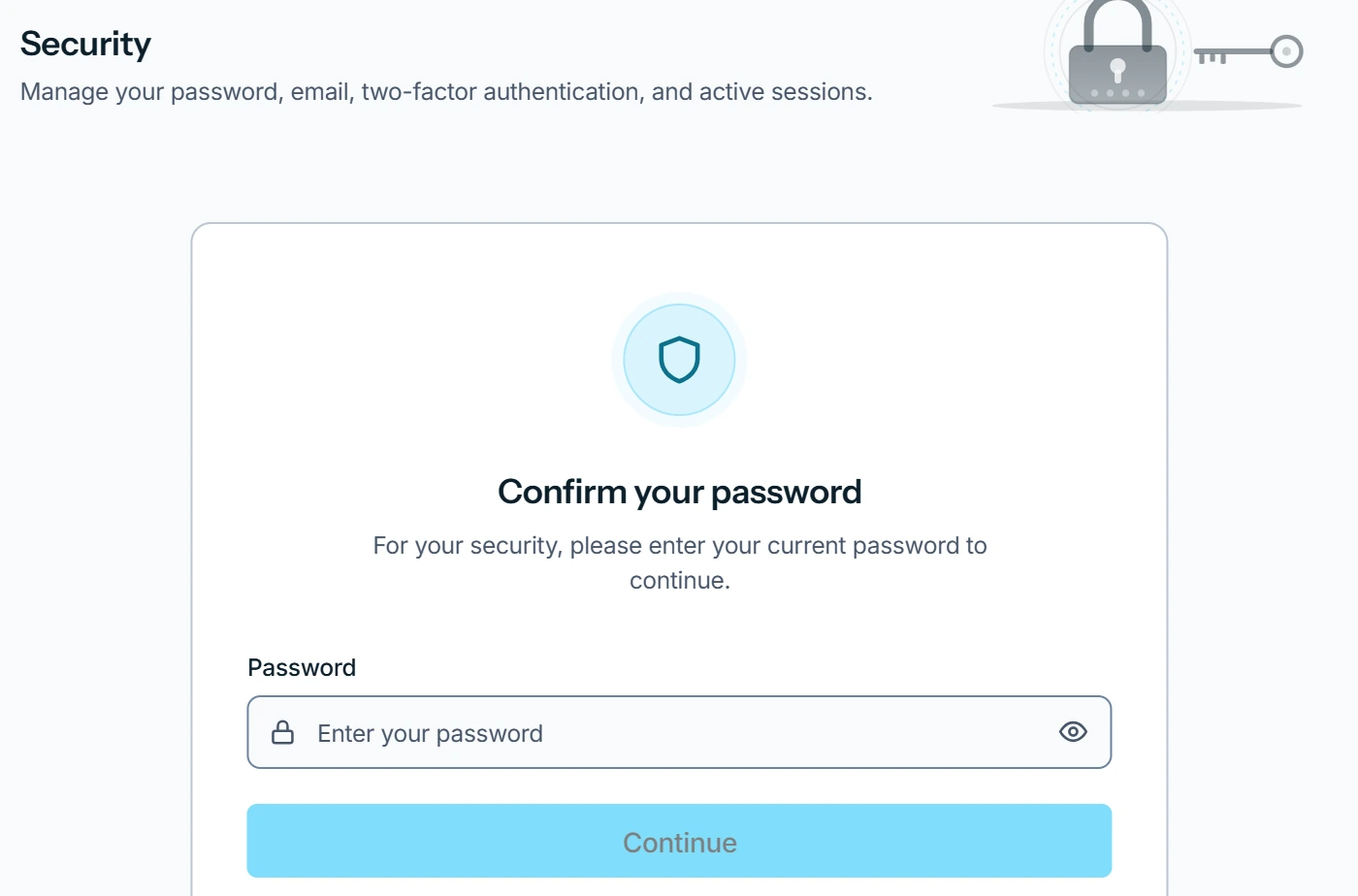
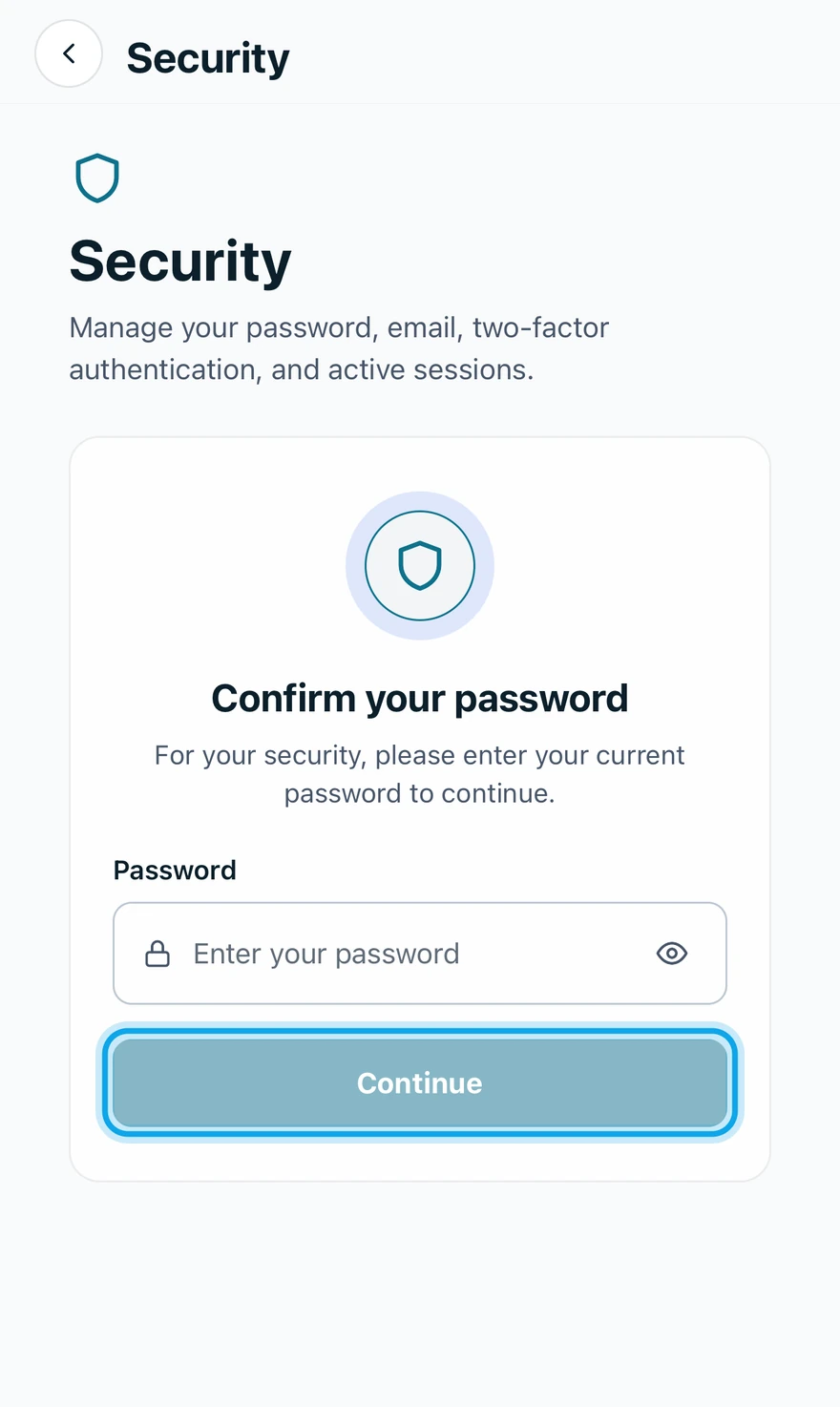
- Open Settings → Security and confirm your password.
- Under Sessions, press Sign out on the device's row.
- Press Sign out device to confirm.
Sign out every other device
- Under Sessions, press Sign out all other sessions.
- Confirm with Sign out all other sessions.
What you see
The device leaves the list. The one you are holding stays signed in, marked Current.
Use this after losing a laptop or phone, or after signing in on a shared computer. To sign out of this device, press Sign out under Sign out of this device on Your profile.
Who can do this
Every member manages their own sessions. No permission is needed.