Change your password
Change your password on Security in Settings, using your current one. Your other devices are signed out. This one stays signed in.
Change your password
- Open Settings → Security.
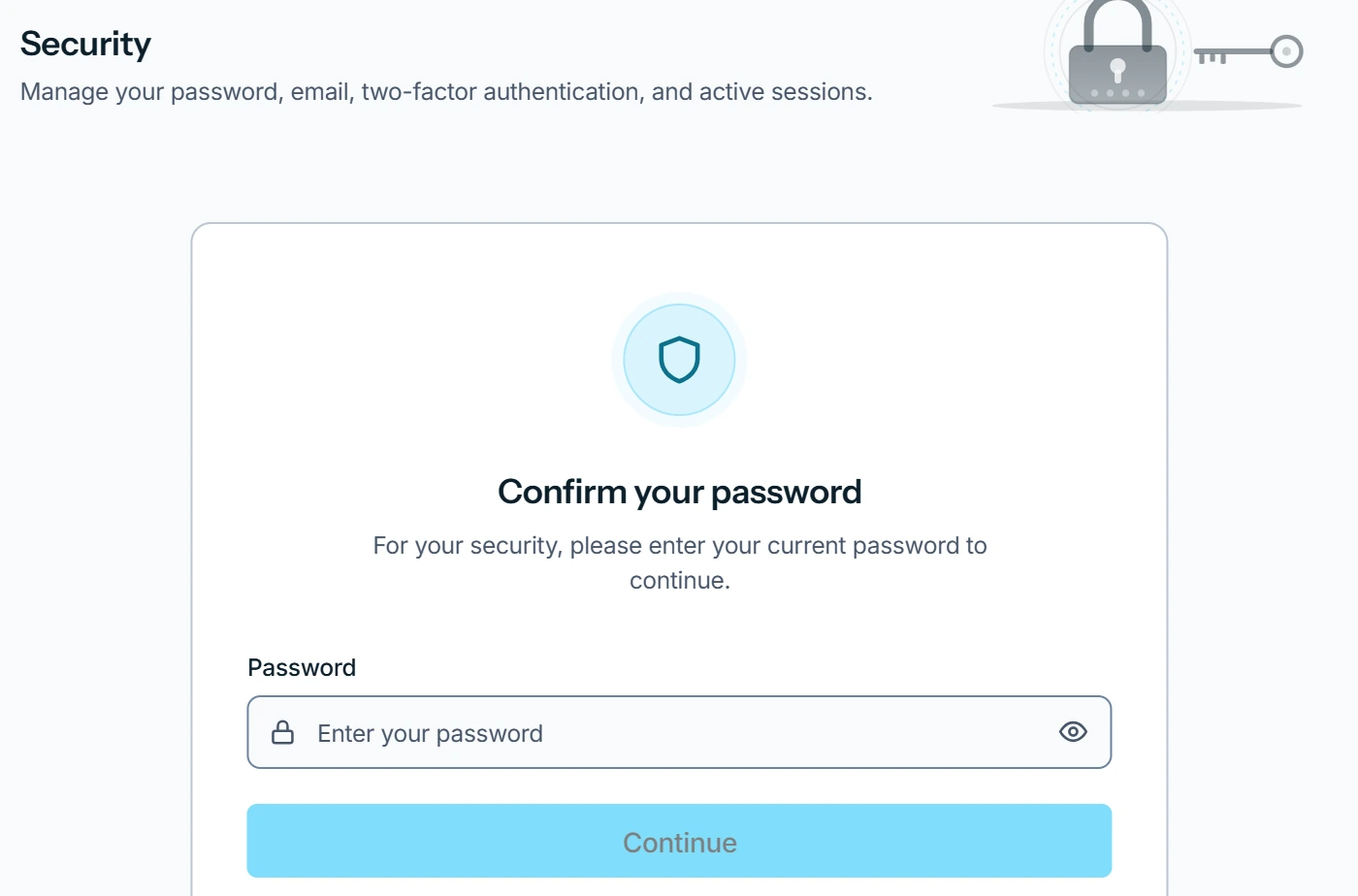
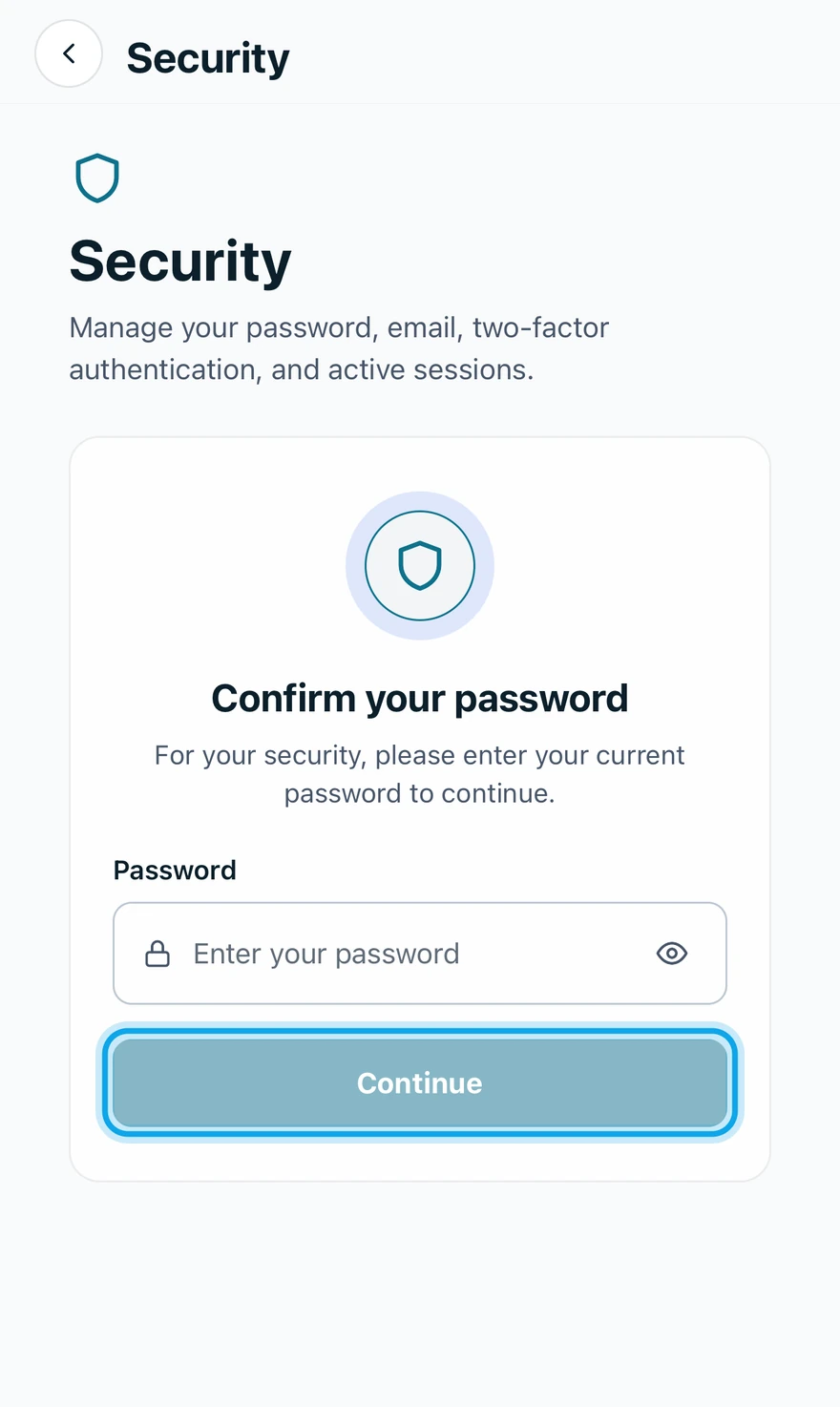
- In Confirm your password, enter your password and press Continue.
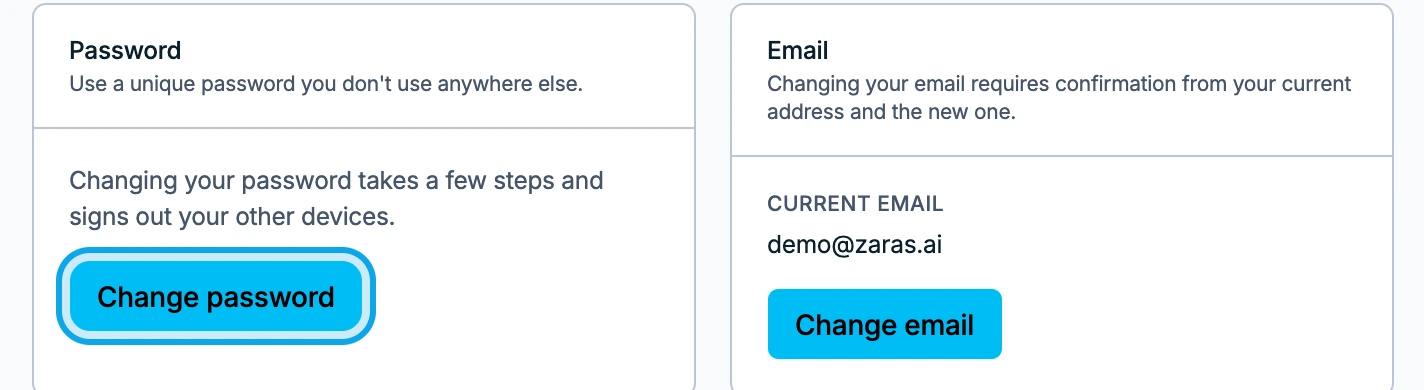
- Press Change password on the web, or tap Password in the app.
- On the web, enter your Current password and press Continue.
- Type the New password, then again under Confirm new password.
- Press Continue.
- Press Change password on Ready to change your password.
What you see
Your password has been changed confirms it, and says how many other devices were signed out. They will need the new password to sign back in.
It says Incorrect password
Incorrect password means the current password was wrong. Forgot it? Reset a forgotten password from the sign-in screen.
Continue does nothing
The new password must pass the rules: Password must be at least 8 characters with both letters and numbers. The two passwords do not match. means the second box differs.
Who can do this
Every member changes their own password. No permission is needed.