Tell the customer you're on the way
Tap On my way on today's visit, pick your arrival time, and tap Send email. Zaras emails the customer from your business. It never sends a text.
Send On my way
- Tap On my way on the visit or on the job.
- Under Arriving in, pick 15, 30 or 45 minutes or an hour.
- Check the line that compares your time with the arrival window.
- Under Who's going, tick everyone who is going.
- Read the sentence the customer will see, then tap Send email.
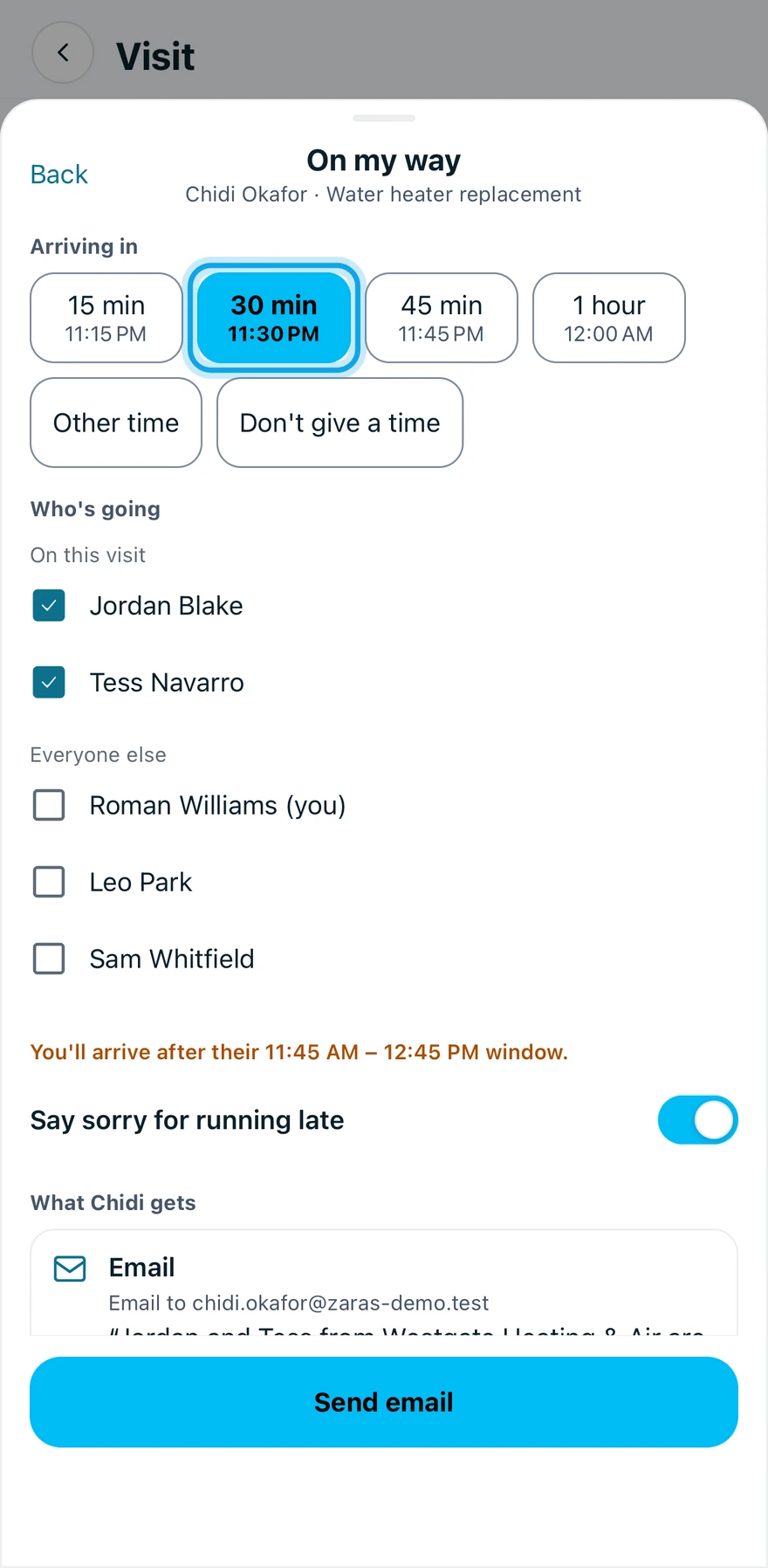
On the web, press the three-dot button on today's visit on the job and choose On my way. The same choices follow, then Send email.
Other time lets you pick the time, and Don't give a time sends none.
Late? Say sorry for running late adds "Sorry we're running late." Early? Mention you're early says so. Both start on. Turn one off to leave it out.
What you see
The visit shows On the way. The email names everyone ticked under Who's going. Assignments do not change.
On my way is greyed out
It reads This visit isn't today. On my way works only on the day of the visit.
The button reads Mark on the way
No email can go: the customer has no email address, or the email is off. Turn it on under Settings → Communications → Customer notifications, in the On my way row. Mark on the way still shows On the way, and sends nothing.
Who can do this
On my way needs Manage schedule. Owners, admins, office and technicians hold it by default. Others ask an owner or admin.