Close an invoice you won't be paid for
Choose Close invoice on the open invoice, then write off the balance or void the invoice. The customer is not emailed, and only a void can be reopened.
Close the invoice
- Press the three-dot button in the invoice's header, or tap More in the Zaras app.
- Choose Close invoice.
- Under Close method, pick the write-off ("Write off" and the balance) or Void invoice.
- Add Notes if you like, then confirm.
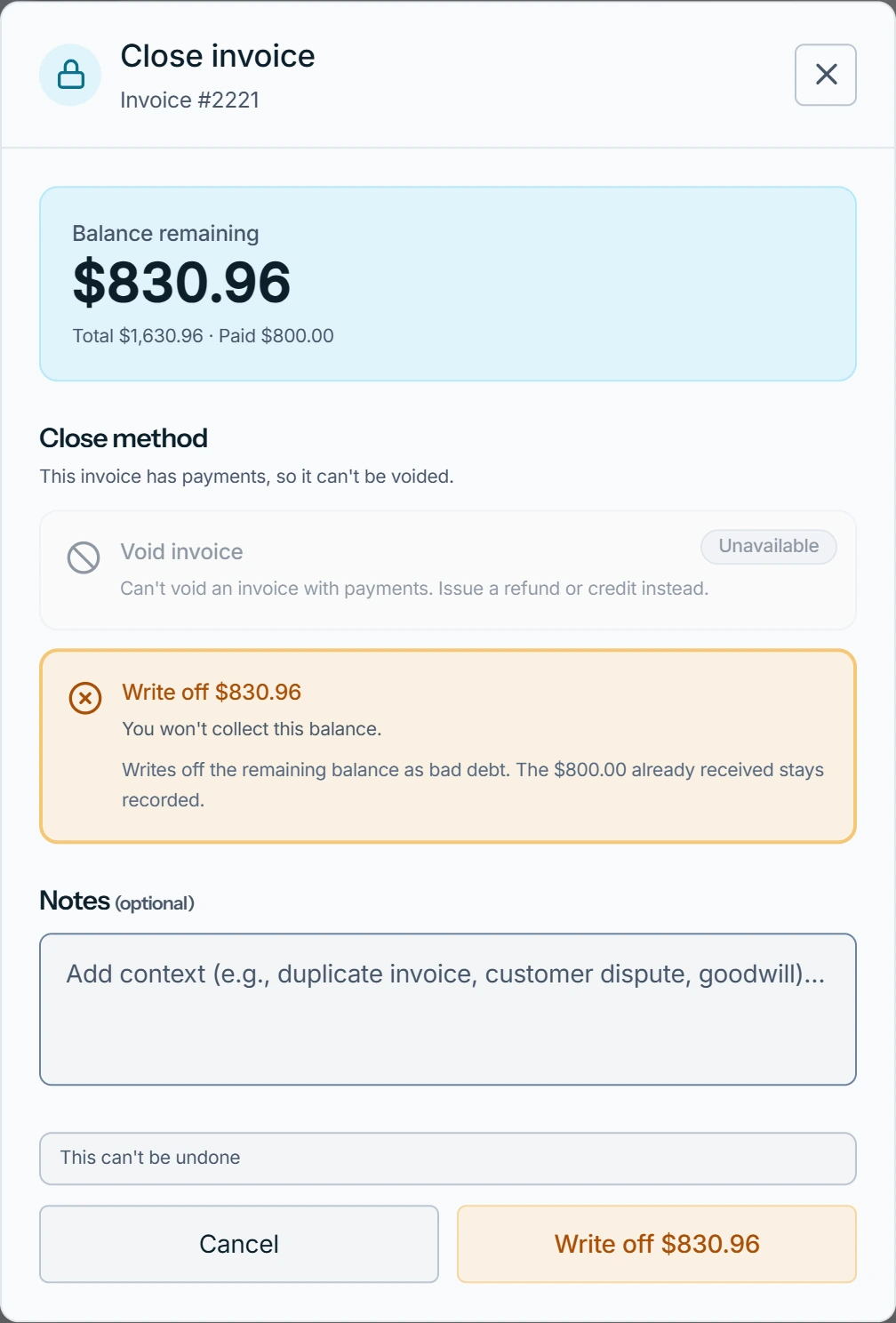
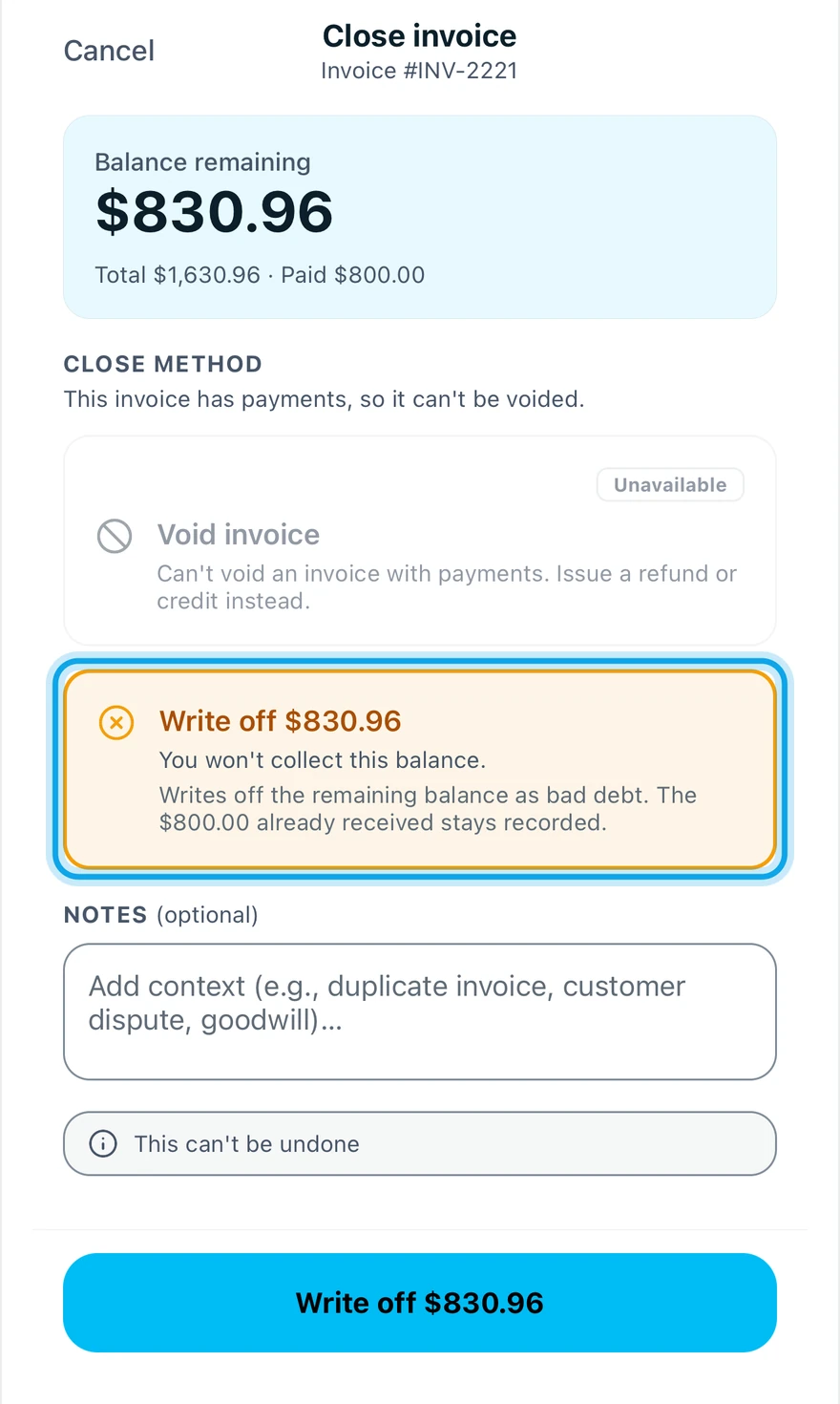
What you see
Invoice closed confirms it. A write-off reads Written off, and payments already received stay. A void reads Voided, kept for your records but left out of balances and reports.
The customer's page then says no payment is due. Both closes warn This can't be undone.
Void invoice is unavailable
Can't void an invoice with payments. Issue a refund or credit instead. Void the payments first, or write off the balance.
Reopen a voided invoice
A voided invoice offers Reopen invoice, which moves it back to open for payments. A written-off invoice can't be reopened while its write-off stands.
Who can do this
Closing needs Manage invoices. Owners, admins, office and technicians hold it by default. Others ask an owner or admin under Settings → Team & roles → Roles.