See your own hours
Open My Hours to see your week. Each entry shows Pending, Approved or Denied. A denied entry names who denied it and why.
See your hours
- Open My Hours in the sidebar on the web, or under More in the Zaras app.
- Use the arrow buttons beside the week to change weeks.
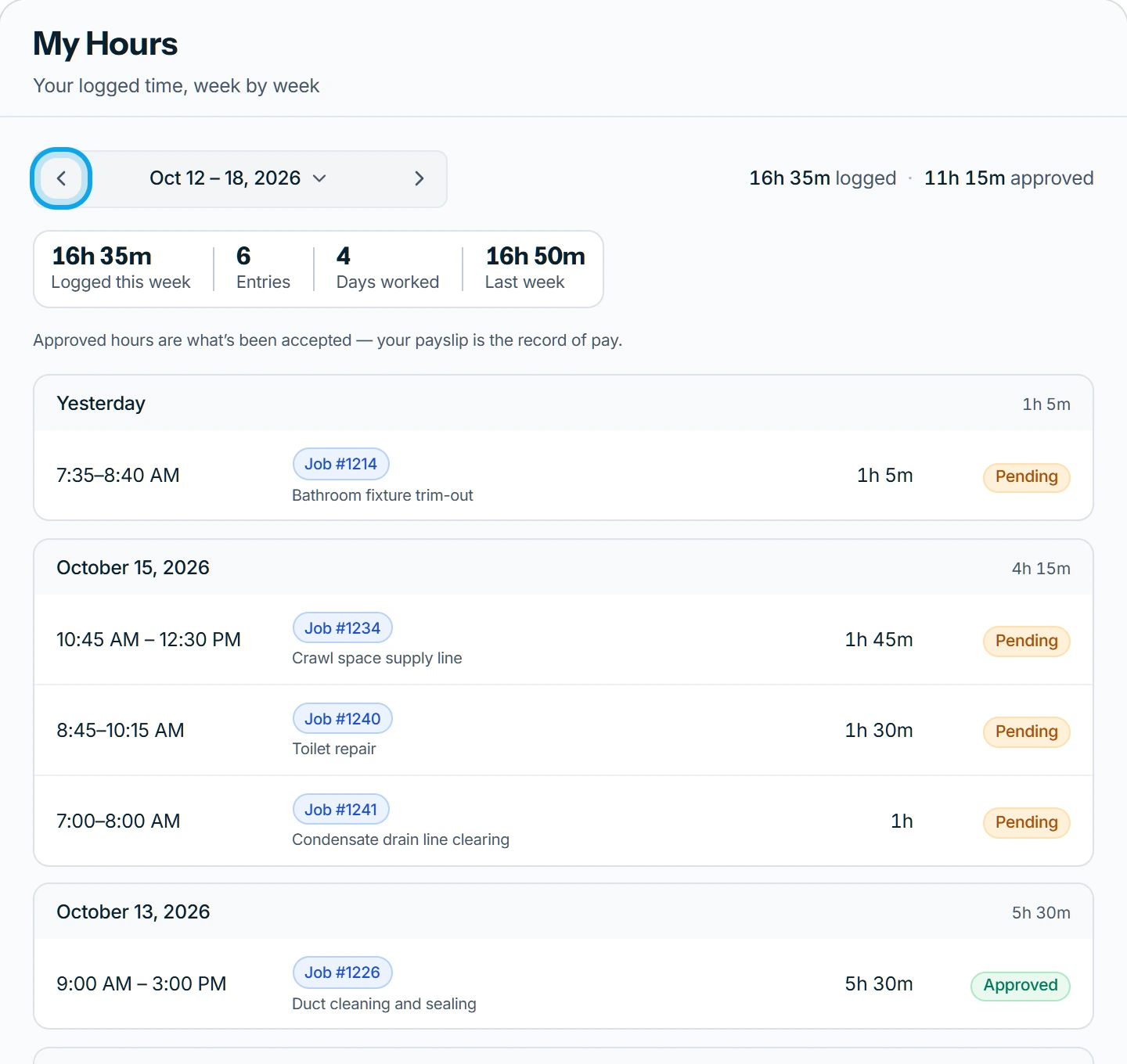
What you see
In a team, someone who can approve other people's time sees Timesheets there instead. A denied entry reads, say, "Denied by Jordan Blake", with the reason below.
In a team the page also says: Approved hours are what's been accepted — your pay stub is the record of pay. Denied time never counts in labor cost.
My entry was denied
A denied entry can be reopened for you to resubmit. Ask the approver to reopen it, or delete it and log the time again.
You can delete your own entry until it is approved.
Who can do this
Everyone sees and logs their own hours. No permission is needed. Approvers review the team's entries in the approval queue.