Set up your workspace after you sign up
After you sign up, three short steps set up your workspace. The web and the Zaras app ask the same questions. Press Next step between them.
Set up your workspace
- Under About you, enter your First name, Last name and Your phone number.
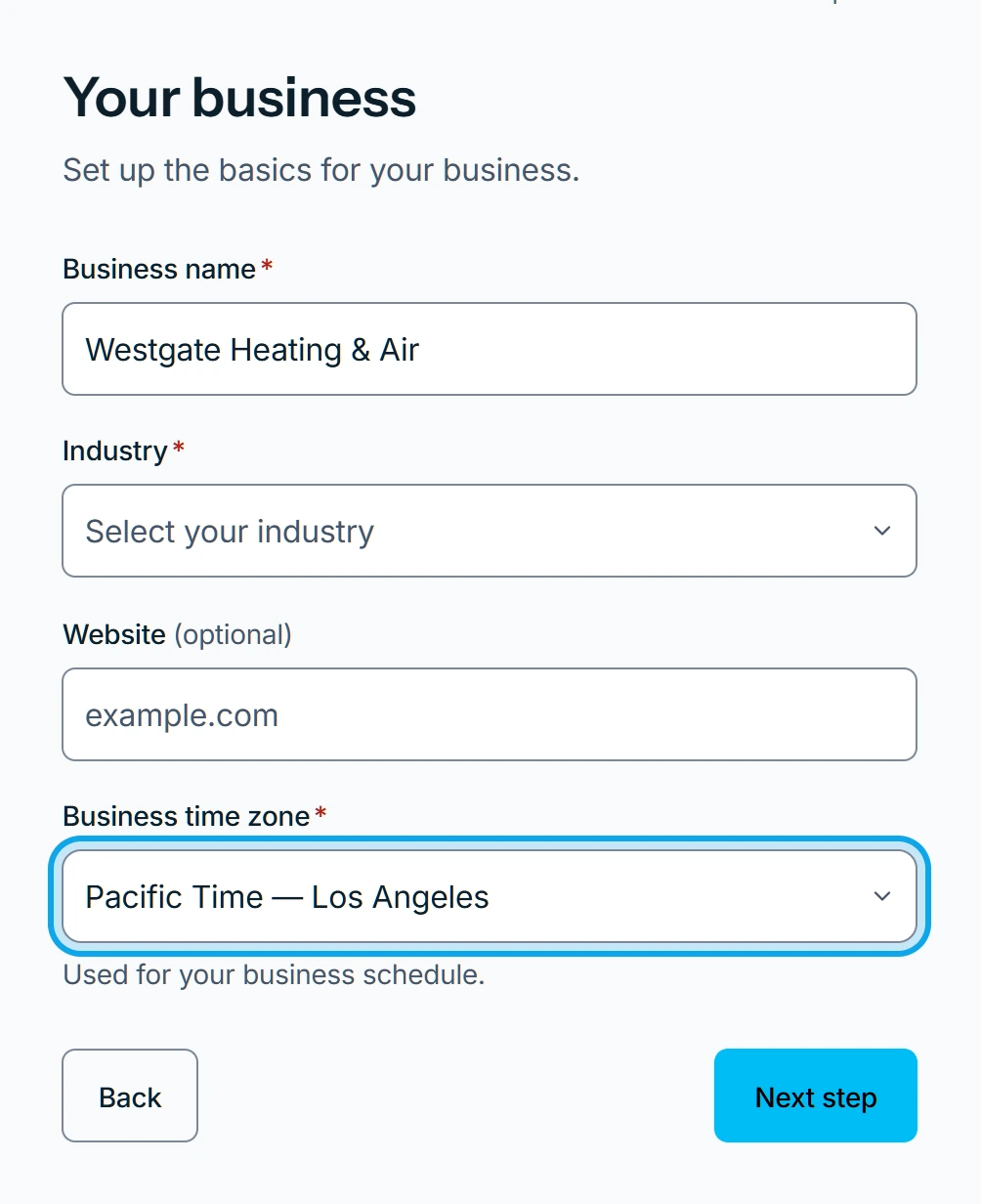
- Under Your business, start typing your Business name.
- Pick your business from the suggestions, or keep typing.
- Pick your trade under Industry.
- Add your Website if you have one.
- Check the Business time zone. Your schedule follows it.
- Under Business details, answer the questions about your team.
- Press Open workspace.
What you see
Opening your workspace… shows, then your new workspace opens. Change these details later under Business info: see Set up your business.
It says the workspace couldn't be created
We couldn't create your workspace. Your answers are saved, so you can try again. Press Try again.
It says the phone is in use
This number is already on a Zaras account. Use a different number, or sign in to that account. A number can belong to one account only.
Who can do this
Whoever signs up without an invitation sets up their own workspace and becomes its owner.