Send an invoice
Press Send invoice on the draft, check the email, then press Send email. The customer gets the PDF and a link to their invoice page.
Send the invoice
- On a draft, press Send invoice, or tap it in the Zaras app.
- Check the email to the customer, with the PDF attached.
- Press Send email on the web, or tap Send email in the app.
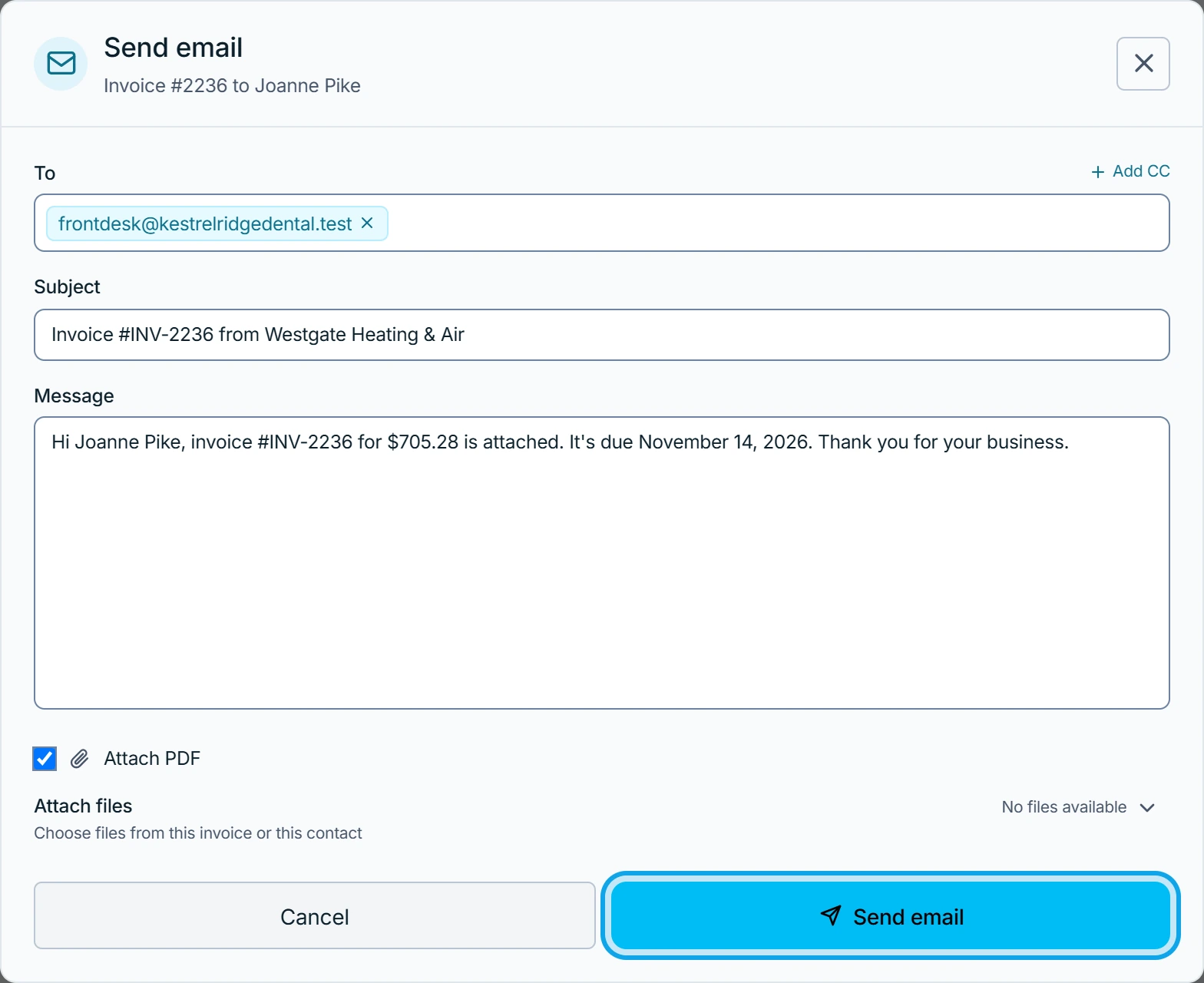
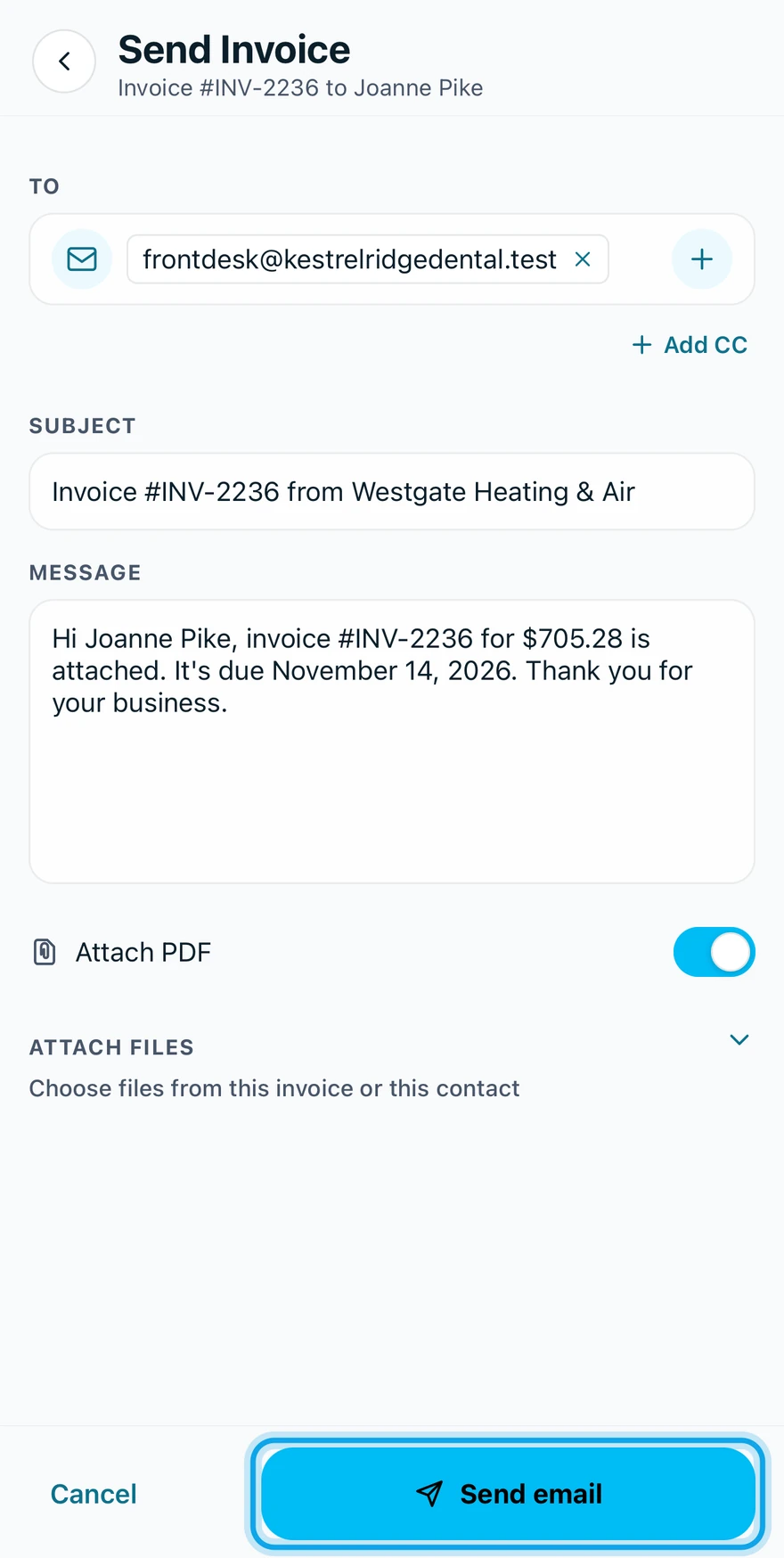
What you see
Invoice sent confirms it, and the invoice reads Open. Its pricing, terms and issue date are now locked. Once the customer opens their page, it shows Viewed beside the status.
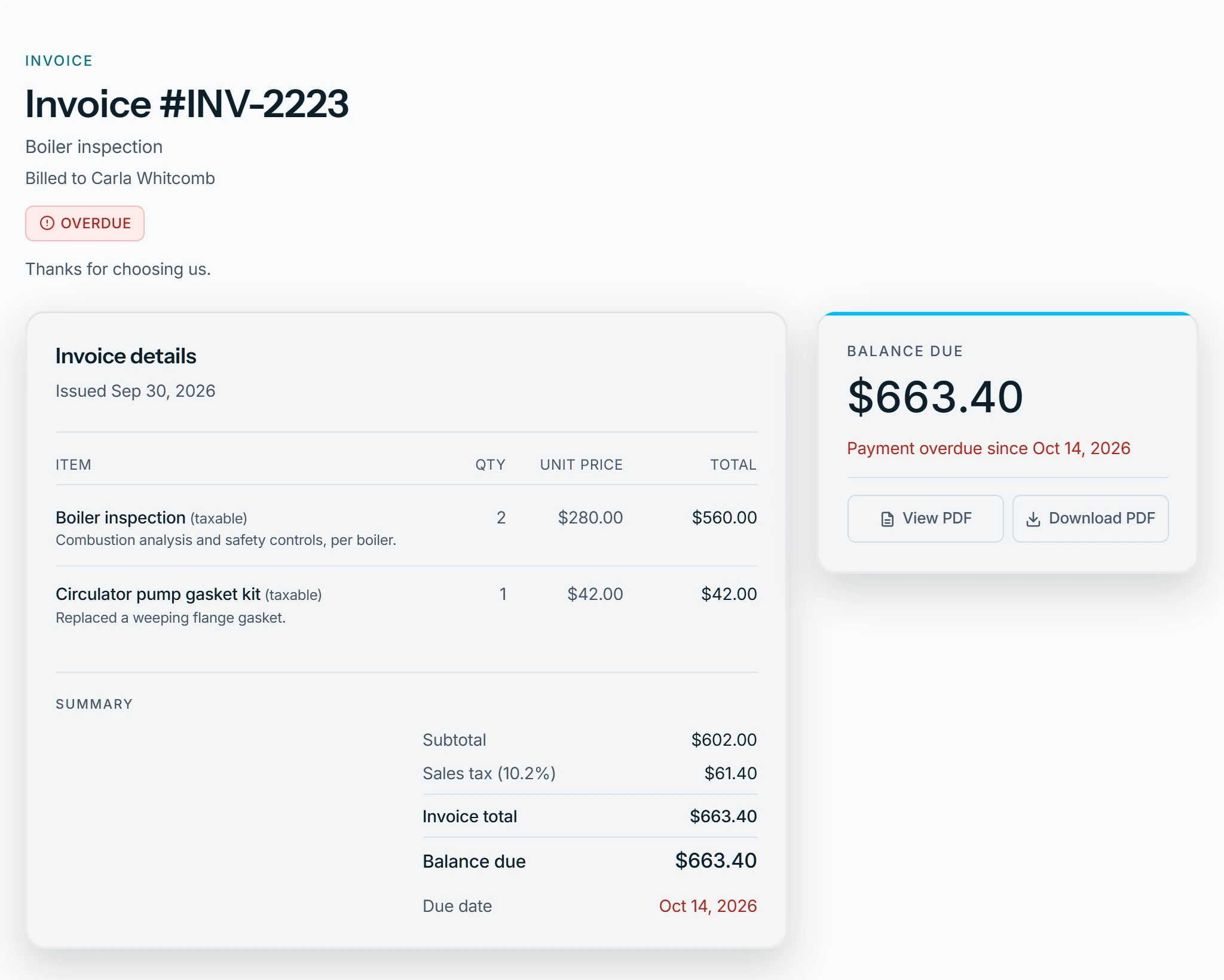
Their page shows the invoice, View PDF and Download PDF. With Settings → Online payments on, it adds a Pay button.
Later emails
Send reminder emails an open invoice again. Once it is Paid, Send receipt appears at the top of the invoice.
Delivered it another way? Mark as sent moves it from Draft to Open: This will not send an email or text message.
It won't send
This invoice has no billable total — add line items before sending. Add a line item, then send again.
Who can do this
Sending needs Manage invoices. Owners, admins, office and technicians hold it by default. Others ask an owner or admin under Settings → Team & roles → Roles.