Reschedule an appointment
Drag the appointment to a new time on the web, or open it and tap Reschedule in the Zaras app. For a planned job visit, the customer is emailed the new time unless you stop it.
Reschedule it
On the web:
- Drag the appointment to a new time or day.
- To change how long it runs, drag its edge.
- To hand it to another technician, drop it in their lane in team view.
In the Zaras app:
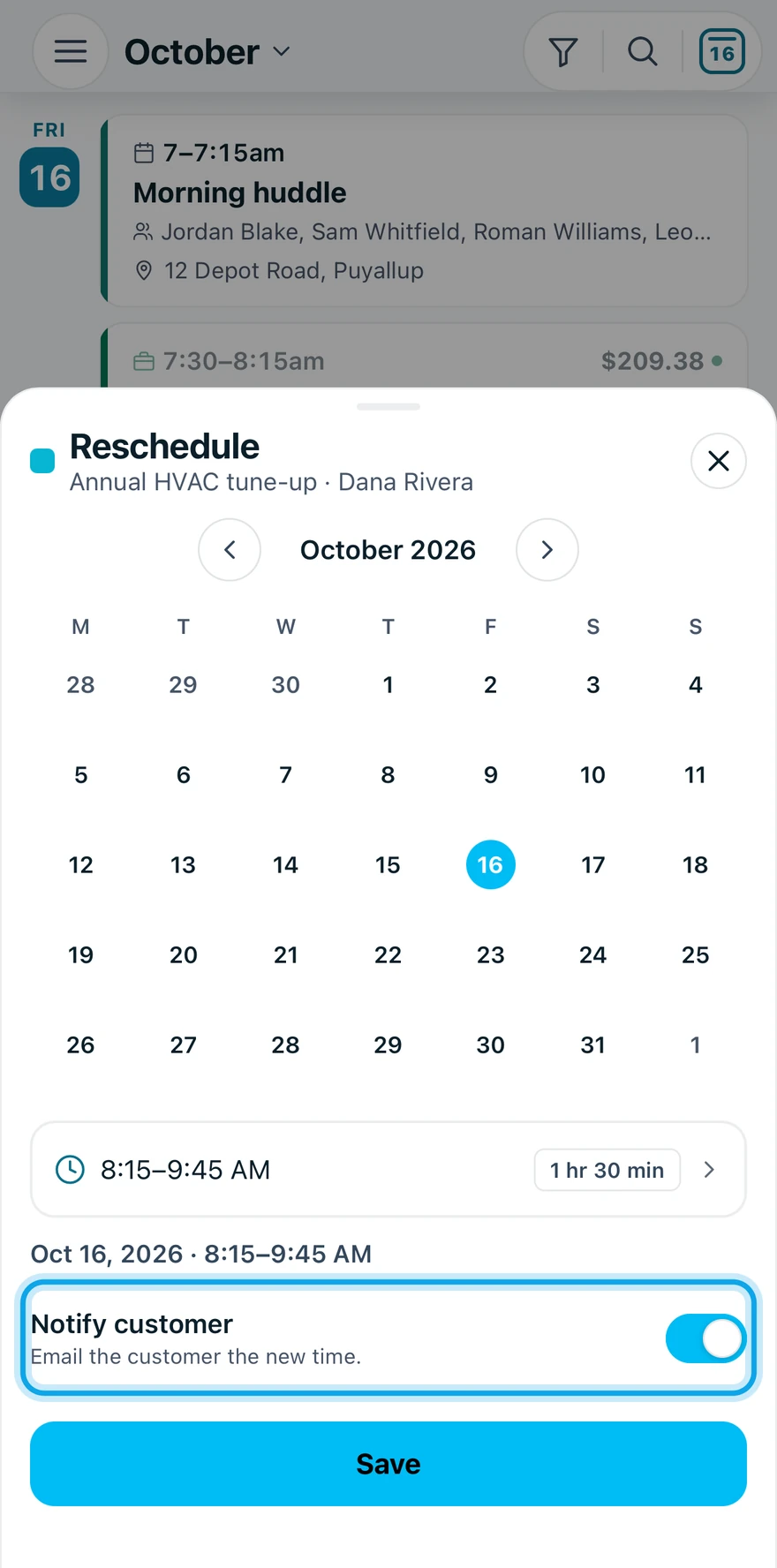
- Tap the appointment on Schedule, then tap Reschedule.
- Pick the new day and time.
- For a job visit, leave Notify customer on to email the new time.
- Tap Save.
What you see
A toast confirms the new time. Undo puts it back. For a planned job visit with a customer email, the web adds a second toast and an email goes 3 minutes later. Don't notify in that toast cancels it.
Estimate appointments and events never email the customer.
Who can do this
Rescheduling needs Manage schedule. Owners, admins, office and technicians hold it by default. Others ask an owner or admin under Settings → Team & roles → Roles.