Set your default arrival window
Set the arrival window customers see on Arrival window in Settings. It applies to newly scheduled jobs. Existing jobs keep theirs.
Set the arrival window
- Open Settings → Arrival window.
- Under How should the window relate to the scheduled start?, choose Begins at scheduled start or Centered around scheduled start.
- Under How long should the arrival window be?, pick a length from 30 minutes to 4 hours.
- Press Save changes.
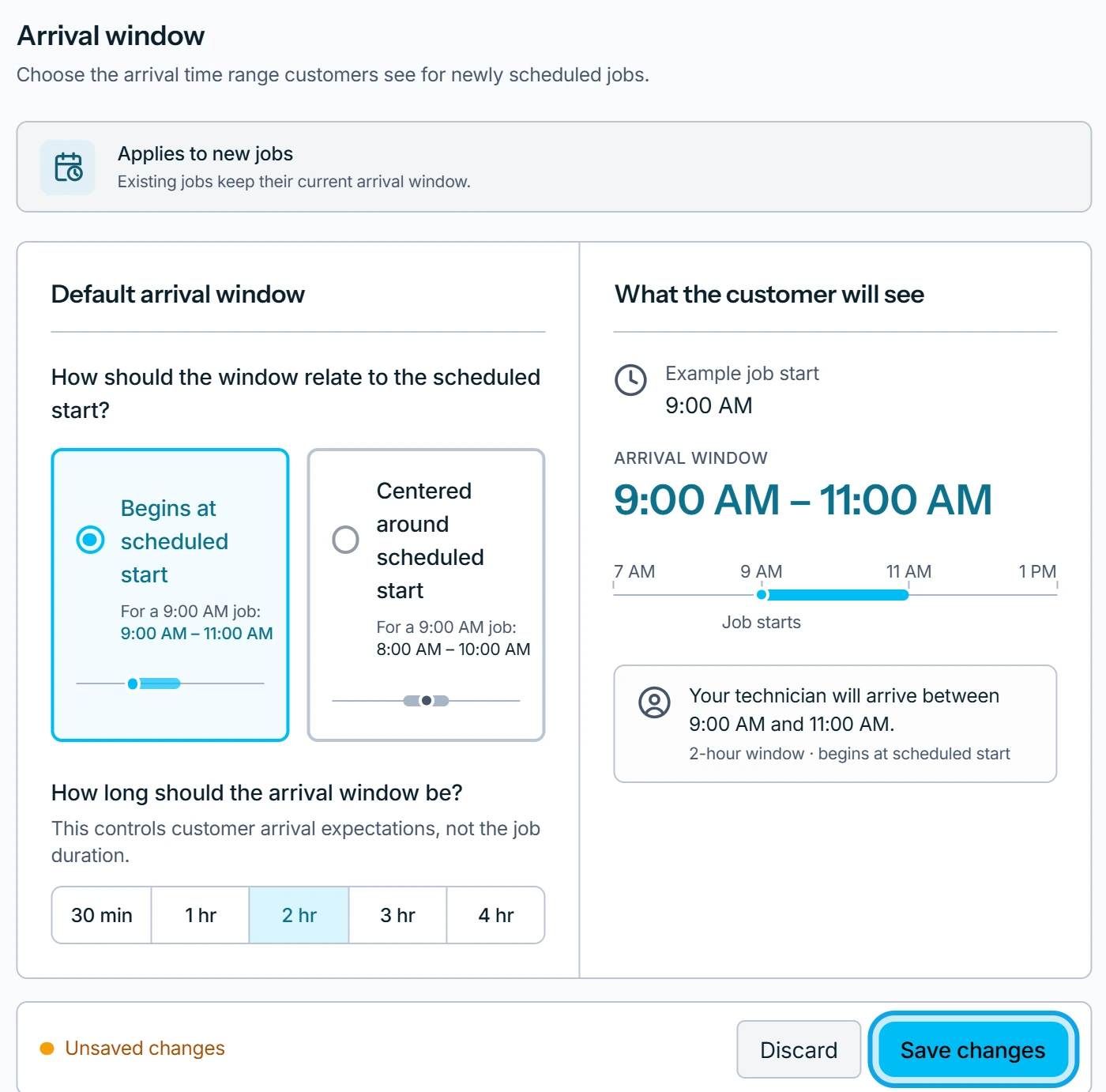
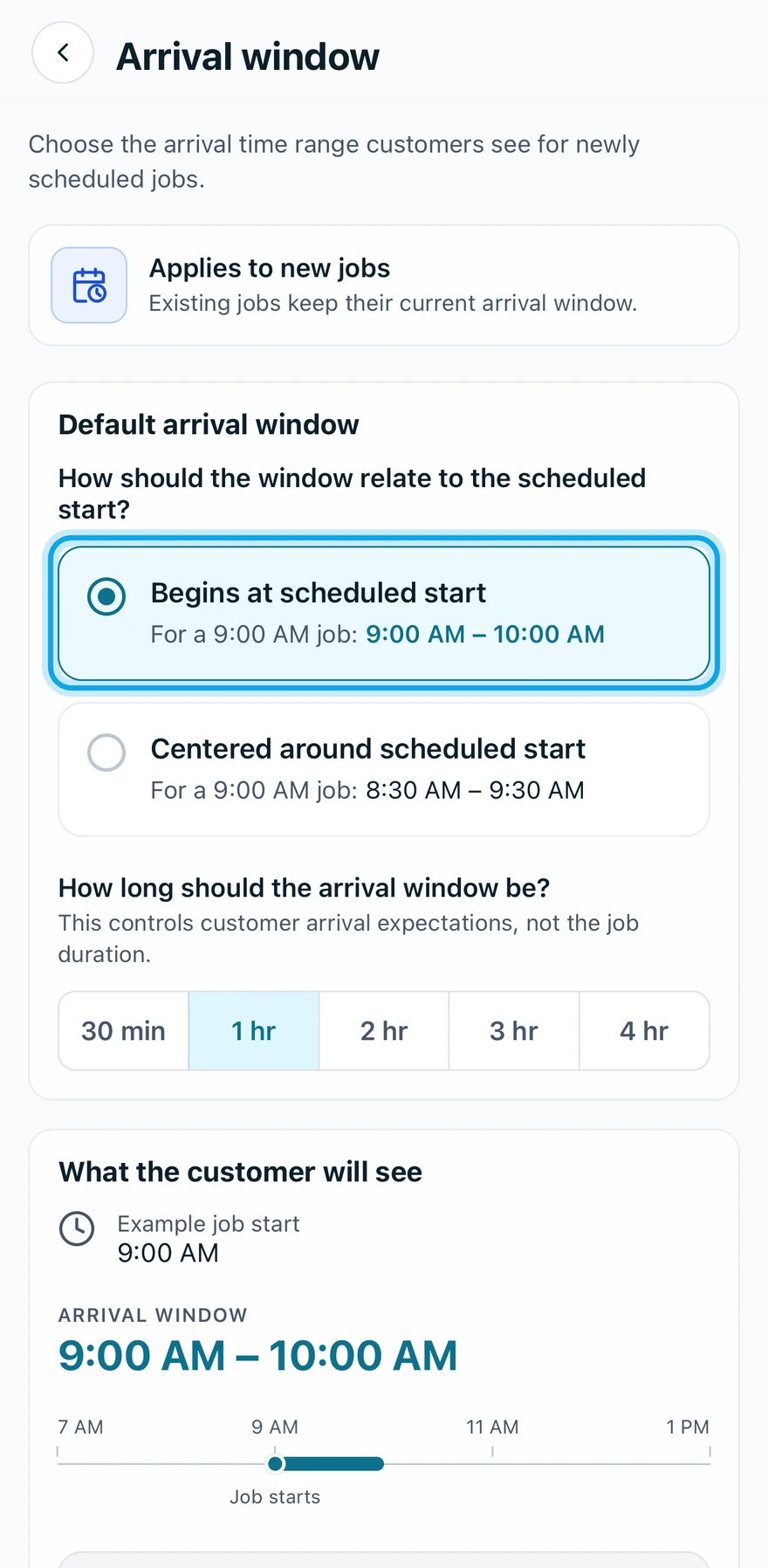
For a 9:00 job with a two-hour window, the first choice reads 9:00 to 11:00. The centered choice reads 8:00 to 10:00.
What you see
Arrival window settings saved confirms it. What the customer will see previews the sentence for a sample job.
The page carries Applies to new jobs: Existing jobs keep their current arrival window. The length is This controls customer arrival expectations, not the job duration.
Who can do this
It needs Manage business settings, held by owners and admins by default. Others ask an owner or admin under Settings → Team & roles → Roles.