Import a CSV or spreadsheet file
On the web, a CSV or Excel file goes through the same importer as another app's files, with a review before anything is added and an entry under Import history. In the Zaras app, Data Import takes one CSV file of contacts or price book items.
On the web
- Open Settings → Data import and press Import data.
- Under Where are you importing from?, pick Spreadsheet.
- Press Choose files and add your CSV or Excel files, with the column headings in the first row. Or open Copy and paste from a spreadsheet and paste your cells, headings included.
- Press Read files.
- On Review your data, press Preview on a row. Column matches shows where each column goes, and you can change it.
- Press the Import button, such as Import 12 contacts.
From Google Sheets, add a downloaded copy, not a link: In Google Sheets, use File, then Download, then Microsoft Excel (.xlsx), and add that file. You can remove the data the import added until the deadline shown on its details.
In the Zaras app
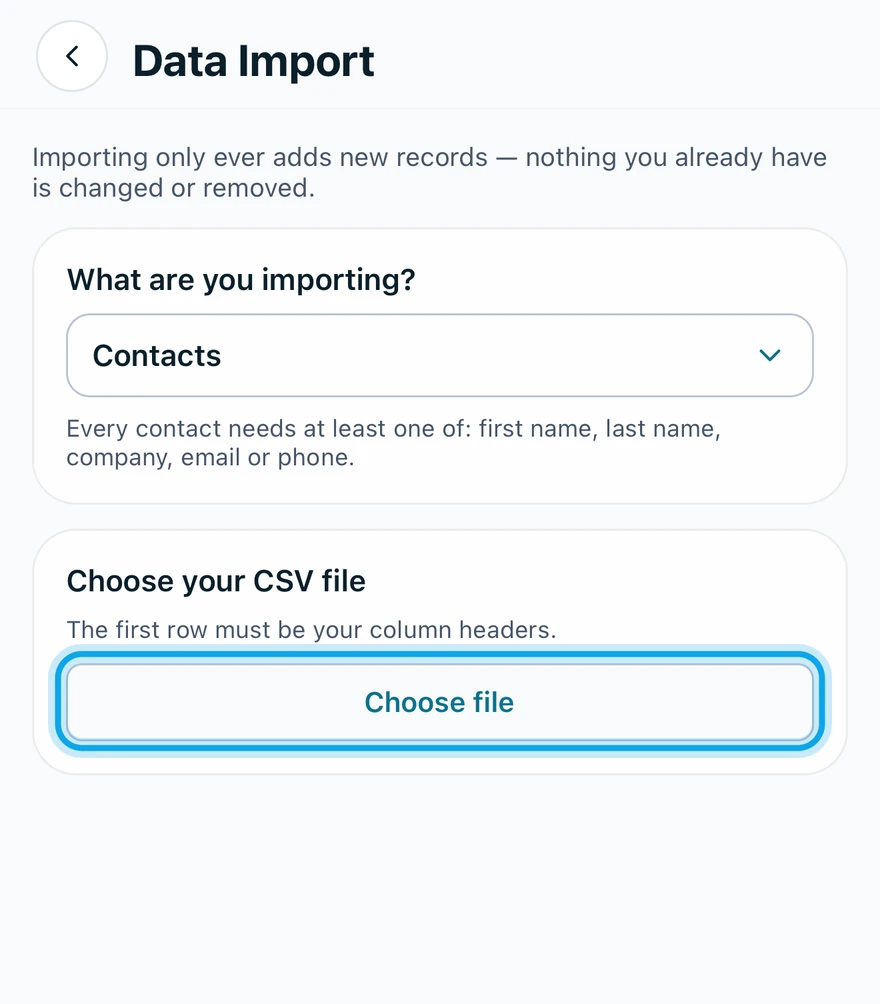
- Open Settings → Data Import.
- Under What are you importing?, pick Contacts or Price book.
- Under Choose your CSV file, tap Choose file. The first row must be your column headers.
- Under Map your columns, pick the Zaras field for each column, or Ignore.
- Tap the preview button, such as Preview 12 rows.
- Under Review and import, check each row: OK, Duplicate or Skipped.
- Tap the button that names the row count, such as Import 12 rows.
The screen reads Imported. Tap See imported contacts or Open price book, or Import another file. This import only adds new records and has no import history: to take it back, delete the records by hand.
This doesn't look like a CSV file. In Excel or Sheets, use File → Save as (or Download) → CSV, then choose that file. For rows left out, see why a row is skipped.
Who can do this
On the web, contacts need Manage contacts or Manage business settings. In the Zaras app, contacts need Manage business settings. Price book items need Manage financial settings on both, and the app offers only the types your role may import.