What can I do after a job is completed?
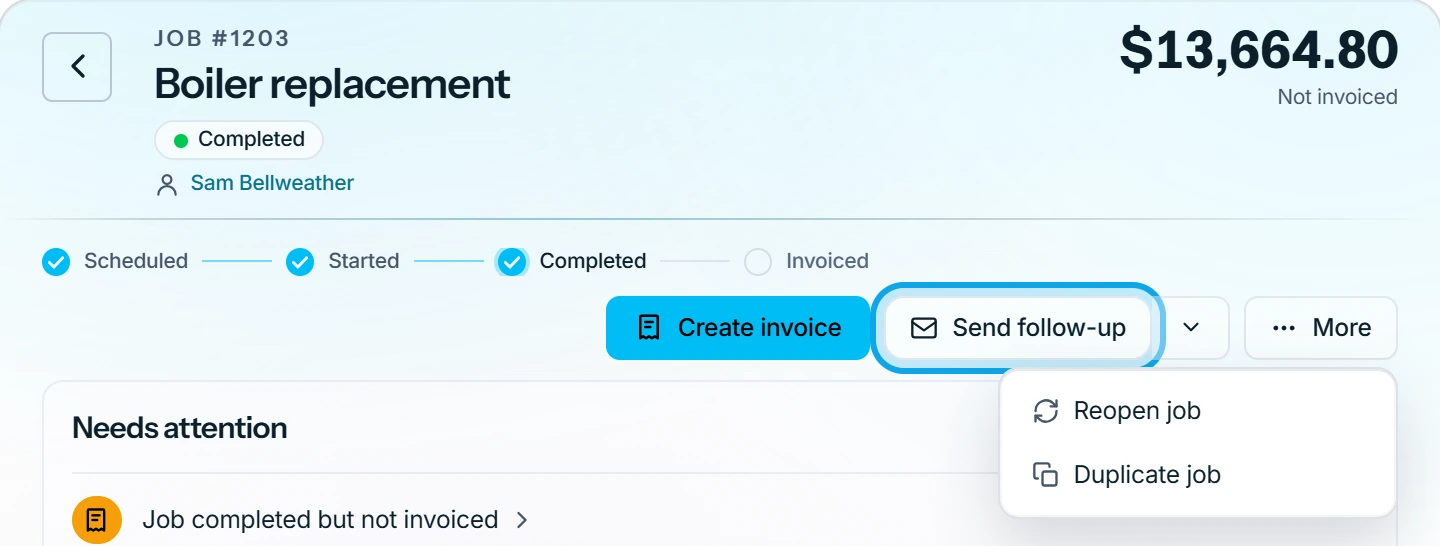
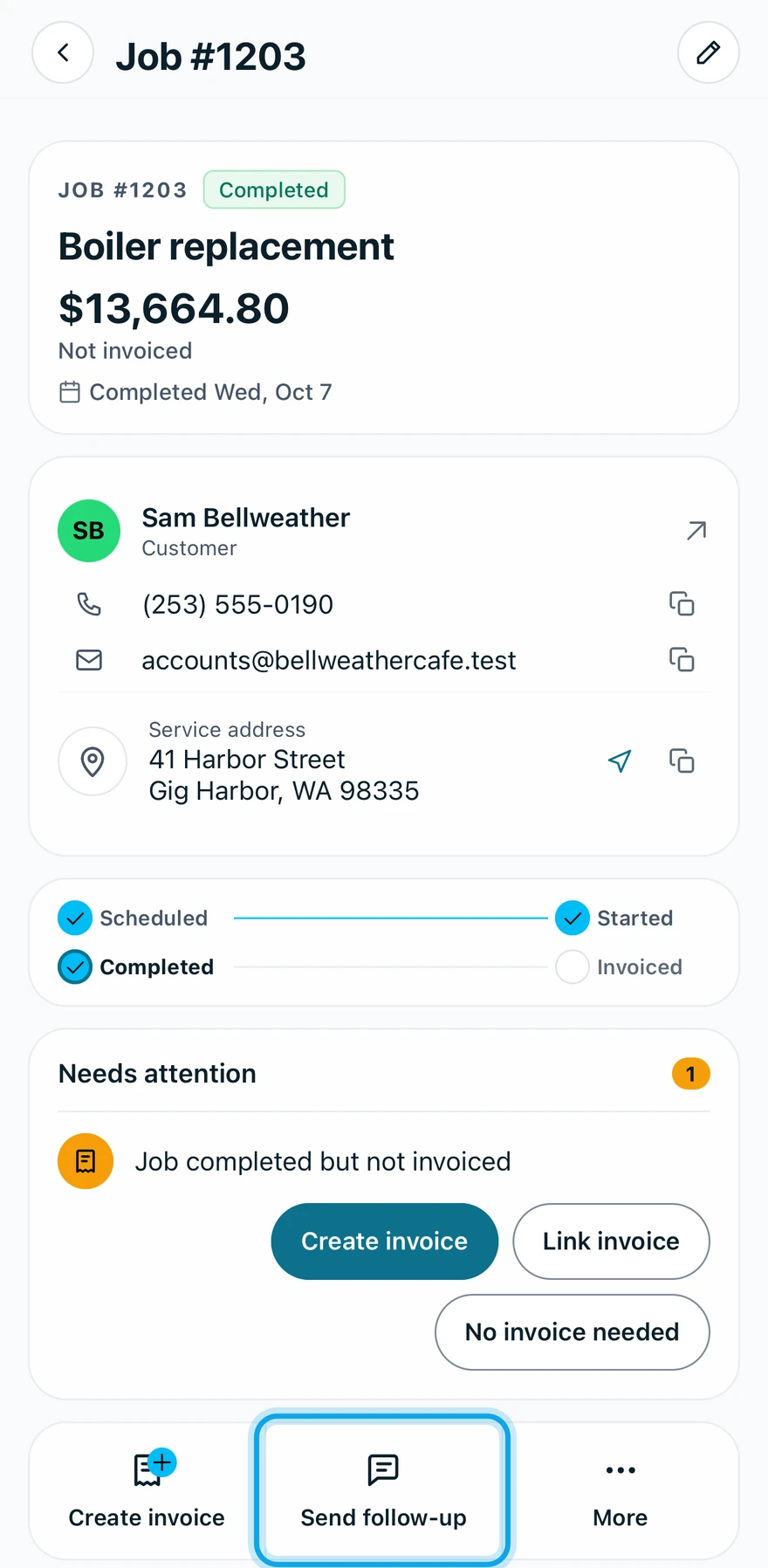
On a completed job you can reopen it, send a follow-up or duplicate it. Reopening keeps the job's invoices.
Reopen the job
On the web:
- Press Reopen job at the top of the job, or under More.
- Press Reopen job in Reopen job?.
In the Zaras app:
- Tap Reopen job in the bar at the bottom, or under More.
- Tap Reopen job in Reopen this job?.
What you see
Job reopened confirms it. Visits canceled when the job was completed come back.
Send a follow-up
To email the customer, see Send a thank-you or review request after a job.
Duplicate the job
To do the same work again, see Duplicate a job.
Who can do this
Reopening needs Manage jobs. Owners, admins, office and technicians hold it by default. Others ask an owner or admin under Settings → Team & roles → Roles.