Change a team member's role
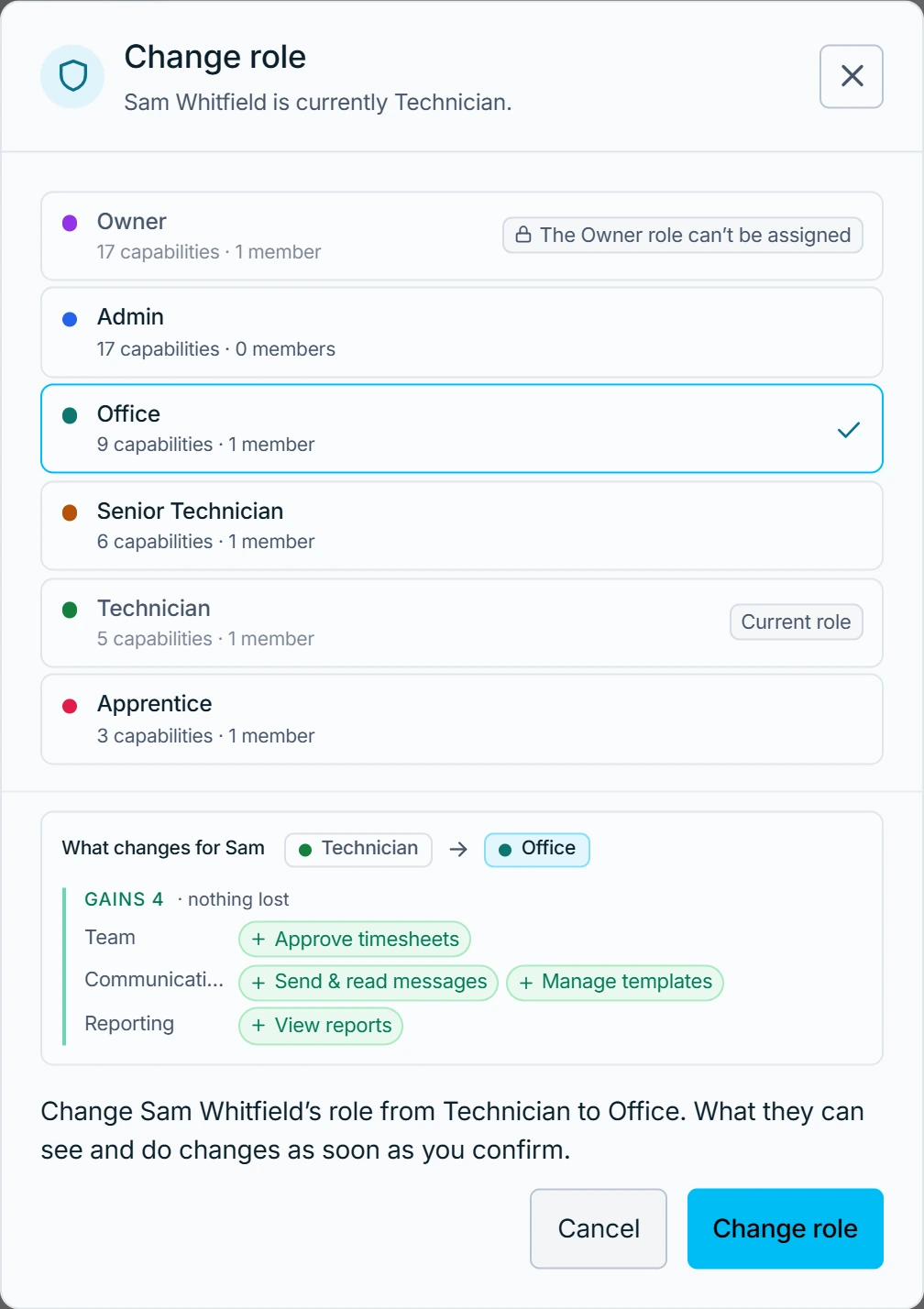
Change a member's role from their row on Team & roles. The new permissions apply at once.
Change a role
- Open Settings → Team & roles.
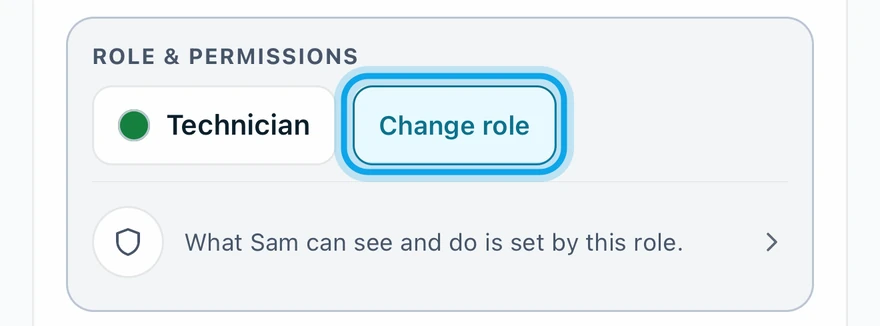
- Press Change role on the member. In the Zaras app, tap the member first.
- Pick the new role.
- Check what the member Gains and Loses.
- Confirm with Change role.
What you see
The member's row shows the new role. Zaras doesn't email or alert them about it. Nothing changes — both roles grant the same capabilities. means the two roles match, so nothing moves.
A role is greyed out
The reason shows on the role:
- The Owner role can't be assigned: ownership moves only by transferring it.
- That's your own role — you can't assign it.
- You don't manage this role: it is at or above your own.
Who can do this
It needs Manage roles, held by owners and admins by default. Others ask an owner or admin under Settings → Team & roles → Roles.