Void a payment
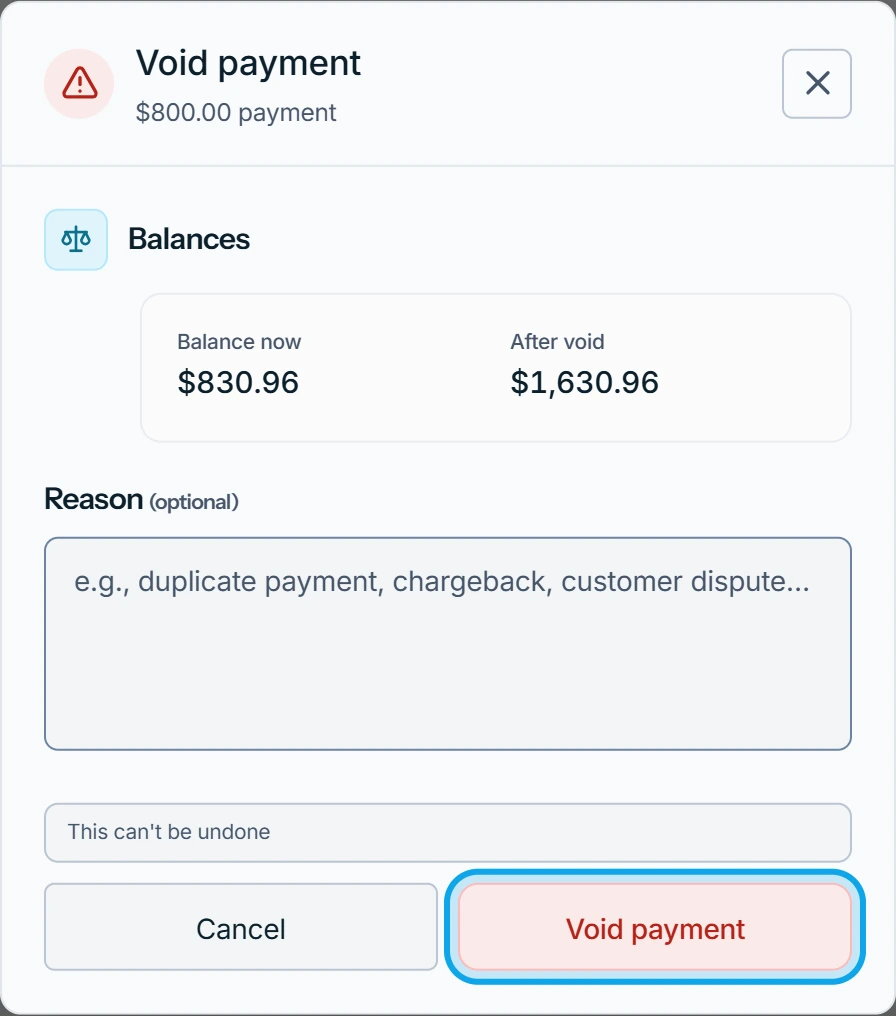
Choose Void payment for the payment on the invoice, give a reason, and confirm. The payment stops counting toward the balance, and the customer is not told.
Void a payment
On the web:
- Open the invoice and find the payment in its payments card.
- Point at the payment's row and press its three-dot button.
- Choose Void payment.
- In Void payment, give an optional Reason, then press Void payment.
An older payment is in the Payment ledger: press View all, then Void on its row.
In the Zaras app:
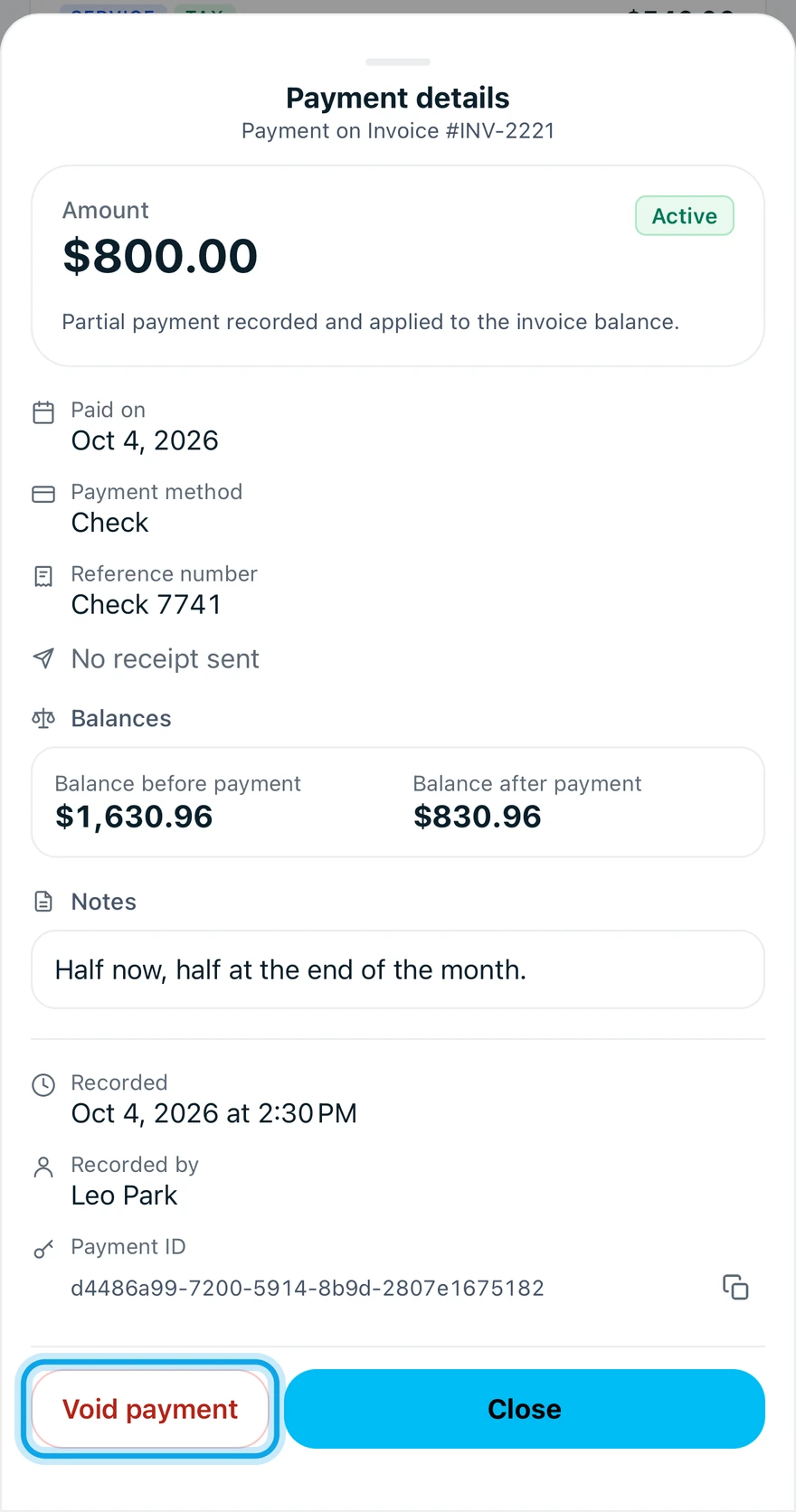
- Open the invoice and tap the payment's row.
- In Payment details, tap Void payment.
- Give an optional Reason, then tap Void payment.
What you see
Payment voided confirms it. The row stays in the ledger as Voided and can't be un-voided. If it settled the invoice: This invoice will change from Paid back to Open.
A receipt already emailed is not recalled. Recorded the wrong amount? Void it, then record the payment again.
Void is refused
- Card payments are refunded, not voided — the customer's money is in your account.
- This payment was refunded and cannot be voided.
- This payment is already voided.
Who can do this
Voiding needs Manage invoices. Owners, admins, office and technicians hold it by default. Others ask an owner or admin under Settings → Team & roles → Roles.