Group price book items into categories
Make categories under Manage categories on your price book, then choose one for each item. Deleting a category keeps its items, which show as Uncategorized.
Add a category
- Open Settings → Price book (Price Book in the Zaras app).
- Press Manage categories above the list, or tap it in the app.
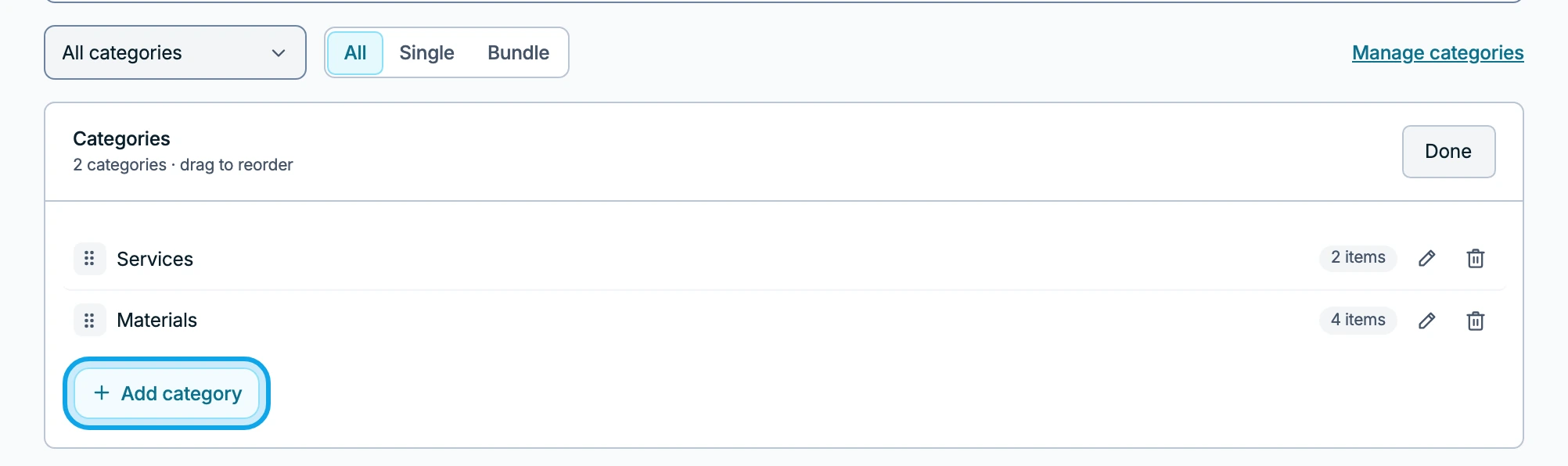
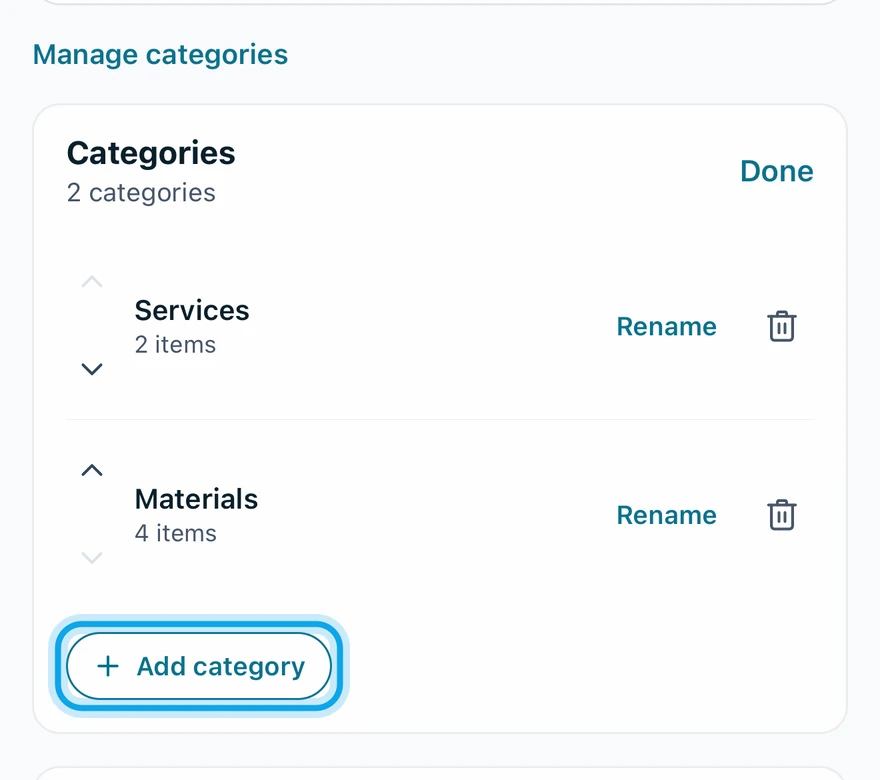
- Press Add category, or tap it in the app.
- Type the category name.
- Press Add, or tap it in the app.
Put an item in a category
- Open the item from the list.
- Choose its Category.
- Press Save changes, or tap Save in the app.
What you see
A message names the new category, such as Category "Fixtures" created. It shows in Categories with its item count.
Rename, reorder or delete a category
On the web, open Manage categories. Press the pencil button to rename, or the trash-can button to delete. Drag a row's handle to reorder.
In the app, tap Rename or the trash-can button on the category's row. The arrows move it up or down.
Confirm a delete with Delete category. Category deleted confirms it, and its items become Uncategorized. There is no undo.
Who can do this
It needs Manage financial settings, held by owners and admins by default. Others ask an owner or admin under Settings → Team & roles → Roles.