Add photos and files to a job
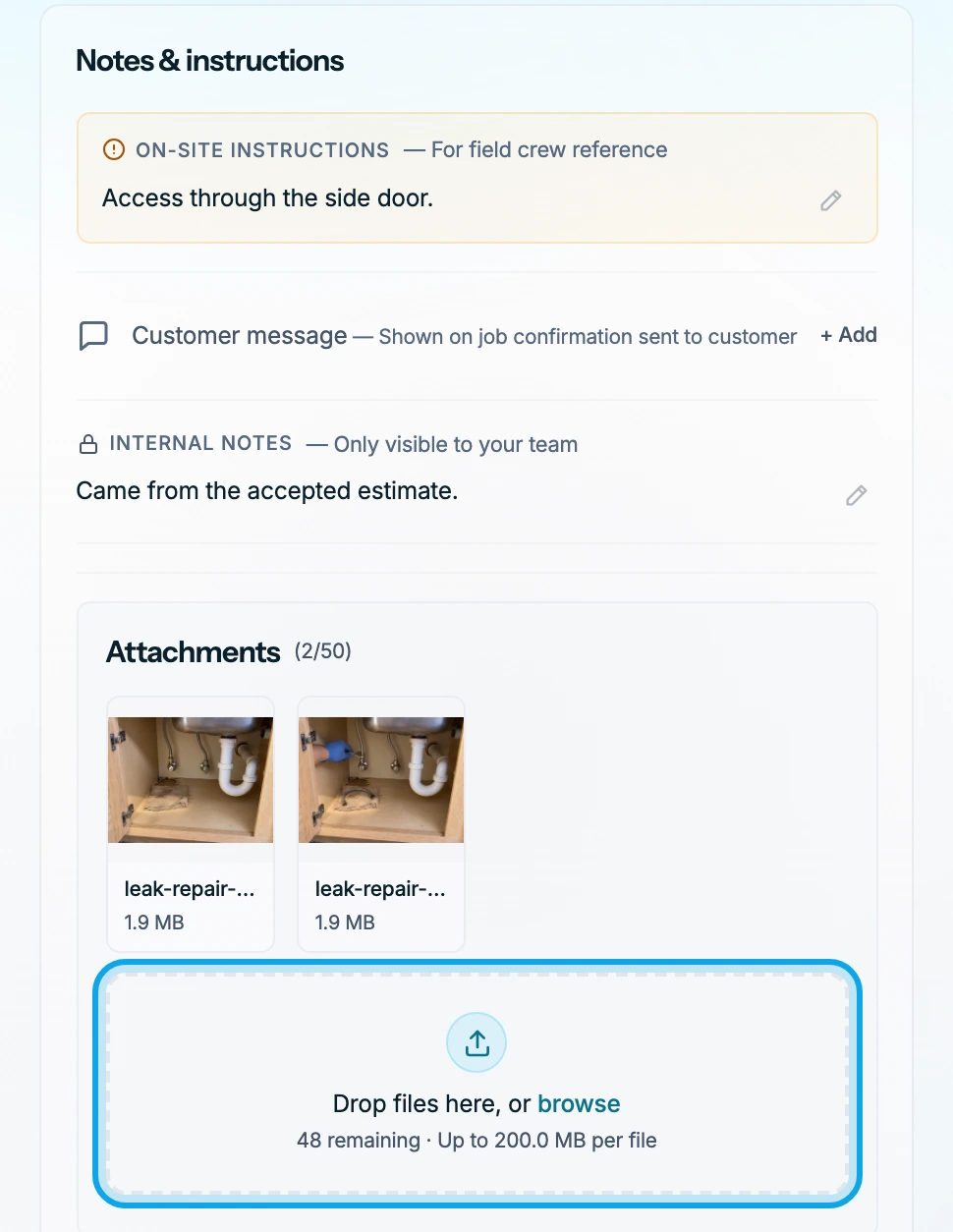
Add photos and files in the job's Attachments box. Only your team sees them, never the customer.
Add a photo or file
On the web:
- Open the job and find Attachments under Notes & instructions.
- Press Drop files here, or browse.
- Pick the files in your computer's file window.
You can also drag files onto the box.
In the Zaras app:
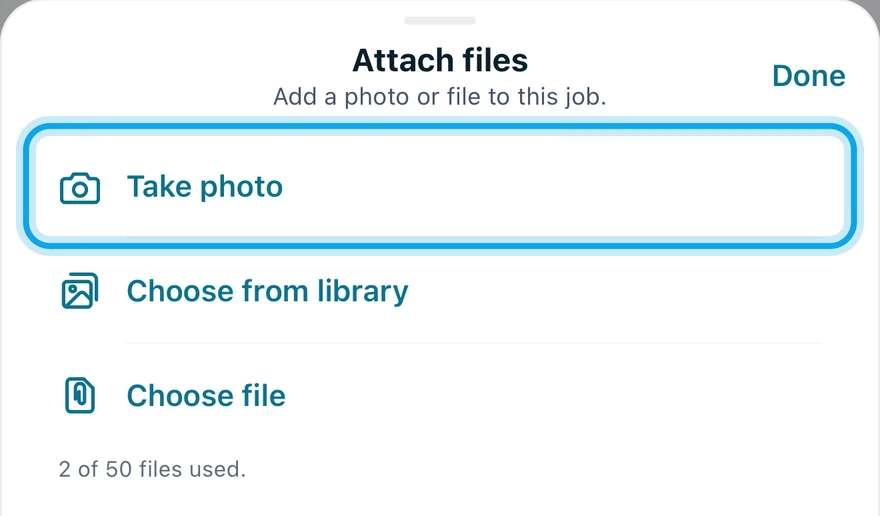
- Open the job and tap Attach files.
- Tap Take photo, Choose from library or Choose file.
What you see
Photo added or File added confirms each one, and it joins the grid. Press or tap a file to open it in the viewer.
In the app, a file added offline shows Waiting for connection. It uploads once you are back online.
An upload failed
On the web, the file's tile says Upload failed. Press Try again on the tile.
In the app, Failed to add photo or Failed to add file says so. Add it again with Attach files.
Who can do this
Every member can add files to a job. No permission is needed.