Turn on push notifications on your phone
Turn push notifications on in the Zaras app, once on each phone. There is no push on the web.
Turn them on
- In the Zaras app, open Settings → Notifications.
- If the phone has not allowed them, tap Turn on notifications under One more step.
- Keep Push notifications on, then choose which alerts you get.
- Tap Save changes.
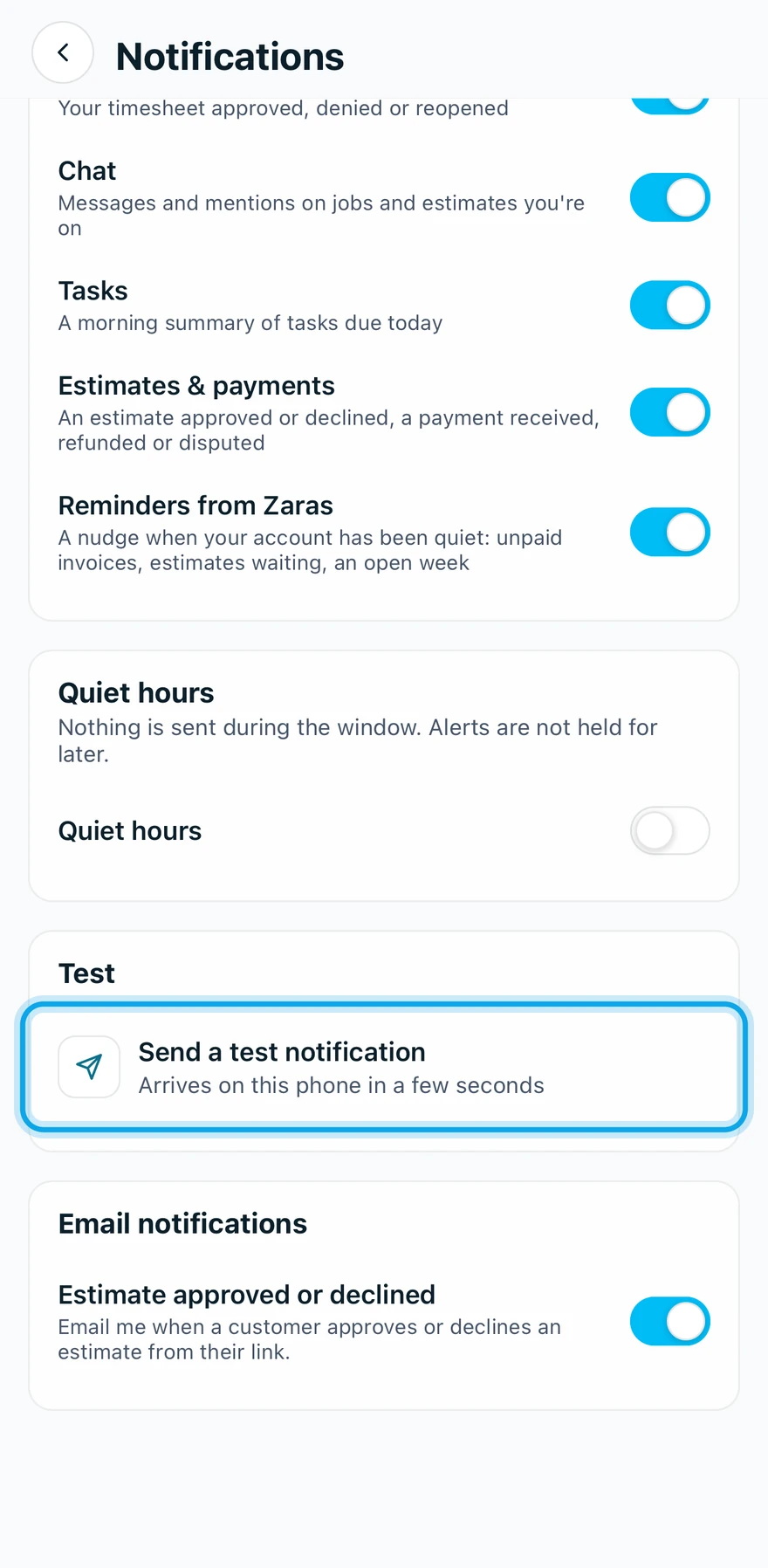
- Tap Send a test notification.
What you see
The test Arrives on this phone in a few seconds. Turning Push notifications off stops every push on this phone, and keeps your choices.
After your first sign-in the app may ask with Stay on top of your work. Not now leaves them off.
Not getting notifications
- The phone blocks them: under Allowed by your phone?, tap Open Settings and allow them there.
- This phone isn't registered yet. Allow notifications first. means go back to step 2.
- Check your quiet hours: alerts inside them are dropped.
Who can do this
Every member sets their own, with no permission needed.