Send a thank-you or review request after a job
Once a job is completed, you can email the customer a thank-you or a review request. Zaras can also send these on its own, so check Customer notifications first to avoid emailing twice.
Send a follow-up
On the web:
- Open the completed job.
- Press Send follow-up at the top of the job, or under More.
- Pick Thank you or Request review beside the title.
- Press Send email.
In the Zaras app:
- Open the completed job.
- Tap Send follow-up in the bar at the bottom, or under More.
- Tap Thank You or Request Review at the top.
- Tap Send email.
The subject and message start from your template. You can change them before you send.
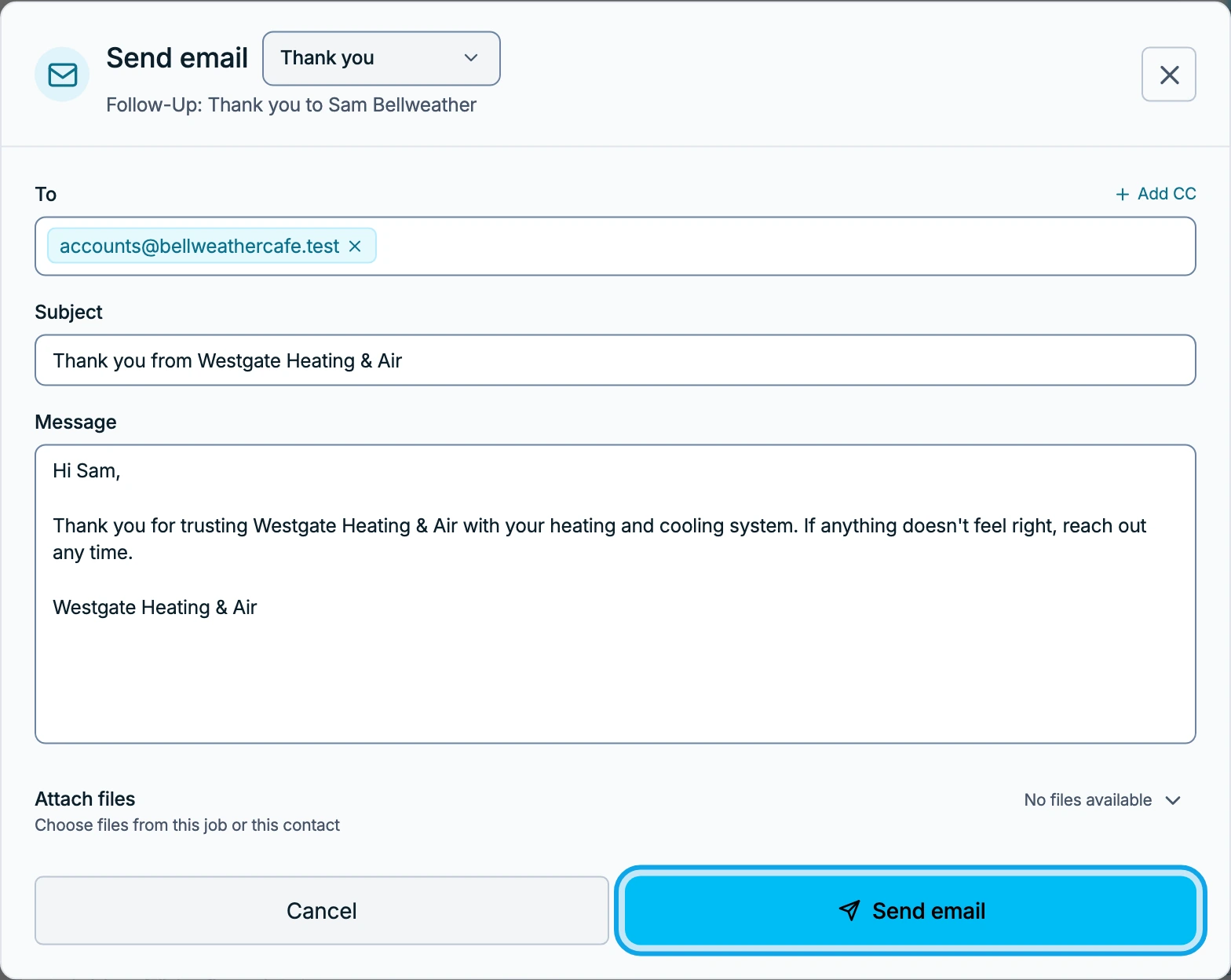
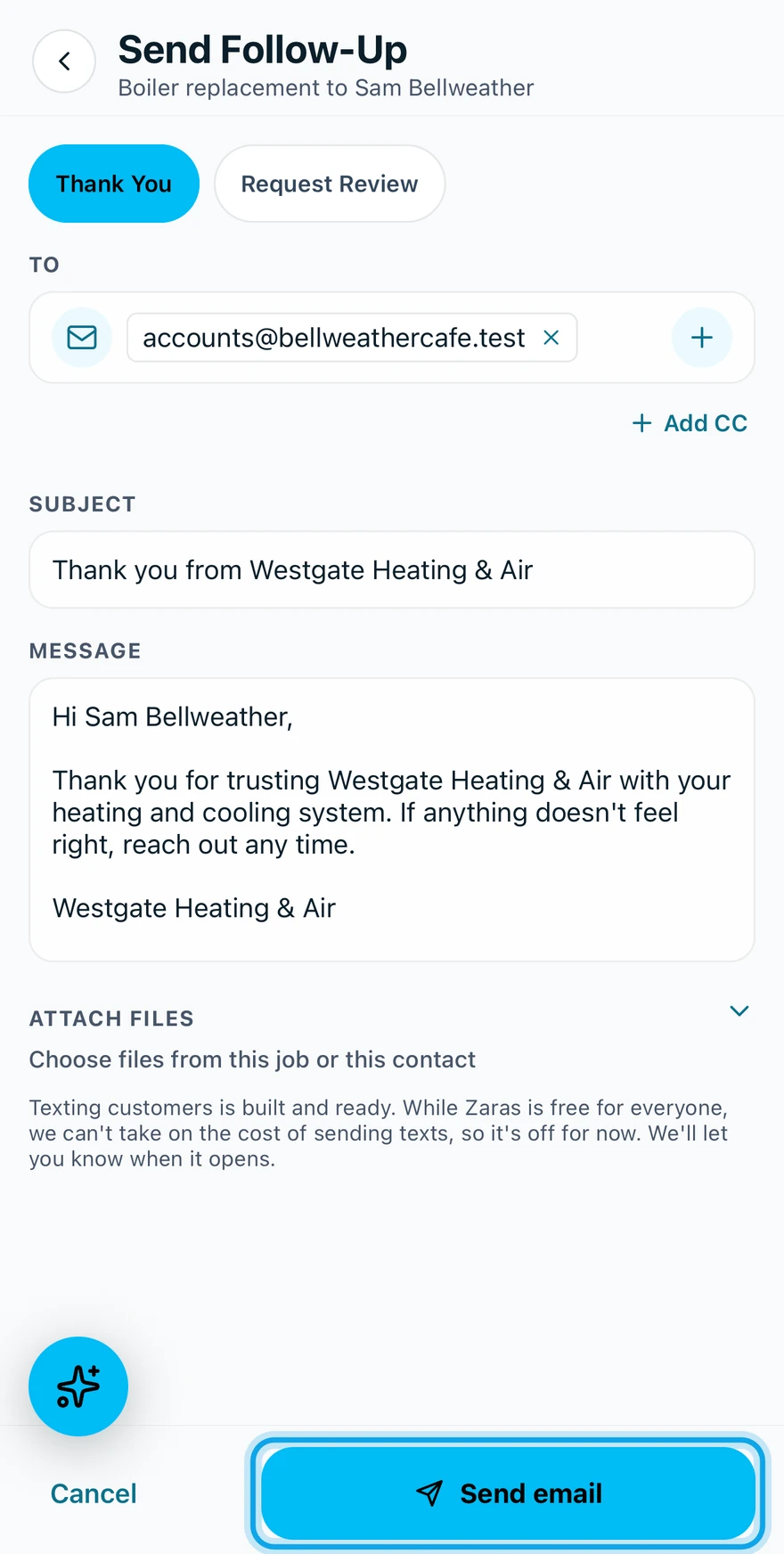
What you see
Follow-up sent confirms it, and the customer gets the email from your business name.
Send follow-up is greyed out
On the web, it says Add an email or phone number to this contact to send follow-ups. Add an email address to the customer, then try again. Texting is not available yet.
If it says Confirm your email to send emails and invites, confirm your own email address first.
Send follow-up is missing
It appears only on a completed job. Complete the job first.
Who can do this
Sending needs Manage jobs. Owners, admins, office and technicians hold it by default. Others ask an owner or admin under Settings → Team & roles → Roles.