Schedule a visit to price the work
Book an on-site visit to price the work under Estimate visit on the estimate. It appears on the calendar, and the customer is not emailed.
Book the visit
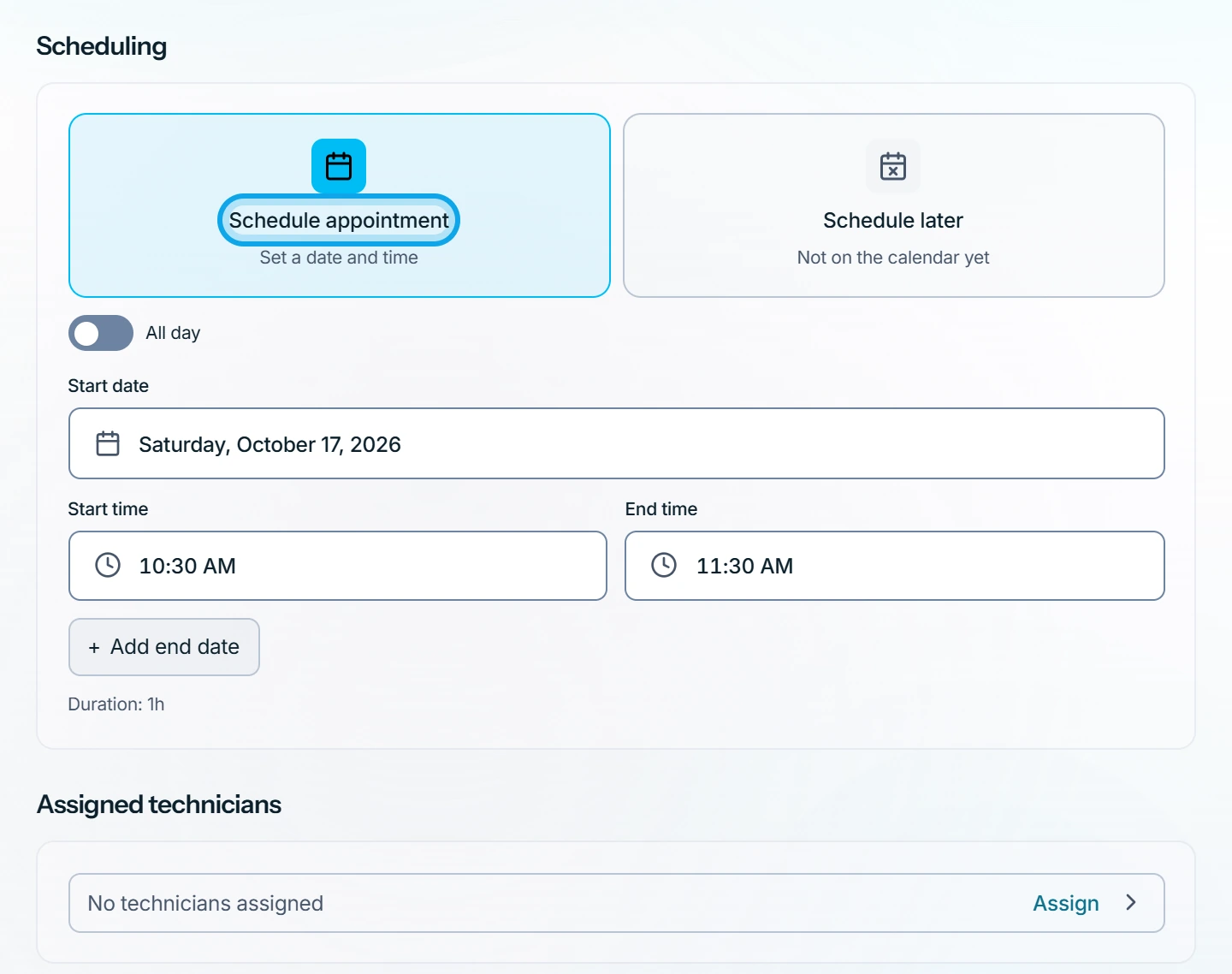
- On the estimate form, under Estimate visit, choose Schedule a visit.
- Pick the date and time.
- Pick the Assigned technicians.
- Press Save draft on the web, or tap Create estimate in the Zaras app.
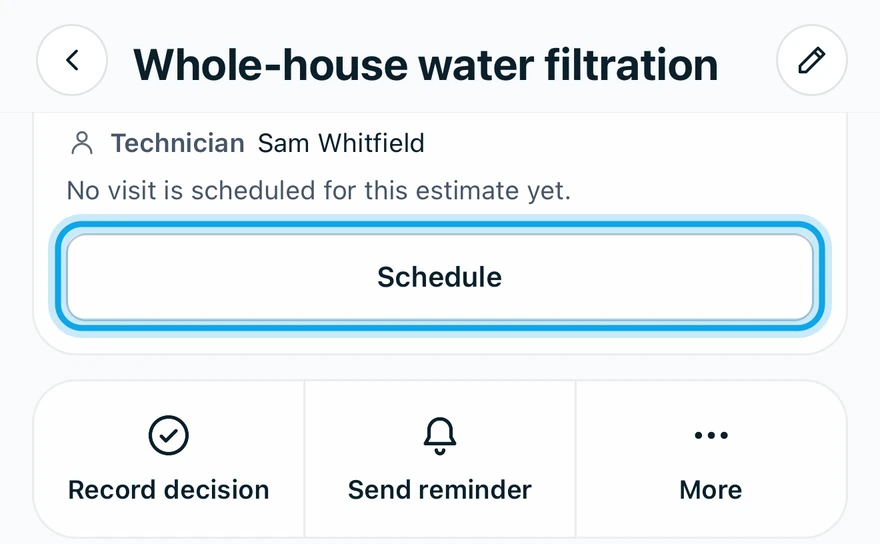
On a saved estimate in the app, tap Schedule in its Visit card.
Run the visit
- On the day, press Start visit in the Visit card, or tap it in the app.
- When you are done, press Complete visit, or tap it in the app.
What you see
The Visit card reads In progress, then Completed. Completing creates draft timesheet entries for the assigned technicians.
To move it, tap Reschedule in the app. On both, Reopen visit and Mark not started undo the last step.
The schedule is locked
After approval, the job owns the schedule: Estimate is accepted; convert to a job to change the schedule. When you turn the estimate into a job, a visit that has not started becomes the job's first visit, and the customer is not emailed about it.
Who can do this
Estimate visits need Manage estimates and Manage schedule. Owners, admins, office and technicians hold both by default.