Make someone else the owner of your workspace

WebZaras app1 min readUpdated October 17, 2026

The owner hands the workspace to another member from the foot of Business info. You become an Admin, and only the new owner can transfer it back.

Transfer ownership

  1. Press Transfer ownership at the foot of Business info.
  2. Under New owner, pick the member.
  3. Press Email me a code and enter the Code.
  4. Press Transfer ownership.
  5. Press Transfer ownership again in the dialog naming the member.
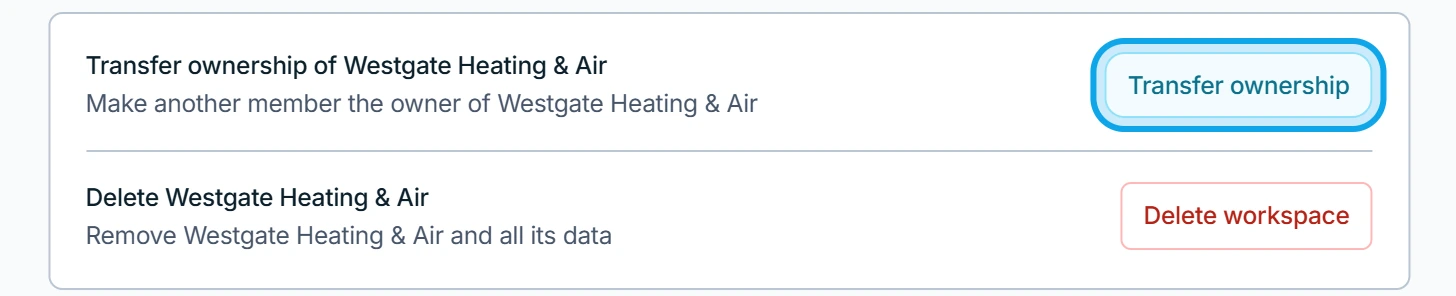
The foot of Business info on the web for the owner: Transfer ownership of Westgate Heating & Air with its Transfer ownership button, and Delete Westgate Heating & Air with its Delete workspace button
Web — Transfer ownership and Delete workspace sit at the foot of Business info.
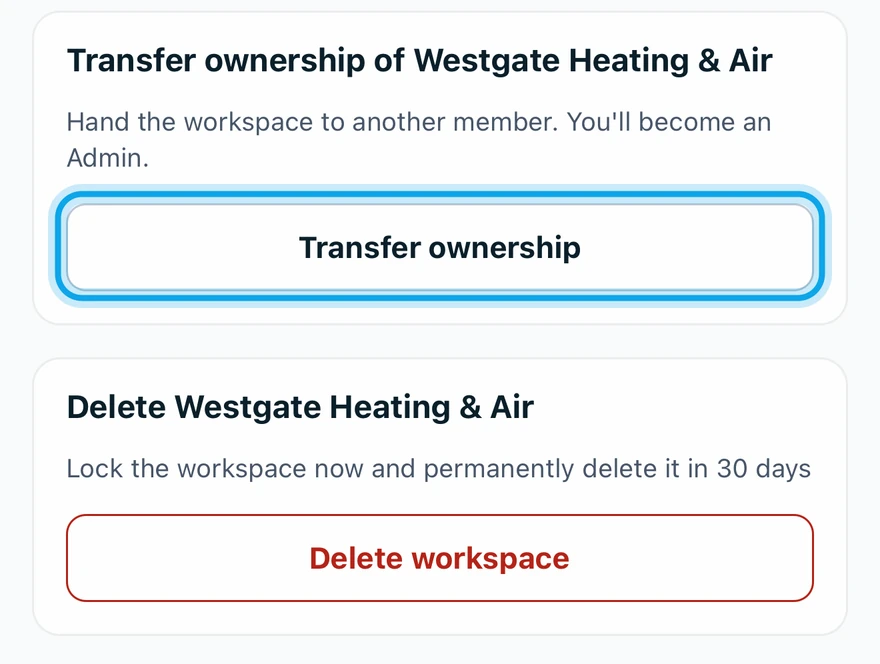
The foot of Business Info in the Zaras app for the owner: Transfer ownership of Westgate Heating & Air and Delete Westgate Heating & Air, each with its button
Zaras app — Scroll to the foot of Business Info, then tap Transfer ownership.
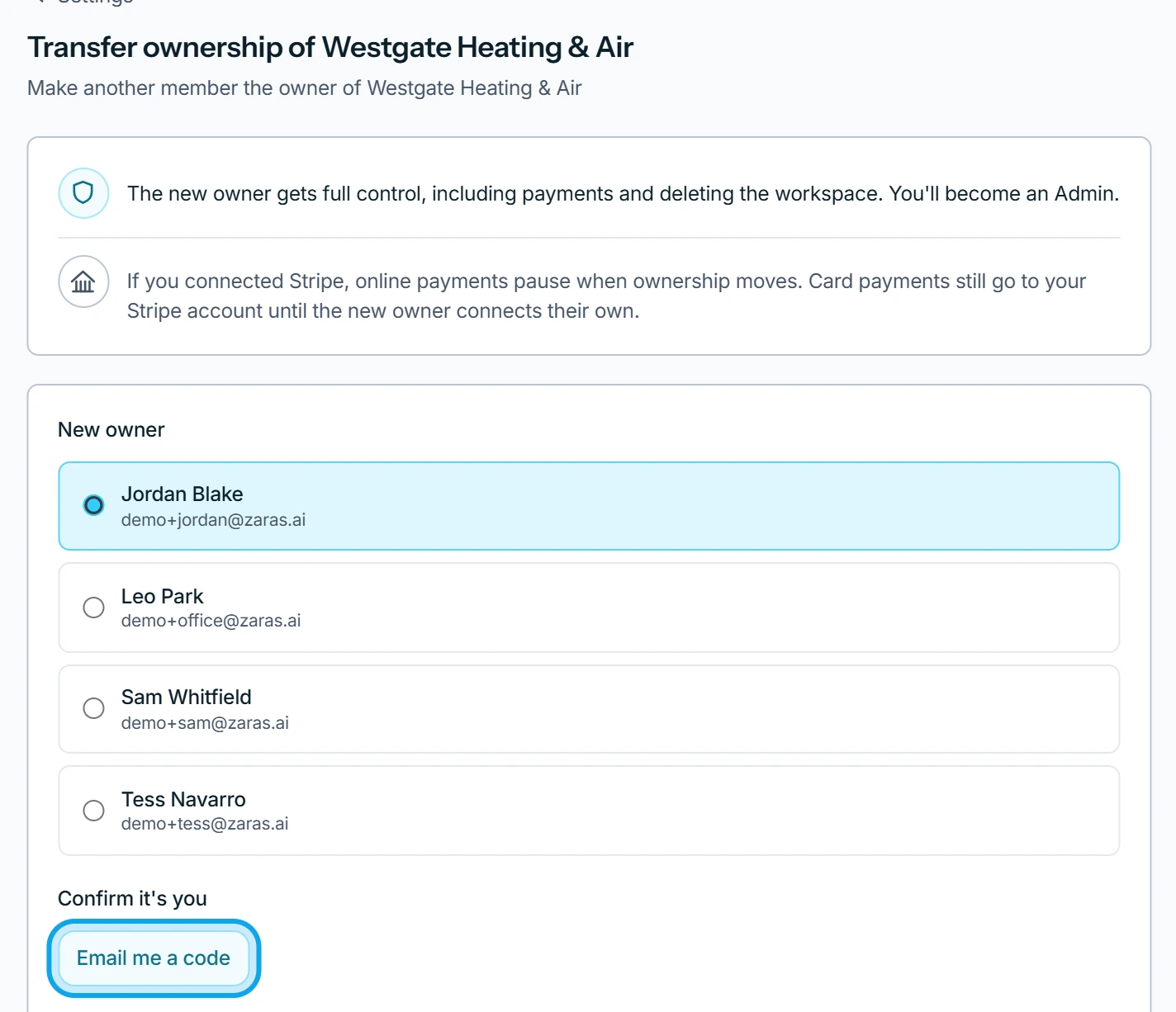
The Transfer ownership page on the web: Jordan Blake chosen under New owner, and Email me a code under Confirm it's you
Web — Pick the member under New owner, then press Email me a code.
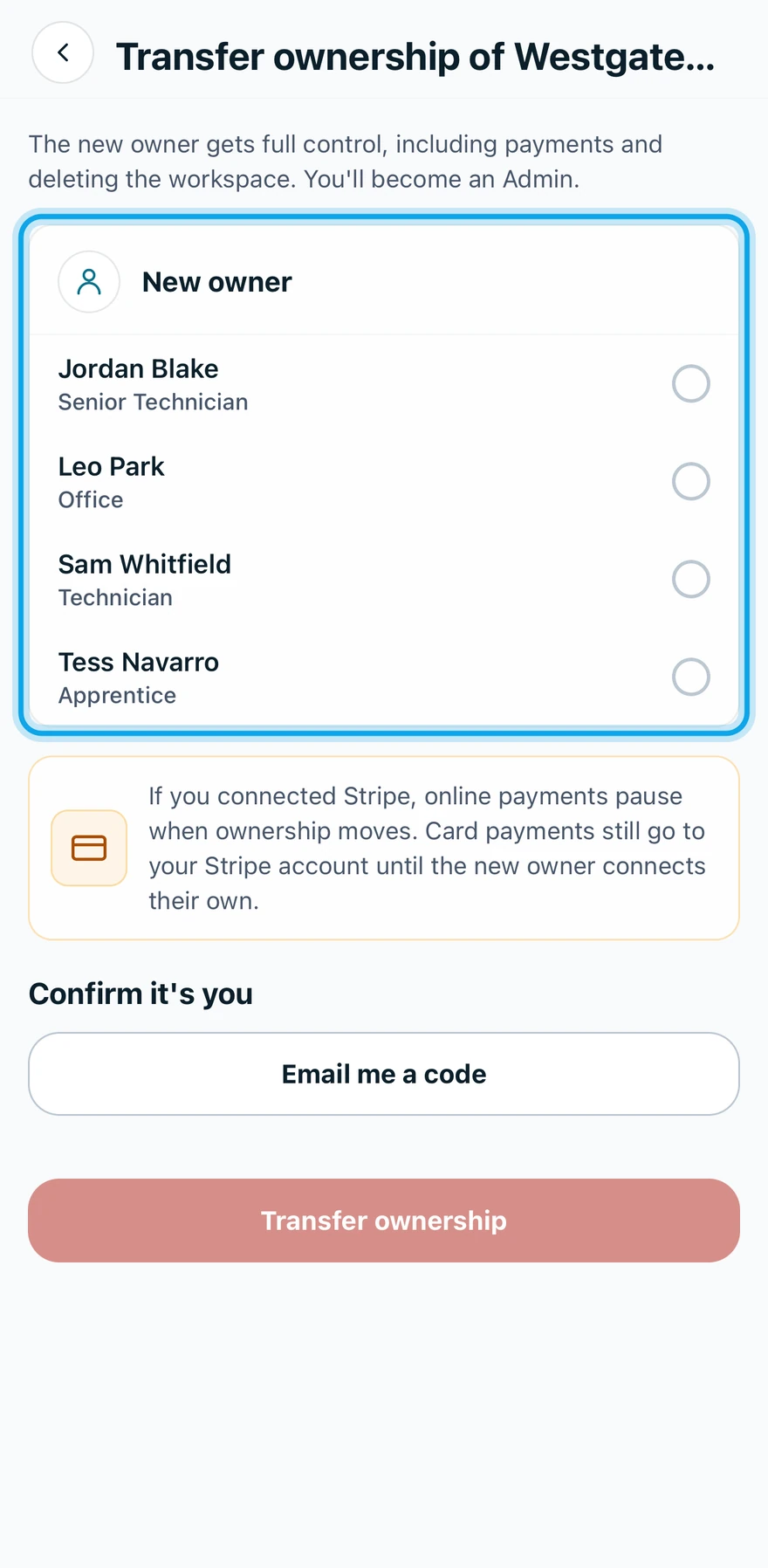
The Transfer ownership screen in the Zaras app: the members under New owner, Email me a code, and Transfer ownership at the bottom
Zaras app — Pick the member under New owner, then tap Email me a code.

What you see

A message says the member is now the owner and you are an Admin. All records stay as they are.

If you connected Stripe, online payments pause. Card payments still go to your Stripe account until the new owner connects their own.

There is no one to pick

Invite a teammate first. Ownership can only go to someone already on the team. See Invite a teammate.

Who can do this

Only the workspace owner sees Transfer ownership.