Clock in and record the work on a visit
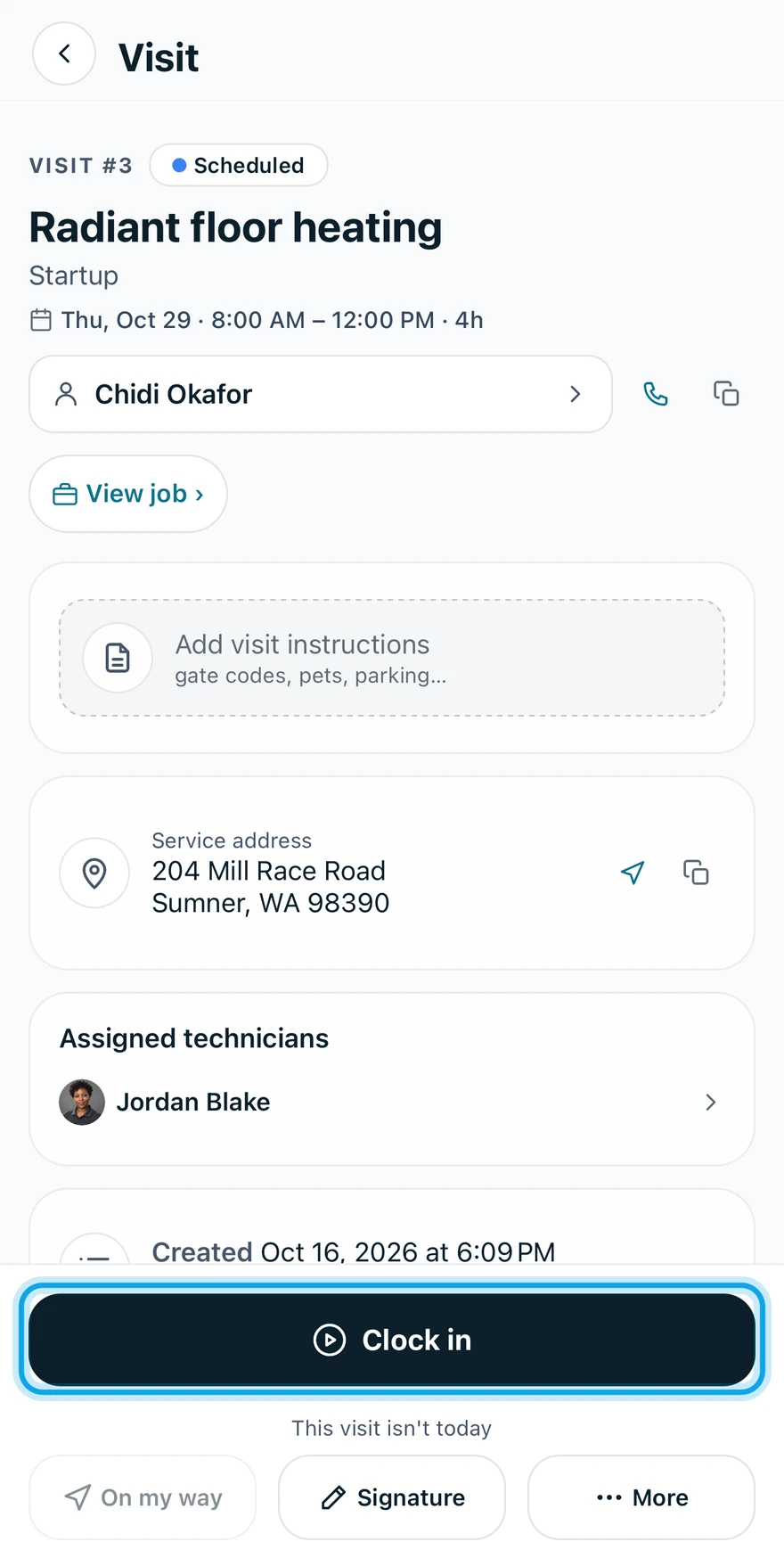
Tap Clock in on the visit when you arrive. It starts the visit and the job. You record the work on the job.
Clock in
- Open the visit from Home or Schedule.
- Tap Clock in.
- Tap View job › to open the job.
Record the work on the job
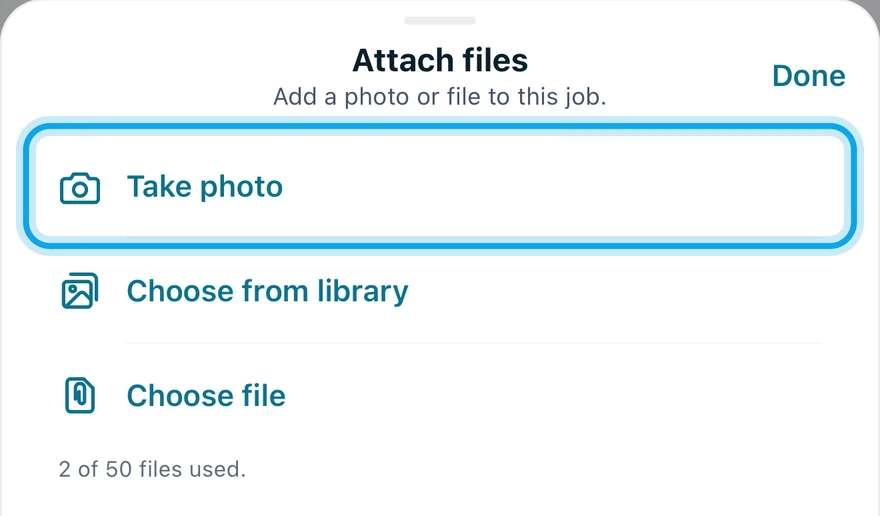
- Under Attachments, tap Attach files, then Take photo.
- Tap Add expense for materials, permits or travel, with a receipt.
- Switch on Paid with my own money if you paid it yourself.
- Tap Add time entry to log hours by hand.
- To change line items, tap the pencil button in the job's header.
What you see
The visit reads In progress. When you complete it, everyone assigned gets draft timesheet entries.
Photos taken without signal read Saved offline — will sync when connected.
Clock in is greyed out
It reads Complete active visit first: another visit on this job is still running. Complete that one first.
Who can do this
Clocking in needs Manage schedule. Owners, admins, office and technicians hold it by default. Others ask an owner or admin.