Complete a job
Press Complete job on the job when the work is done. Completing unlocks invoicing, and you can reopen the job later.
Complete a job
- Open the job.
- Press Complete job at the top on the web, or tap it in the Zaras app.
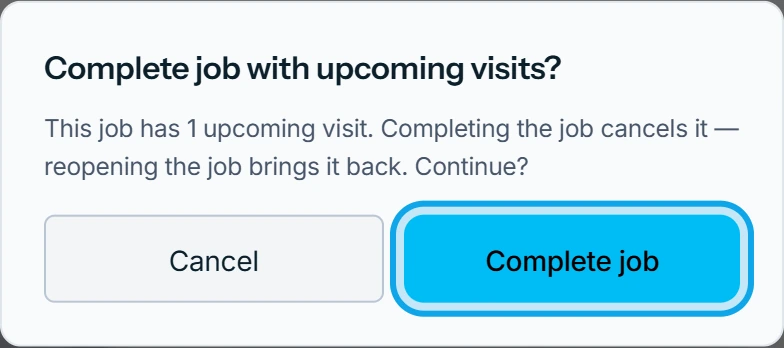
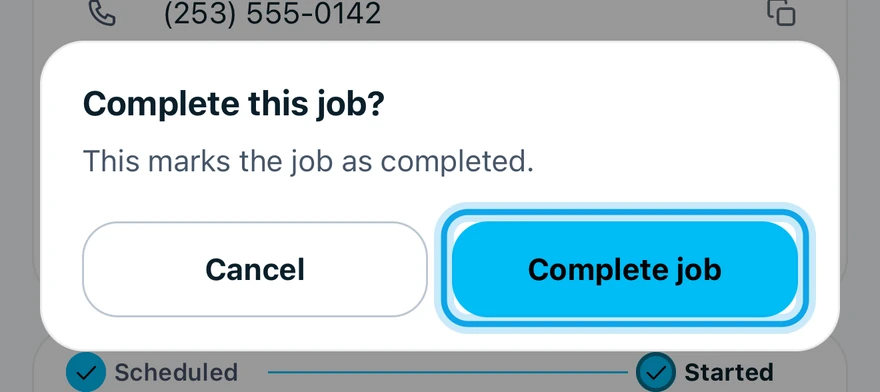
- Confirm in Complete job? on the web, or Complete this job? in the app.
With upcoming visits, the web asks Complete job with upcoming visits? instead. Completing cancels those visits, and reopening brings them back.
When a technician completes the last visit, the job shows All visits complete with Complete job. On the web, a visit in progress shows Complete visit instead: complete the visit first.
What you see
Job completed confirms it, and the job reads Completed. Until it is invoiced, it is flagged Needs invoice.
With Thank-you after a job on under Customer notifications, the customer gets a thank-you email.
Next, create the invoice. No invoice needed? See Why does my job say Needs invoice?
Who can do this
Completing needs Manage jobs. Owners, admins, office and technicians hold it by default. Others ask an owner or admin under Settings → Team & roles → Roles.