Check whether a customer got your email
Find the email in the Communications Log. Its Status says whether it arrived. If it bounced, fix the customer's address and send the document again.
Check an email
- Open Communications Log in the sidebar on the web, or under More in the app.
- Search, or filter by Channel, Record type, Delivery status and Date sent.
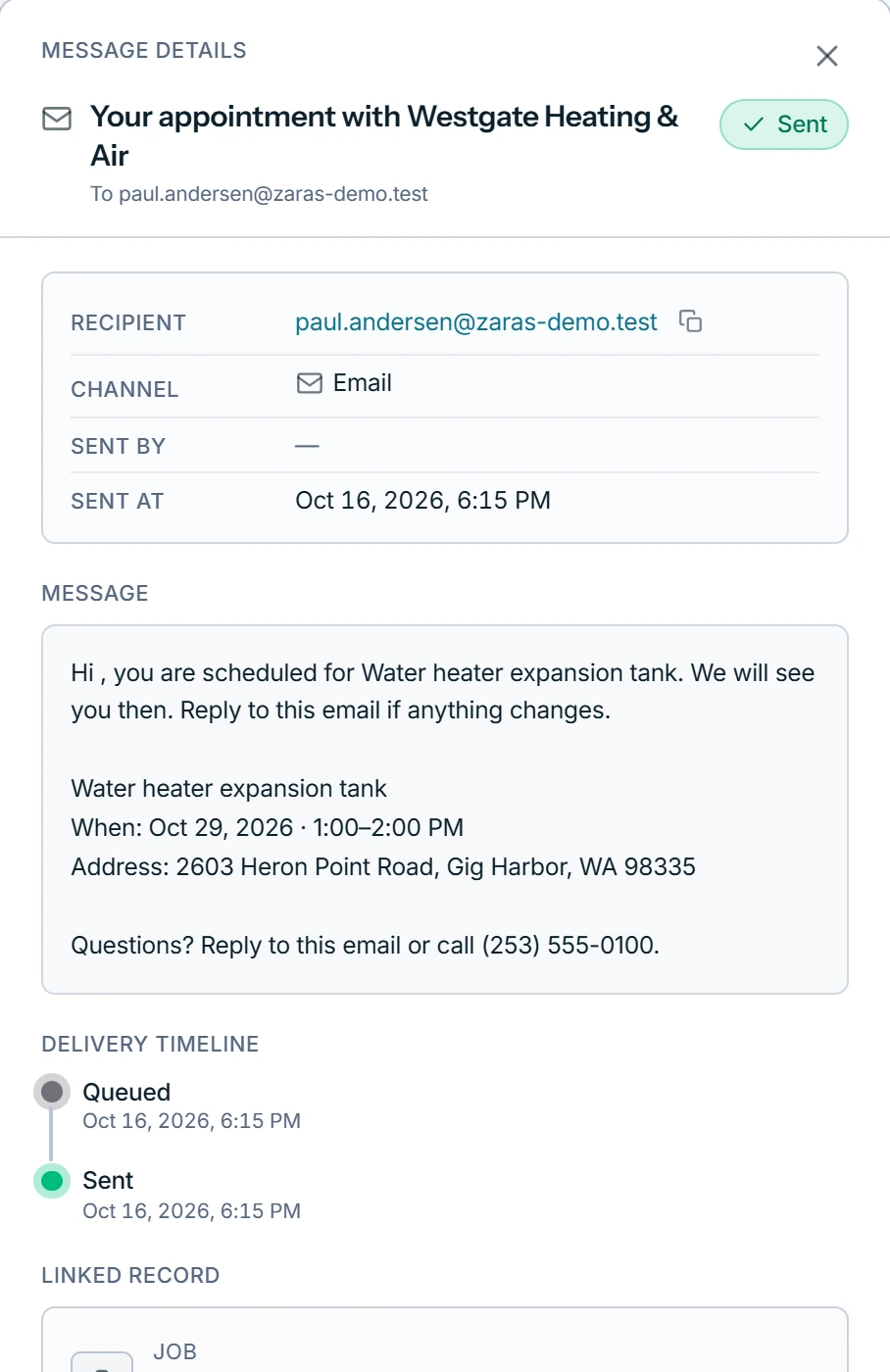
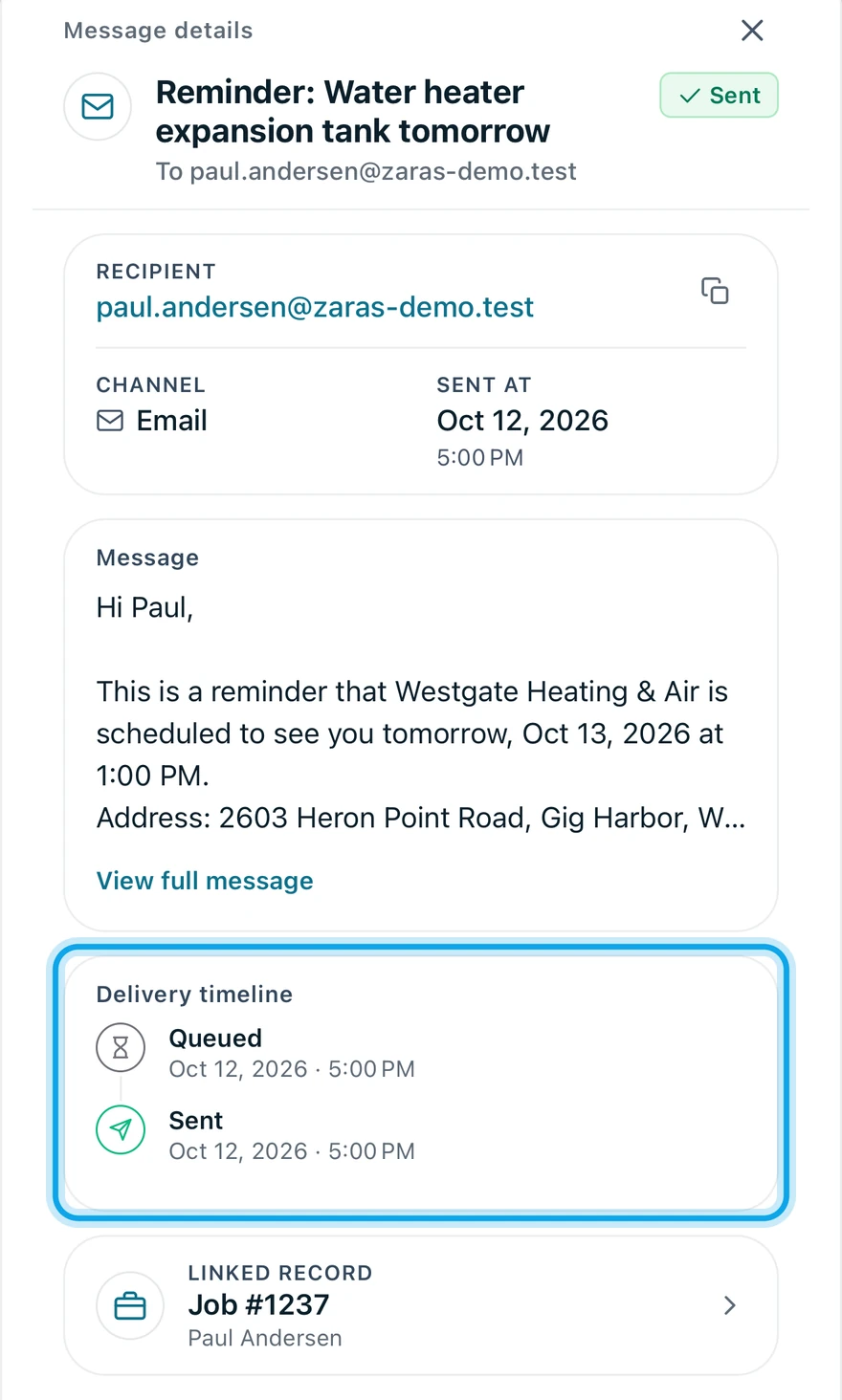
- Open the message for its body and Delivery timeline.
What you see
Status reads Queued, Sending, Sent, Delivered, Failed or Undelivered. The timeline runs Queued, Sent, Delivered, then Opened or Clicked. Email bodies are kept for 12 months.
The email bounced
The timeline shows Bounced and a Failure reason, such as The email address does not exist or The recipient's mailbox is full.
- Press Open record to jump to its job, estimate or invoice.
- Fix the customer's email on their contact.
- Send the estimate or invoice again from its record.
Not sent yet means the PDF was not ready. Zaras retries on its own.
Who can do this
The log needs Send & read messages, held by owners, admins and office. Others ask an owner or admin to check it.