Set default payment terms for new invoices
Set when new invoices fall due on Payment terms in Settings. Existing invoices keep their own terms.
Set the default terms
- Open Settings → Payment terms (Payment Terms in the Zaras app).
- Choose Due on receipt, or choose Net terms.
- For net terms, enter the Days until due, such as 30.
- Press Save changes.
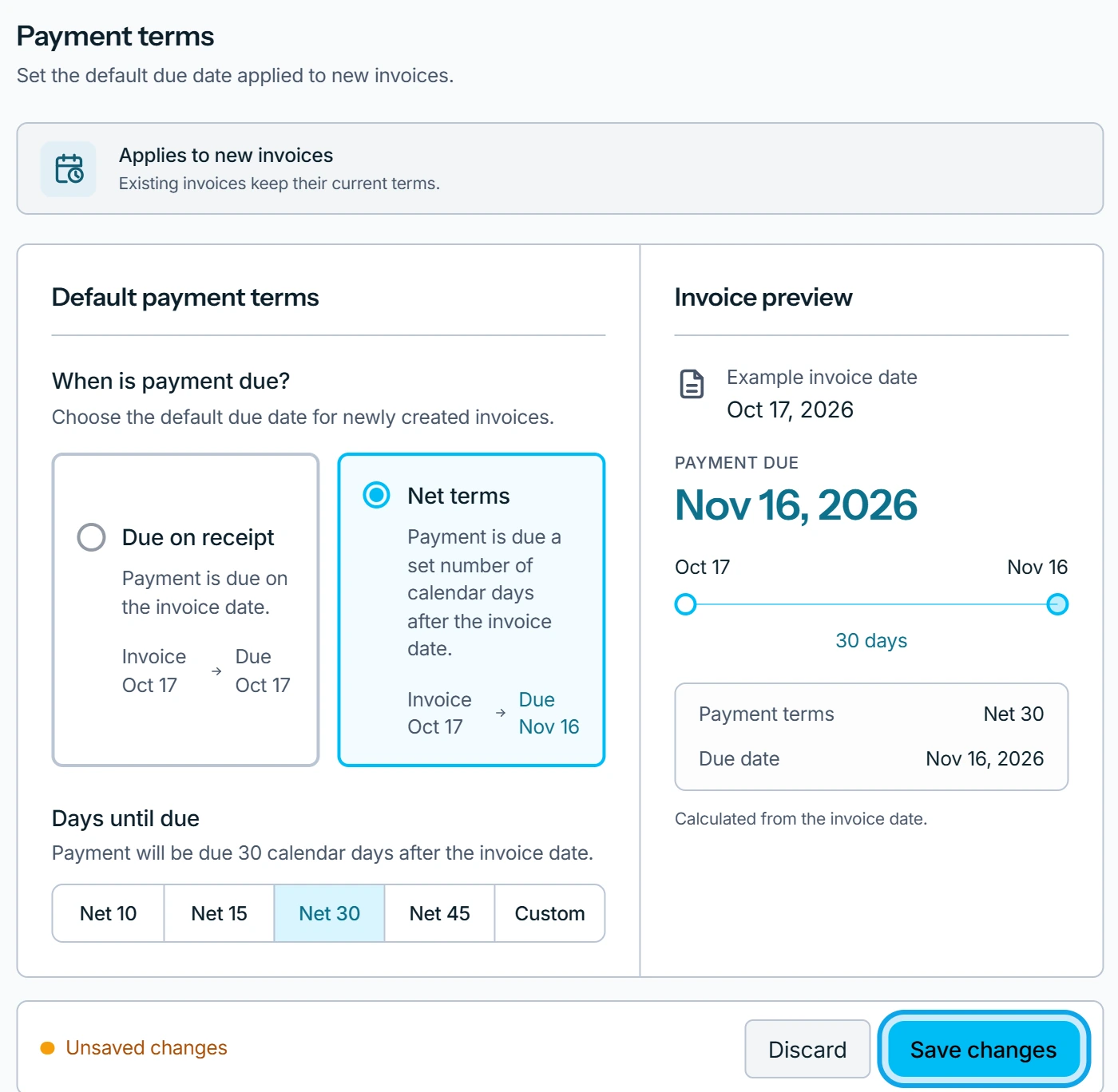
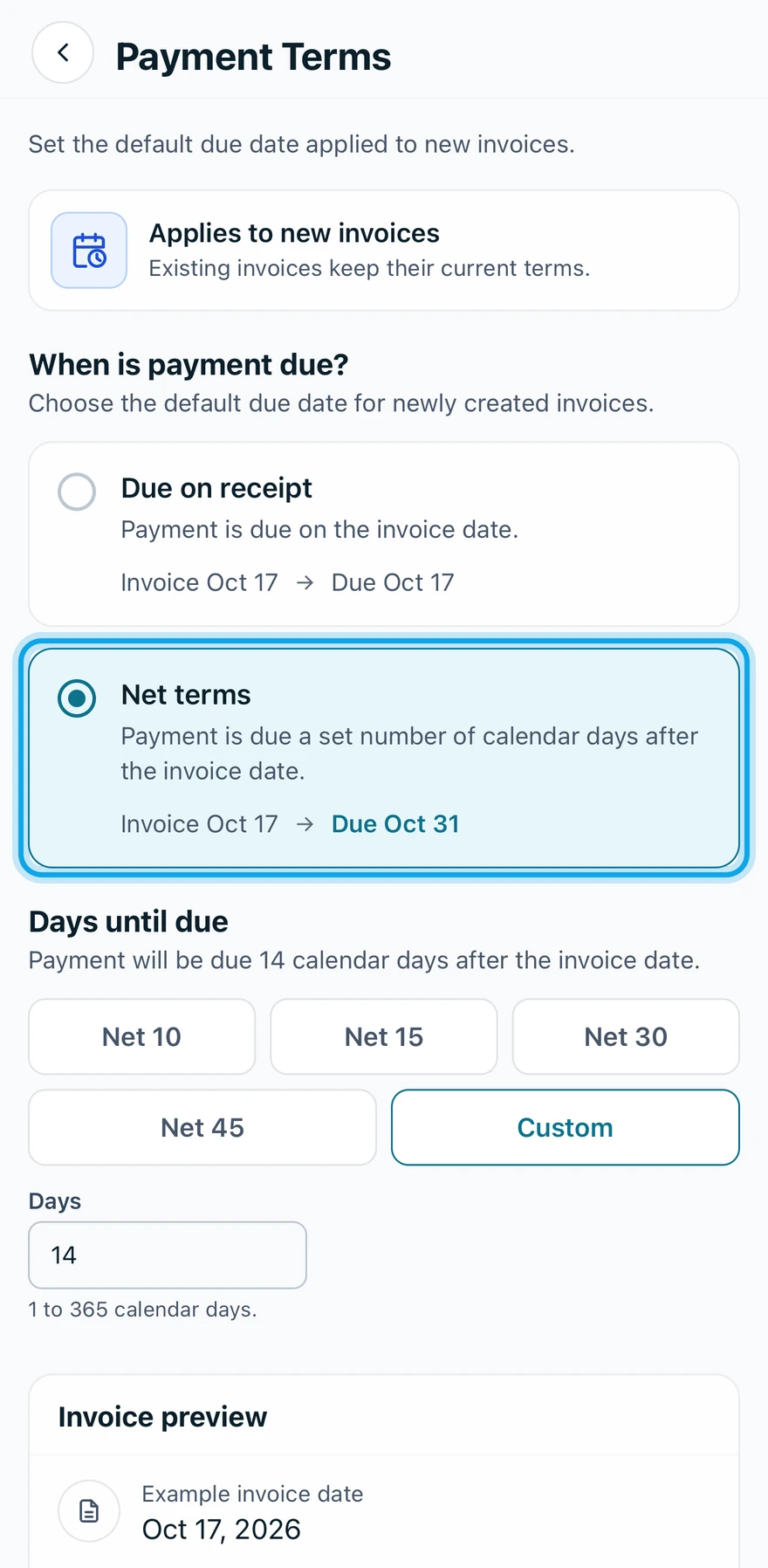
What you see
Payment terms settings saved confirms it. The page carries Applies to new invoices: Existing invoices keep their current terms.
Every invoice you create from now on starts with these terms. To give one invoice different terms, change Payment terms on that invoice before you send it.
The terms on an invoice are locked
A sent invoice keeps its terms. On the web its terms read Cannot edit payment terms for issued invoice.
Who can do this
It needs Manage financial settings, held by owners and admins by default. Others ask an owner or admin under Settings → Team & roles → Roles.