Change your calendar settings
Set your own working hours on Calendar settings. On a team, an owner or admin also sets the week start for everyone there.
Set your own working hours
- Open Settings → Calendar settings (Calendar Settings in the Zaras app).
- On My calendar, turn on Shade outside working hours.
- Set Working hours start and Working hours end.
- Press Save my view.
Set the week start for the team
- Open Workspace defaults on the same page.
- Pick the day under Week starts on.
- Press Save for everyone.
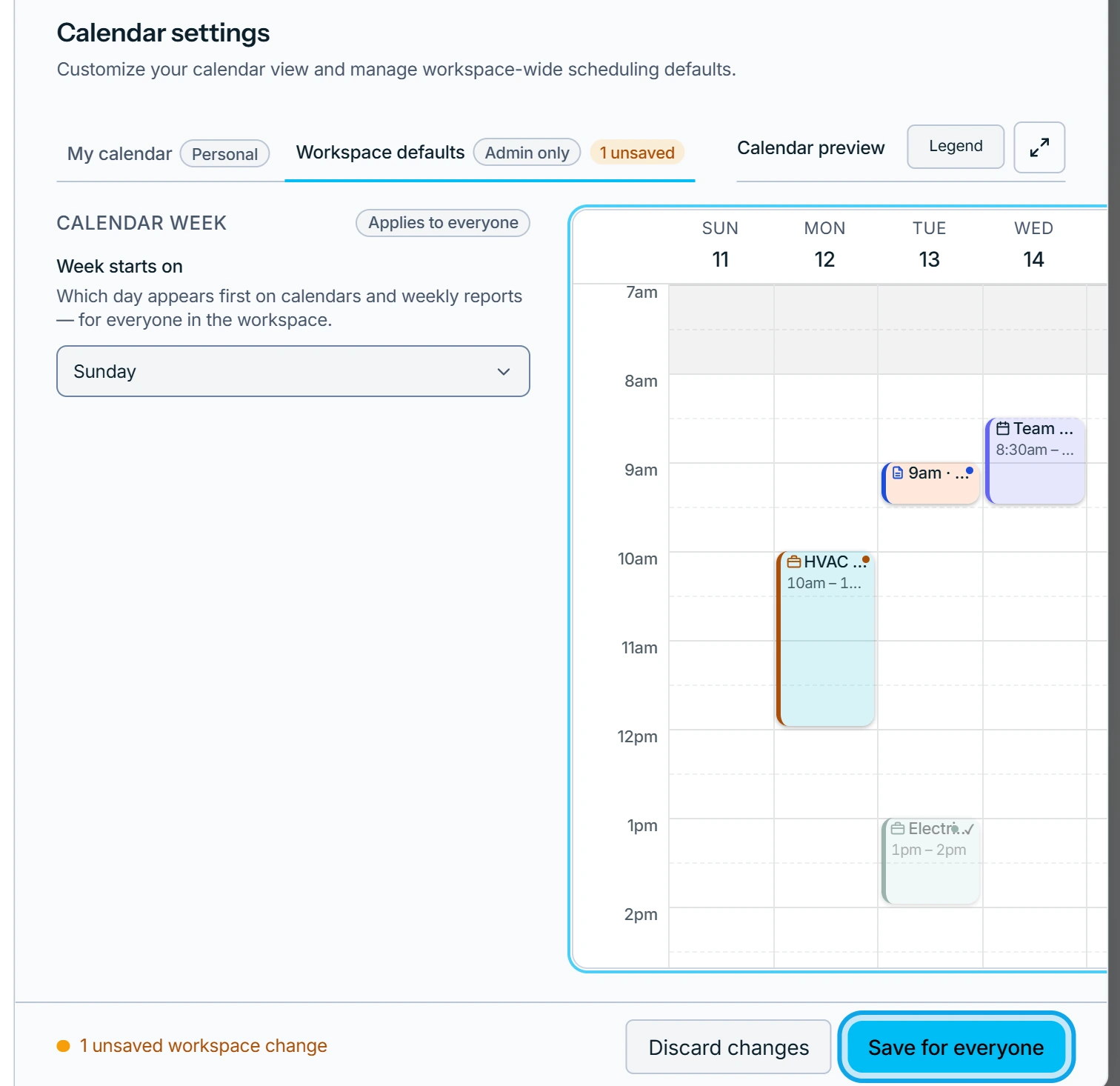
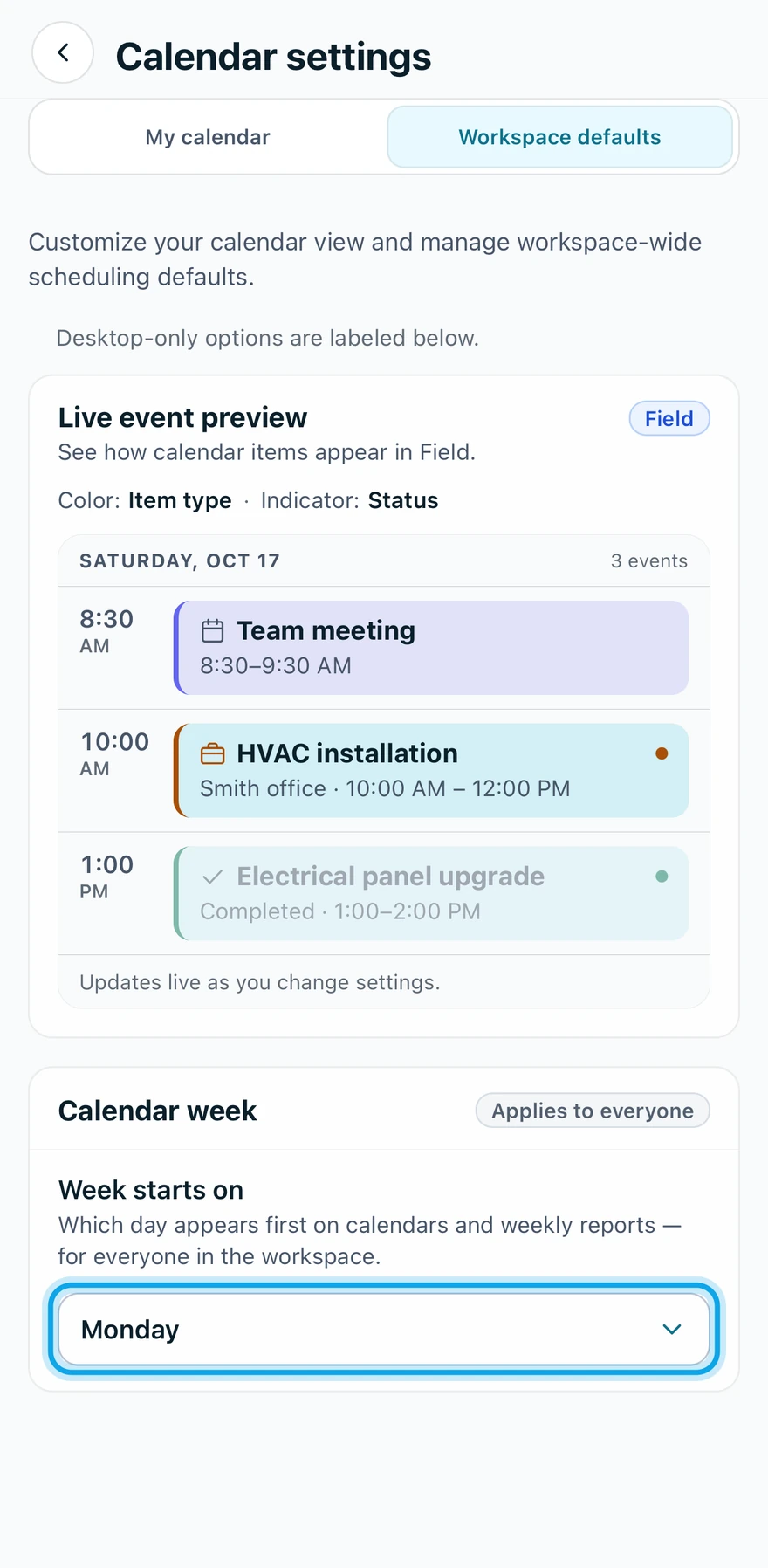
On the web, a workspace of one has no tabs. Week starts on sits at the end of your own view.
What you see
Calendar display preferences saved confirms your view. It changes only your own calendar. Teammates keep theirs.
Save for everyone changes the week start on every member's calendar. The app confirms it with Week start saved.
Who can do this
Every member sets their own view. Workspace defaults needs Manage business settings, held by owners and admins by default. Others ask an owner or admin under Settings → Team & roles → Roles.