Complete a task
Tick the circle beside a task (Mark complete) and it moves to Completed. You can bring it back at any time.
Complete a task
- Open My Tasks.
- Tick the circle beside the task, on the web or in the Zaras app.
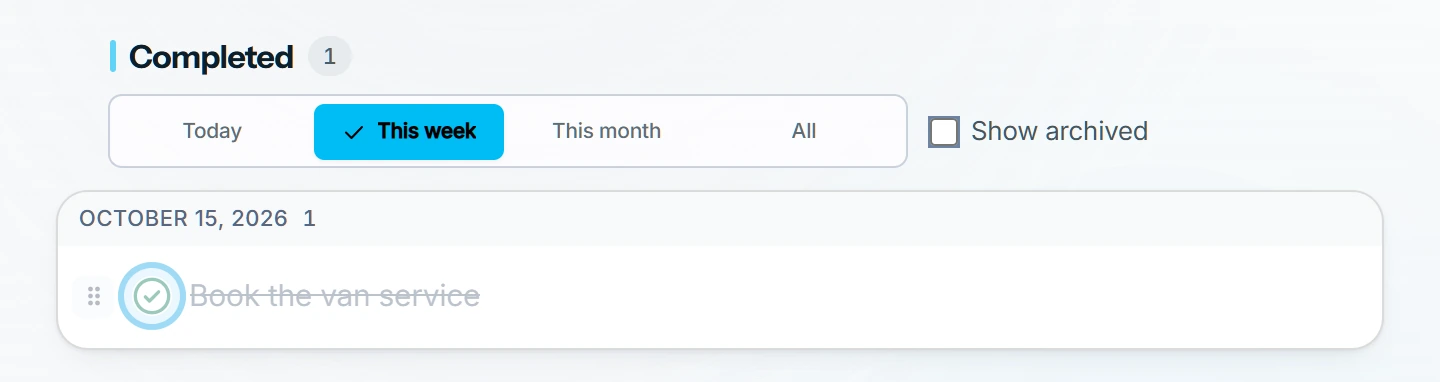
What you see
The task leaves its bucket and appears under Completed: a section of the full web page, or a screen in the app. Filter it by Today, This week, This month or All.
A recurring task is a series: a fresh copy lands in Today on each repeat day. Completing one copy leaves the series running.
Bring one back
Tick the circle again (Mark incomplete). Inside the task, choose Reopen task on the web, or Mark active in the app.
Delete a task
- Open the task.
- On the web, press the three-dot button in its header.
- Choose Delete task. In the app, tap it in the action bar.
- Confirm with Delete in Delete task (Delete task? in the app).
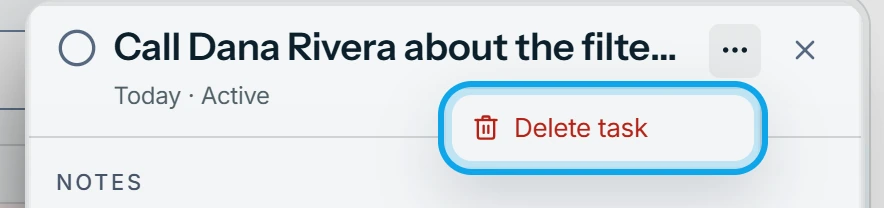
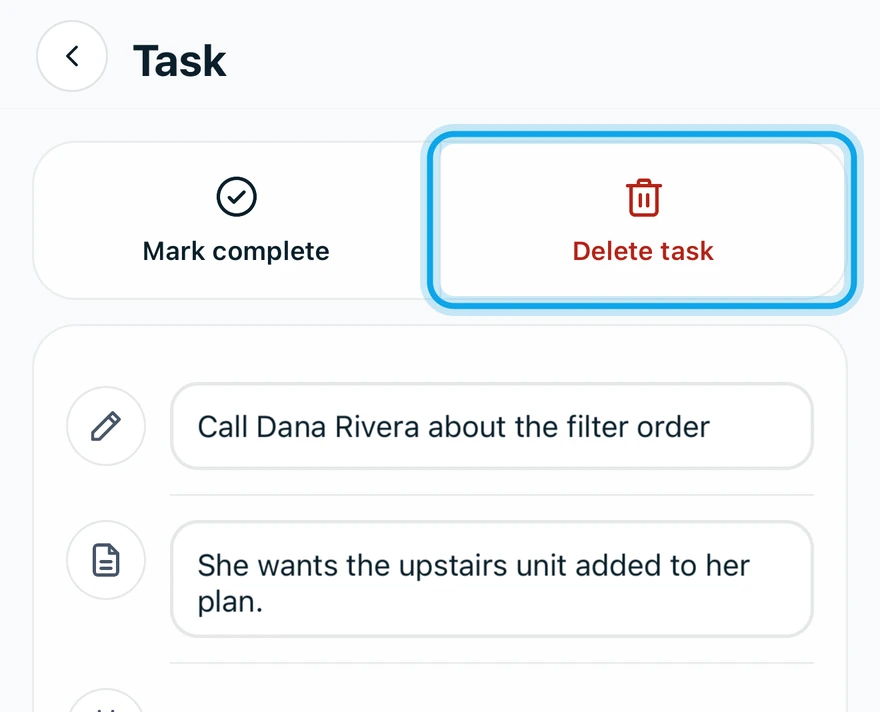
The task is gone for good: the prompt warns that this can't be undone.
Who can do this
Every role has My Tasks. No permission is needed.