What if a calendar feed link leaks?
Rotate the feed for a new link, or revoke it to end the feed for good. A feed carries customer names and addresses, so act as soon as a link leaks.
Rotate or revoke the feed
- Open Settings → Scheduling → Calendar feed on the web, or More → Settings → Scheduling → Calendar Feed in the Zaras app.
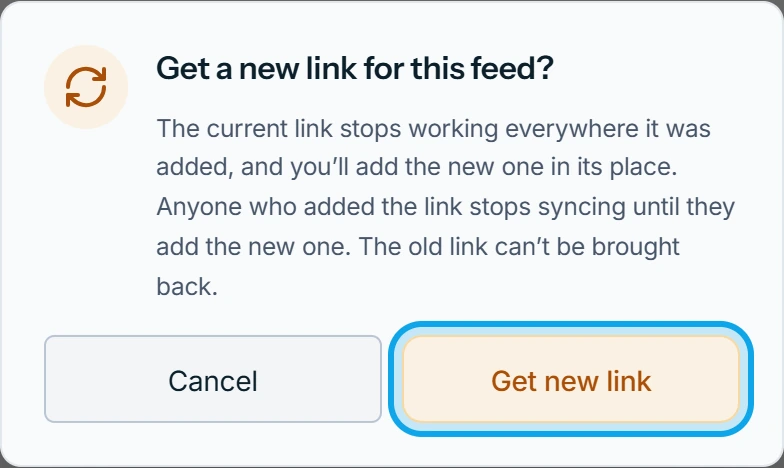
- Press Rotate on the feed, and confirm with Get new link.
- Paste the new link where the old one was.
To end the feed instead, press Revoke, then Revoke feed in its dialog.
What you see
After a rotate: New link ready — the old one no longer works. Rotate also when a link is lost.
After a revoke: Feed revoked, and it stops syncing for anyone who added it. This can't be undone. Revoked feeds stay listed as Revoked, behind the "Show revoked feeds" toggle. Hide revoked feeds tucks them away again.
Each row under Feeds shows Whole schedule or a technician's schedule, who added it, and Not synced yet until an app first pulls it.
Who can do this
Only members who can manage general settings can see or change feeds. Owners and admins hold Manage business settings by default. Others ask an owner or admin.