Change your invoice and estimate numbers
Set the prefix, length and next number on Numbering in Settings. Existing invoices and estimates keep their numbers.
Change the numbers
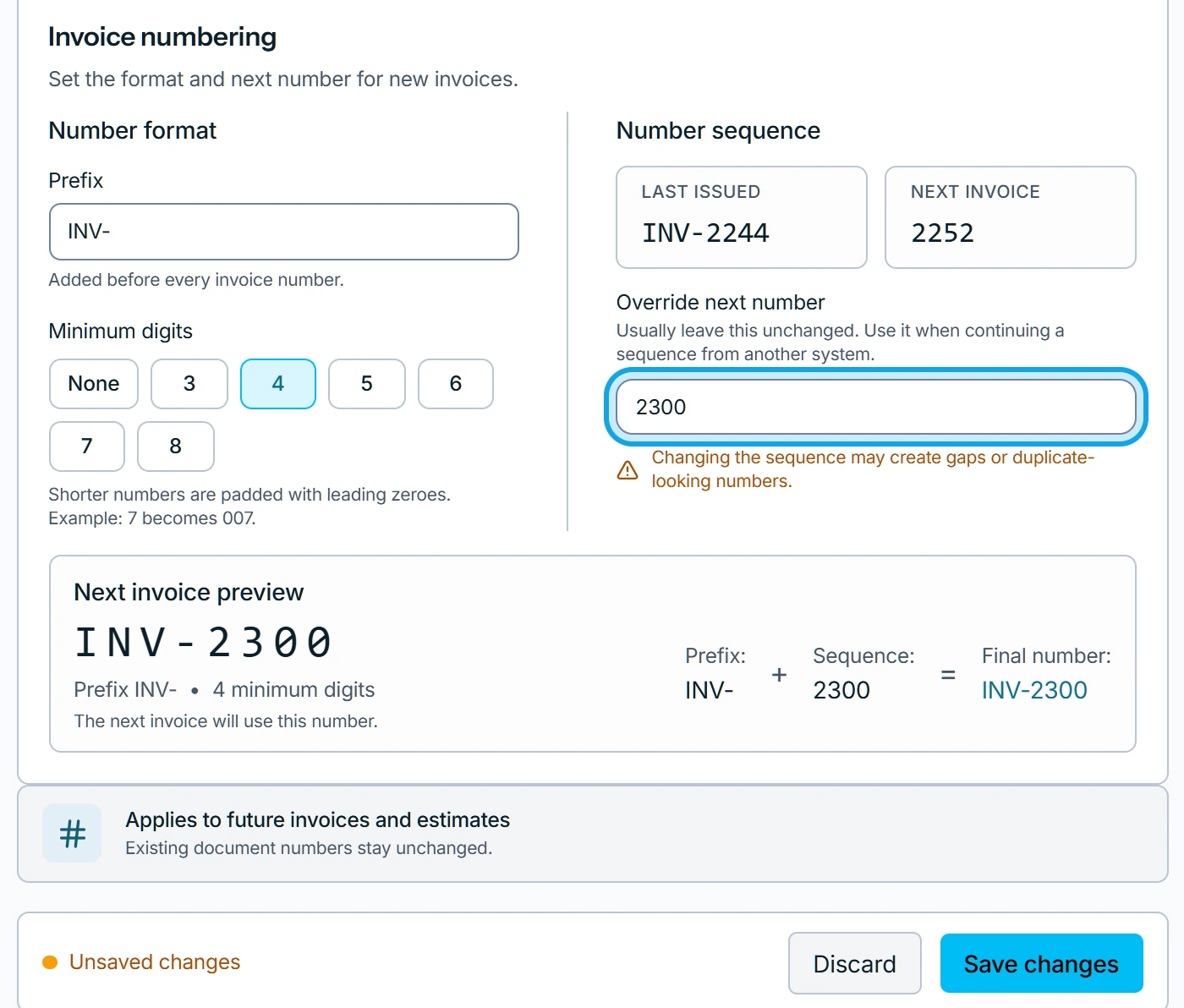
- Open Settings → Numbering.
- Pick Invoices or Estimates.
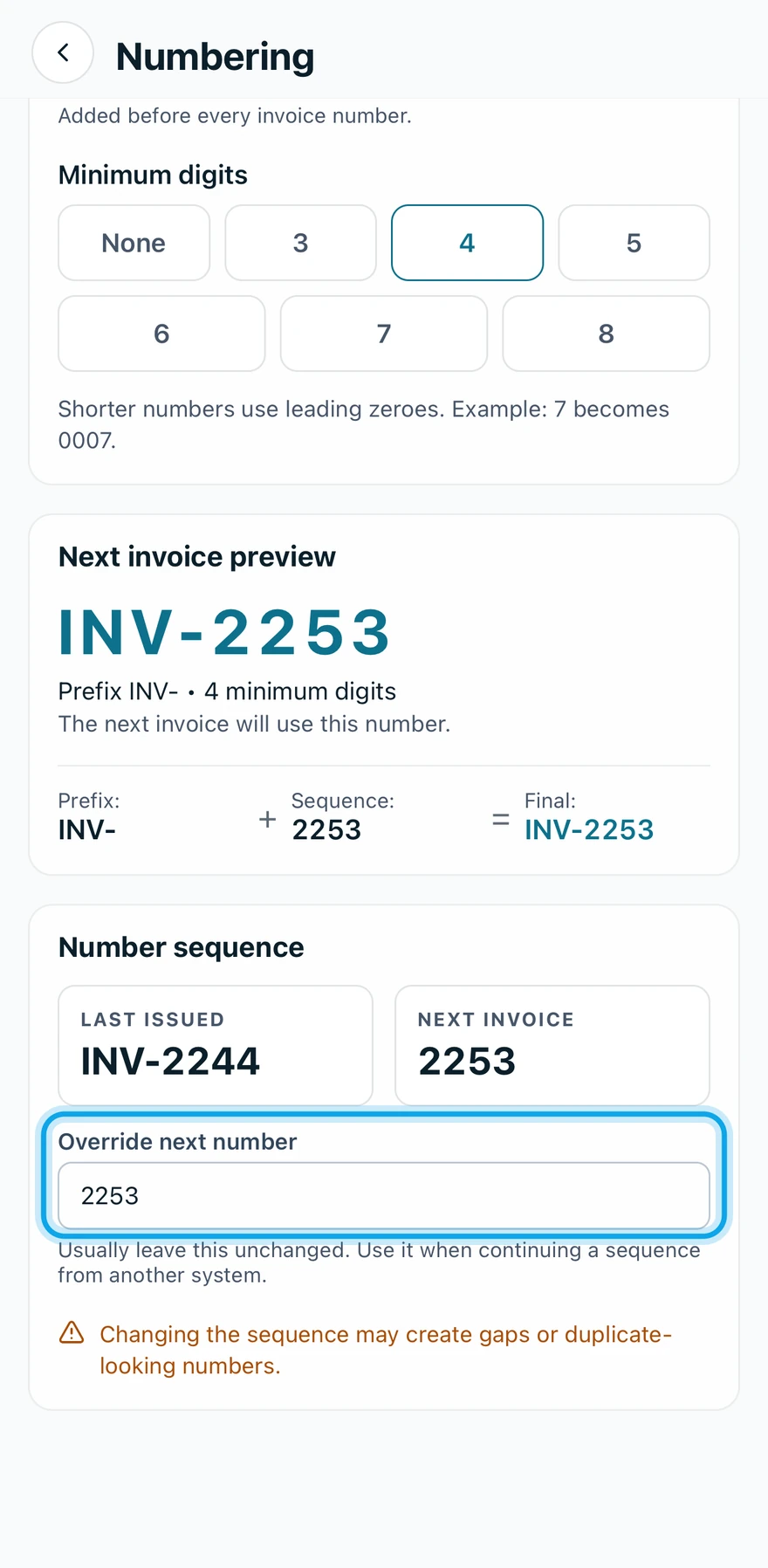
- Set the Prefix and the Minimum digits.
- To continue an old system's sequence, enter it in Override next number.
- Press Save changes.
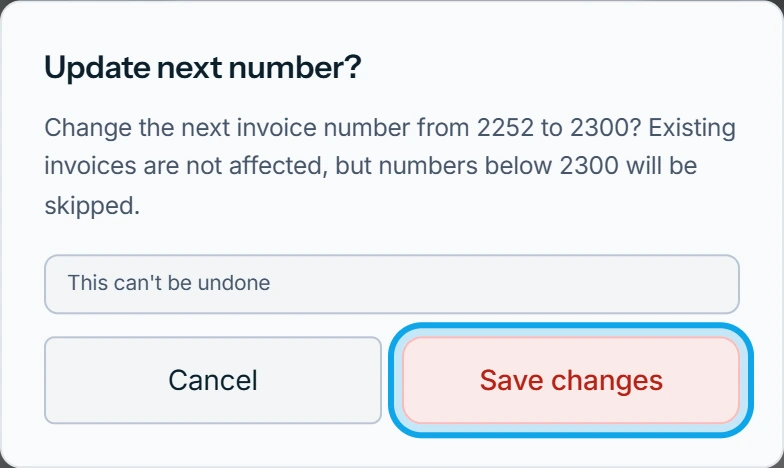
- Confirm in Update next number?: press Save changes on the web, or tap Update number in the app.
Invoices and estimates keep separate formats, so repeat the steps for the other type.
What you see
Numbering settings saved confirms it, or Starting number updated for a new next number. The preview shows the next number, and the page carries Applies to future invoices and estimates: Existing document numbers stay unchanged.
A new next number skips the numbers below it. It can't go back to a number already issued, so two documents never share one.
The next number is refused
The next number must be higher than the last one issued, shown under Last issued. Prefix must not contain digits. means the prefix holds a number. Use letters only.
Who can do this
It needs Manage financial settings, held by owners and admins by default. Others ask an owner or admin under Settings → Team & roles → Roles.