Add hours to a job by hand
Add hours on the job or estimate they belong to. Completing a visit with Clock out & complete already drafts an entry per assigned technician.
Add a time entry
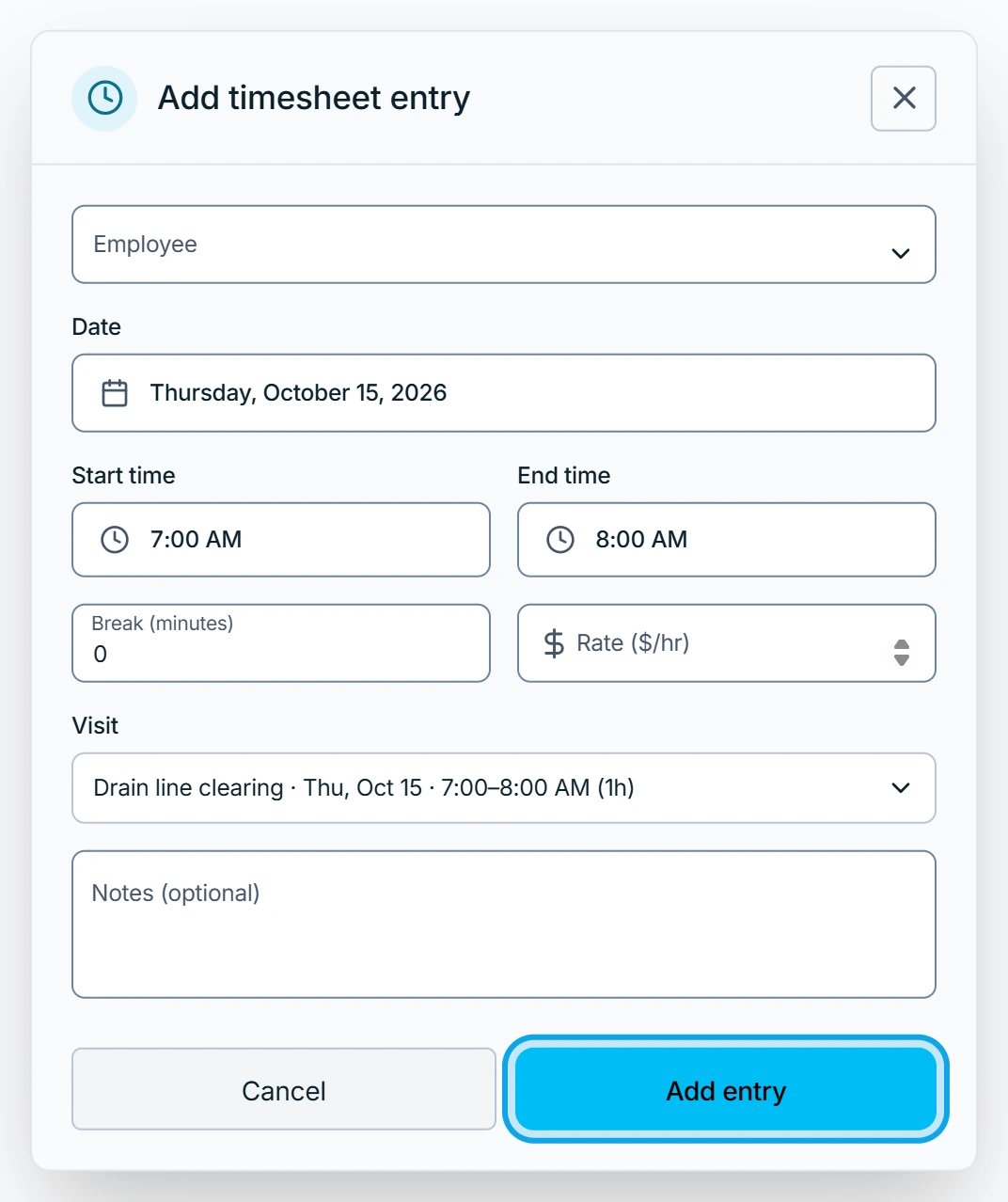
On the web:
- Open the job or estimate.
- Press Add entry on its Timesheets card.
- Fill in Date, Start time, End time and Break (minutes).
- Press Add entry in Add timesheet entry.
On an empty card, press Timesheet entry instead.
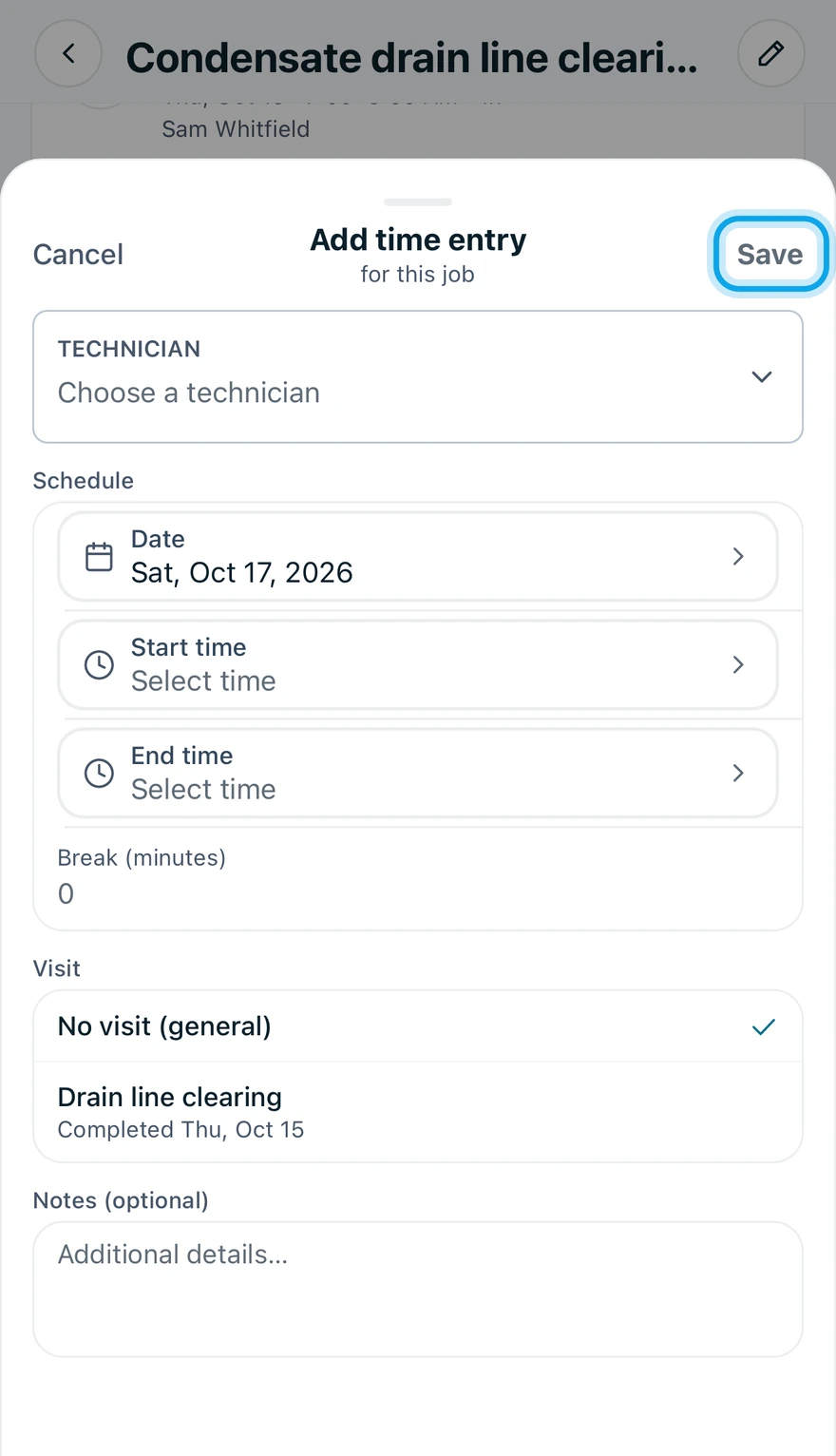
In the Zaras app:
- Open the job or estimate.
- Tap Add time entry.
- Set the Start time, End time and Break (minutes).
- Pick a Visit, or No visit (general).
- Tap Save in the sheet's header.
With no hours or expenses, Add time entry sits beside Add expense.
What you see
The app shows Time entry added, and the entry joins the Timesheets card. In a team it reads Pending until an owner, admin or office member approves it.
The entry won't save
The app names the problem under the field:
- End time must be after start time.
- Break time cannot exceed total work time.
- "Entry exceeds 24h. Check the times — split a multi-day entry or fix a missed clock-out."
Who can do this
Every member can log their own time. No permission is needed. Logging time for someone else, under Technician, needs Approve timesheets. Owners, admins and office hold it by default. Others ask an owner or admin under Settings → Team & roles → Roles.