Remove a contact you no longer need
Archive a contact to hide it and keep its history, or delete it for good. You can only delete a contact with no jobs, estimates or invoices.
Archive a contact
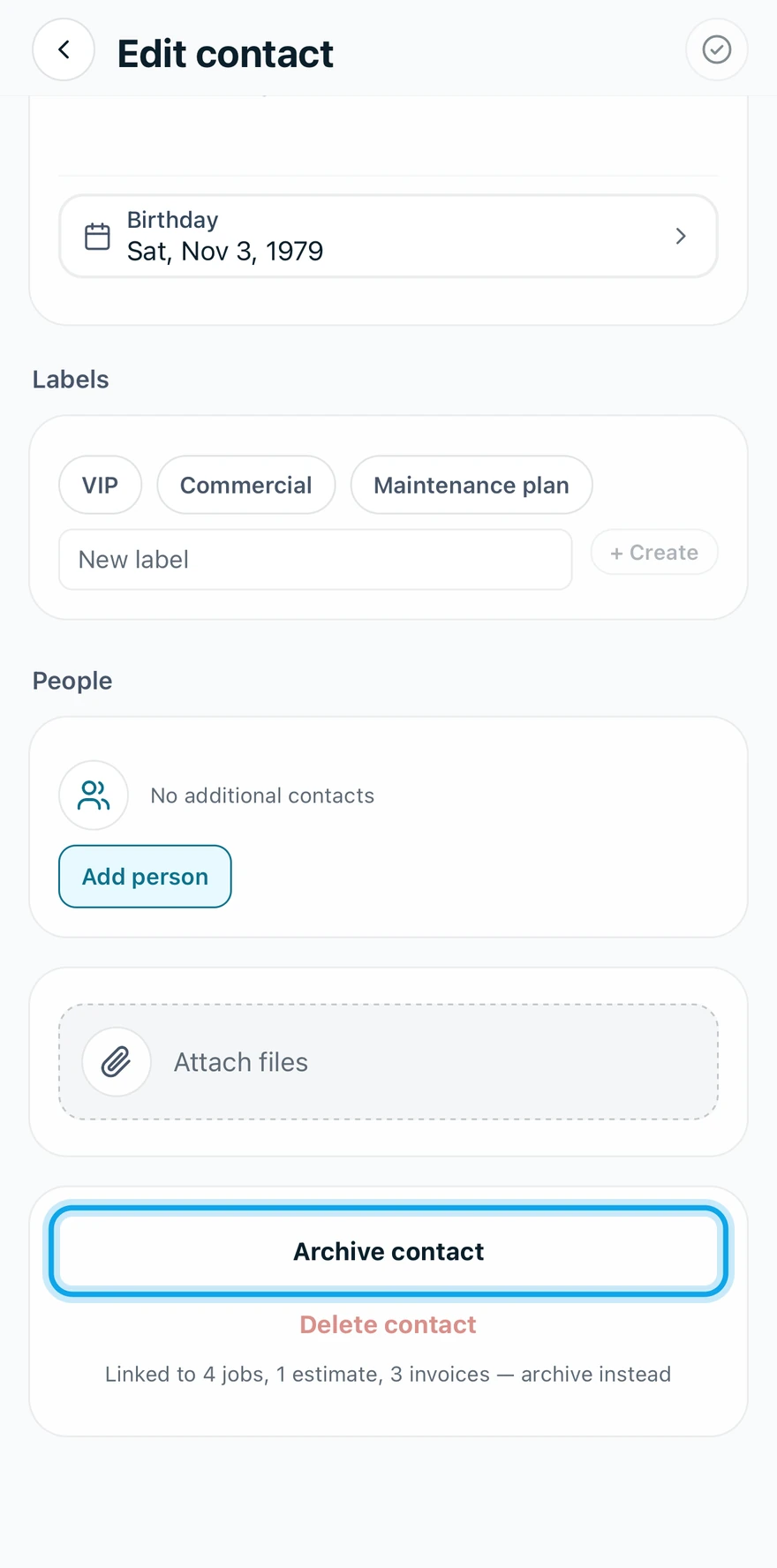
- Open the contact and press Edit, or tap the pencil in the app.
- Choose Archive contact.
- Confirm in Archive contact?, or Archive this contact? in the app.

Delete a contact
- Open the contact's edit screen the same way.
- Choose Delete contact.
- Confirm in Delete contact?, or Delete this contact? in the app.
What you see
Contact archived or Contact deleted confirms it. An archived contact keeps every linked record. A delete has no undo: The contact record and all associated addresses, people, and custom fields will be permanently removed.
Bring an archived contact back
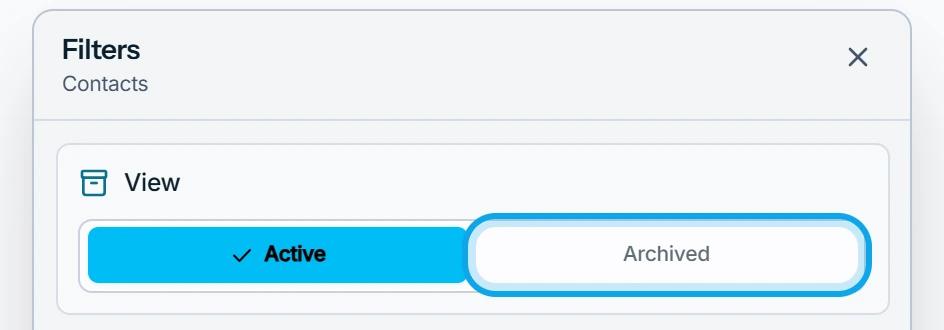
- Open Filters on the contact list and pick Archived under View on the web. In the app, pick Archived contacts in the filter sheet.
- Open the contact and its edit screen.
- Choose Unarchive contact.
Contact unarchived confirms it, and it returns to your lists.
Delete is greyed out
The contact still has linked work. A line under the button names it, such as "Linked to 2 jobs — archive instead". Archive the contact instead.
Who can do this
Both need Manage contacts, which every role holds by default. Others ask an owner or admin under Settings → Team & roles → Roles.