Edit an email template
Open Email templates in settings, pick a template, and edit its Subject and Body. Emails already sent keep their old wording.
Edit a template
- Open Settings → Communications → Email templates on the web, or More → Settings → Email templates in the app.
- Pick a template. Default or Customized says whether it was changed.
- Edit the Subject and Body.
- To add a placeholder, place the cursor and pick it under Insert into template.
- Check the preview, beside the editor on the web or under Preview in the app.
- Press Save on the web, or tap the check mark in the app.
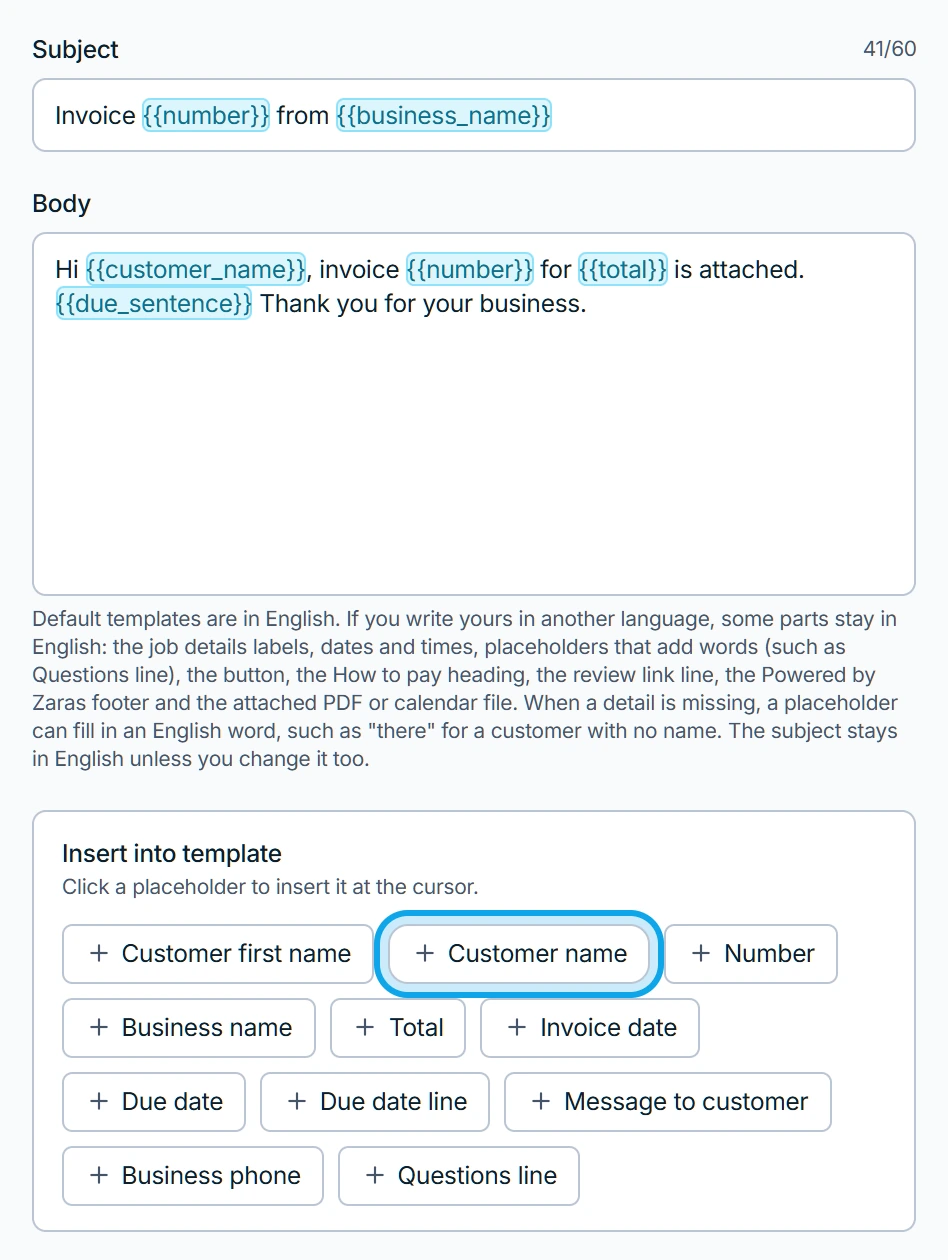
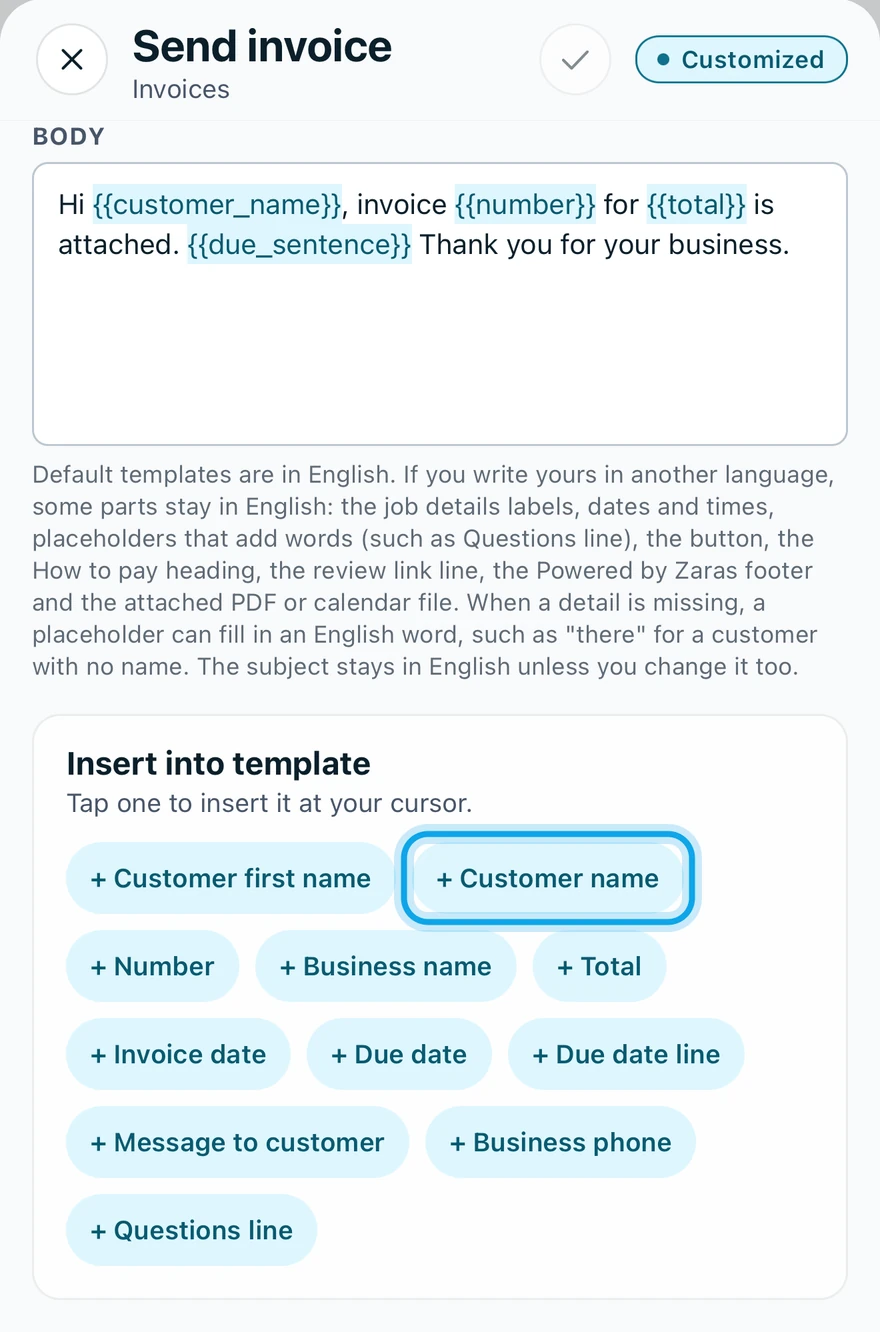
What you see
The template reads Customized. Placeholders are filled in when each email goes out. Reset to default brings back the original wording.
- Customer name, Number and Business name are on most templates.
- Invoice date, Due date and Amount due are on invoice emails.
- Valid until is on estimates.
- Amount paid, Remaining balance, Balance line and Payment method are on the receipt.
A placeholder shows a warning
A placeholder the template does not offer goes out exactly as typed. The editor says so, for example "Unknown placeholder — it will be sent to the customer as written: {{nmae}}".
Who can do this
Editing needs Manage templates, held by owners, admins and office. Others see templates view-only on the web, and not at all in the app.